
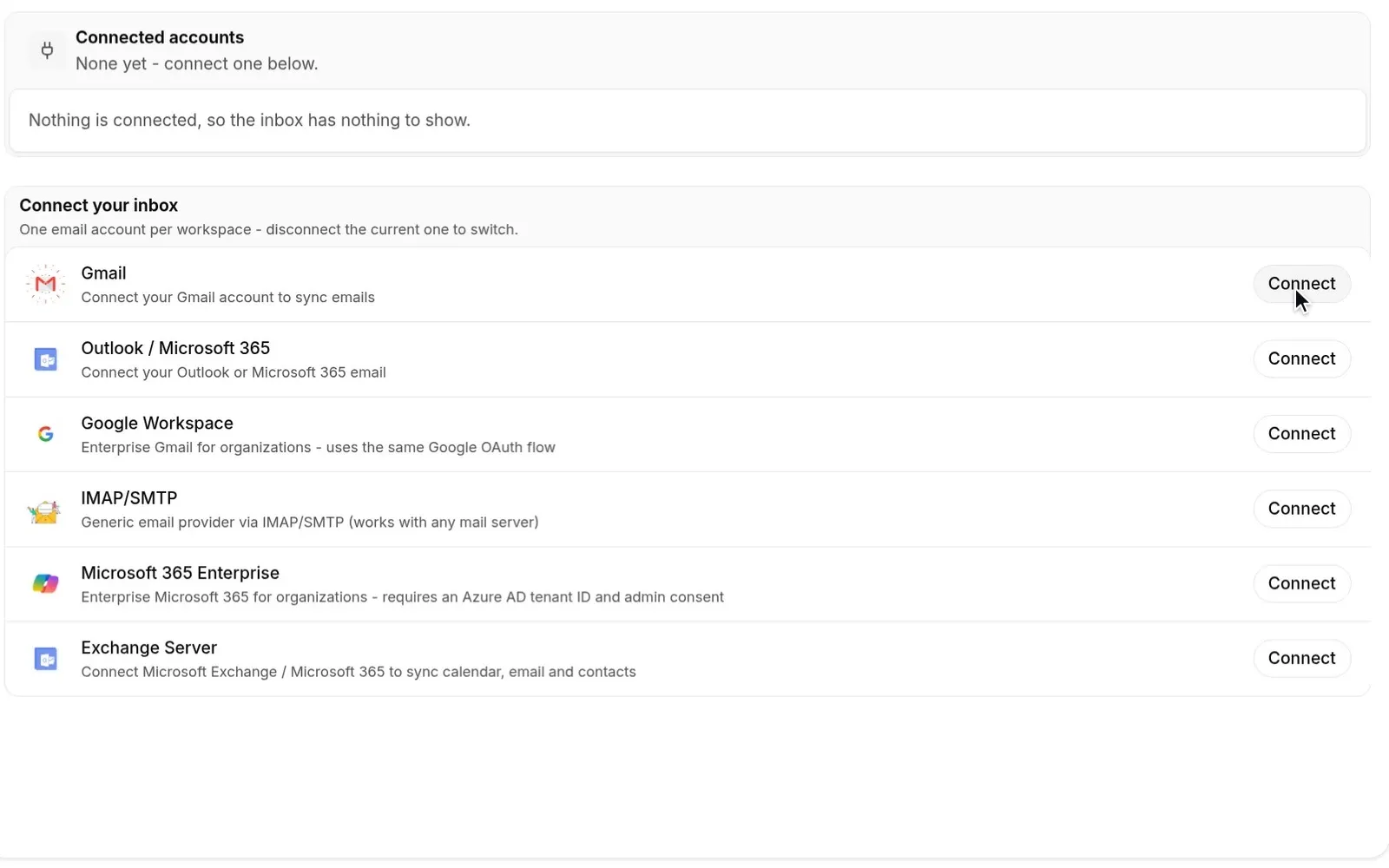
To connect your email, open My Emails, go to the Connections tab and press Connect next to your provider. Once it is connected you can read and send your mail in Adoptiv, and email with your leads shows on their records.
Before you start
- Anyone in the workspace can connect their own mailbox. You can have one personal mailbox connected at a time; disconnect it to switch.
- Only owners, admins and people with the Manage Settings permission can connect a shared (Global) mailbox for the whole workspace.
- Connecting a mailbox never changes how you sign in to Adoptiv.
Connect Gmail or Outlook
- In the sidebar, open My Emails and choose the Connections tab.
- Under Connect your inbox, press Connect next to Gmail, Google Workspace or Outlook / Microsoft 365.
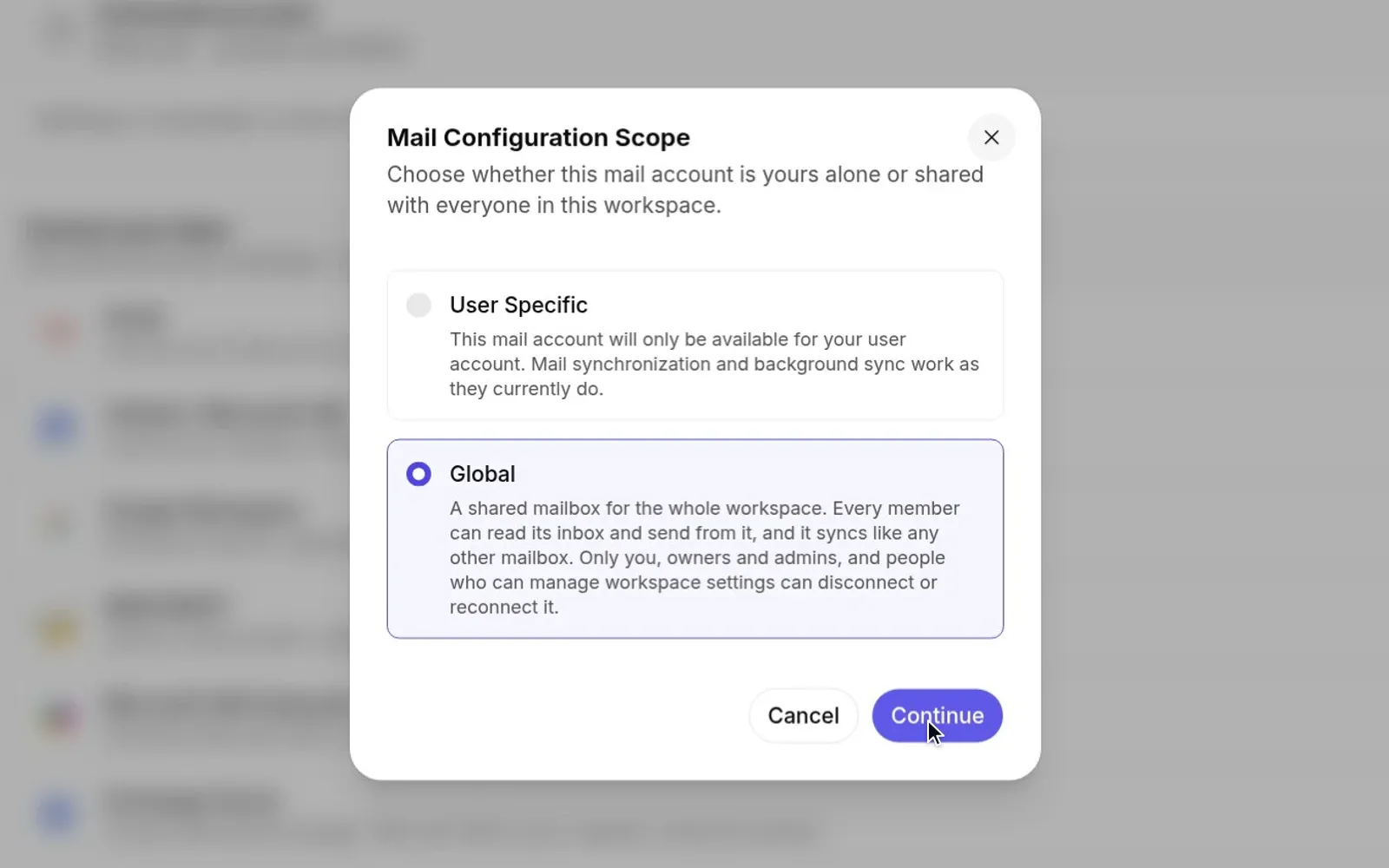
- If you are allowed to share mailboxes, choose User Specific (just you) or Global (shared with the workspace), then press Continue.
- Sign in to your email provider in the tab that opens and allow access.
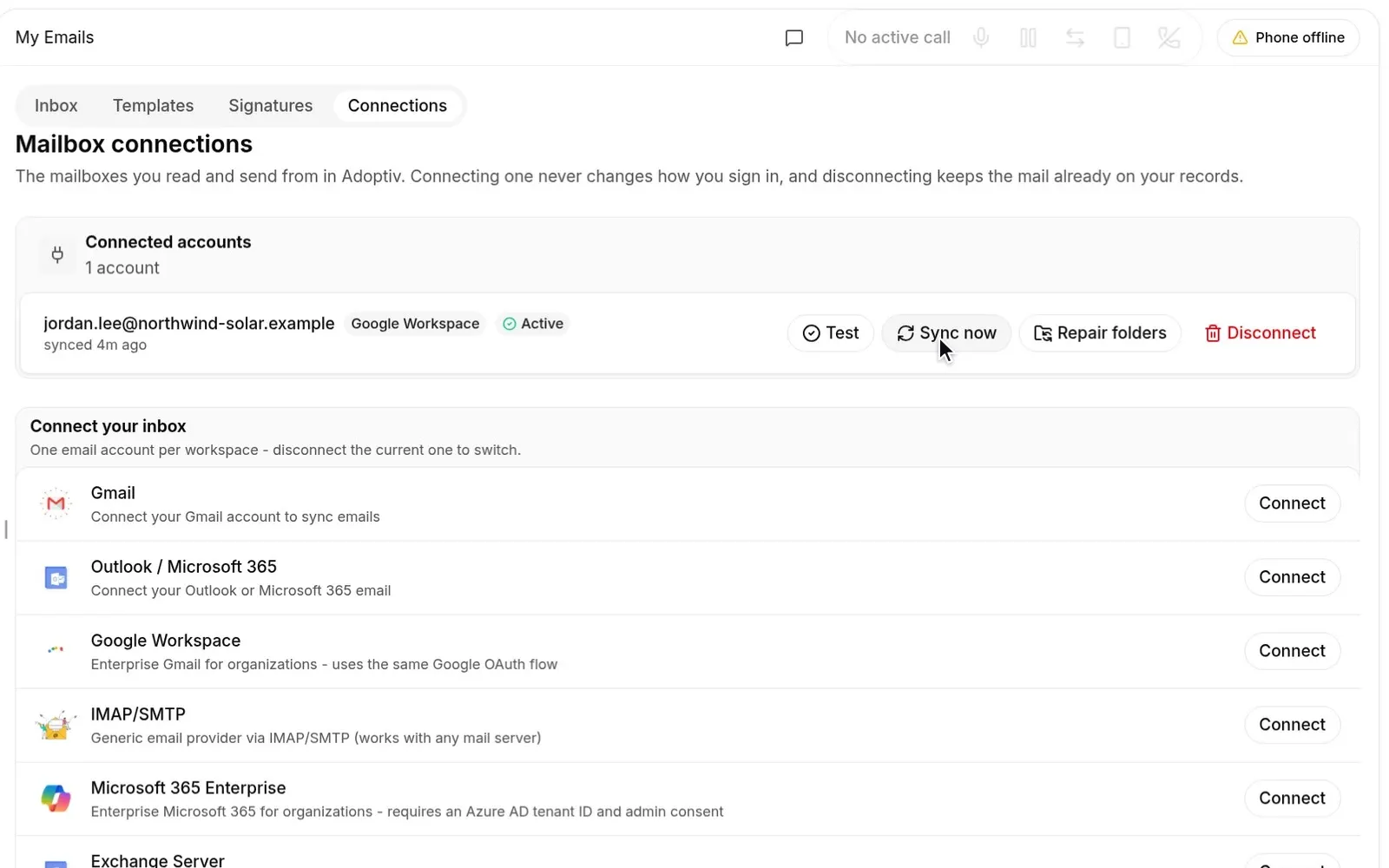
- Come back to Adoptiv. You'll see Mailbox connected, and the mailbox appears under Connected accounts as Active.
For Microsoft 365 Enterprise, Adoptiv also asks for your Azure AD Tenant ID or Domain, and your Microsoft admin may need to approve access.
Connect any other mailbox (IMAP/SMTP)
- Press Connect next to IMAP/SMTP.
- Fill in Account Name, Email Address / Username and Password / App Password.
- Enter your provider's IMAP Host and IMAP Port (993 by default), and SMTP Host and SMTP Port (587 by default).
- Press Connect.
Keep it working
Each mailbox under Connected accounts shows when it last synced and a status: Active, Sync late, Sync failing or Disconnected. Adoptiv checks for new mail every 5 minutes, and Gmail can also deliver it as it arrives. If mail seems stuck:
- Sync now fetches new mail straight away.
- Test checks that the connection still works.
- Repair folders fixes a mailbox whose folders look wrong.
If a sync keeps failing, disconnect the mailbox and connect it again.
Share a mailbox with the team
A Global mailbox shows a Shared badge. By default everyone in the workspace can read it and send from it. To limit it, press Who can use it, pick Teams, Roles or People, and press Save. Leave all three empty to share it with everyone again.
Add a signature
- In My Emails, open the Signatures tab.
- Press Add next to the mailbox.
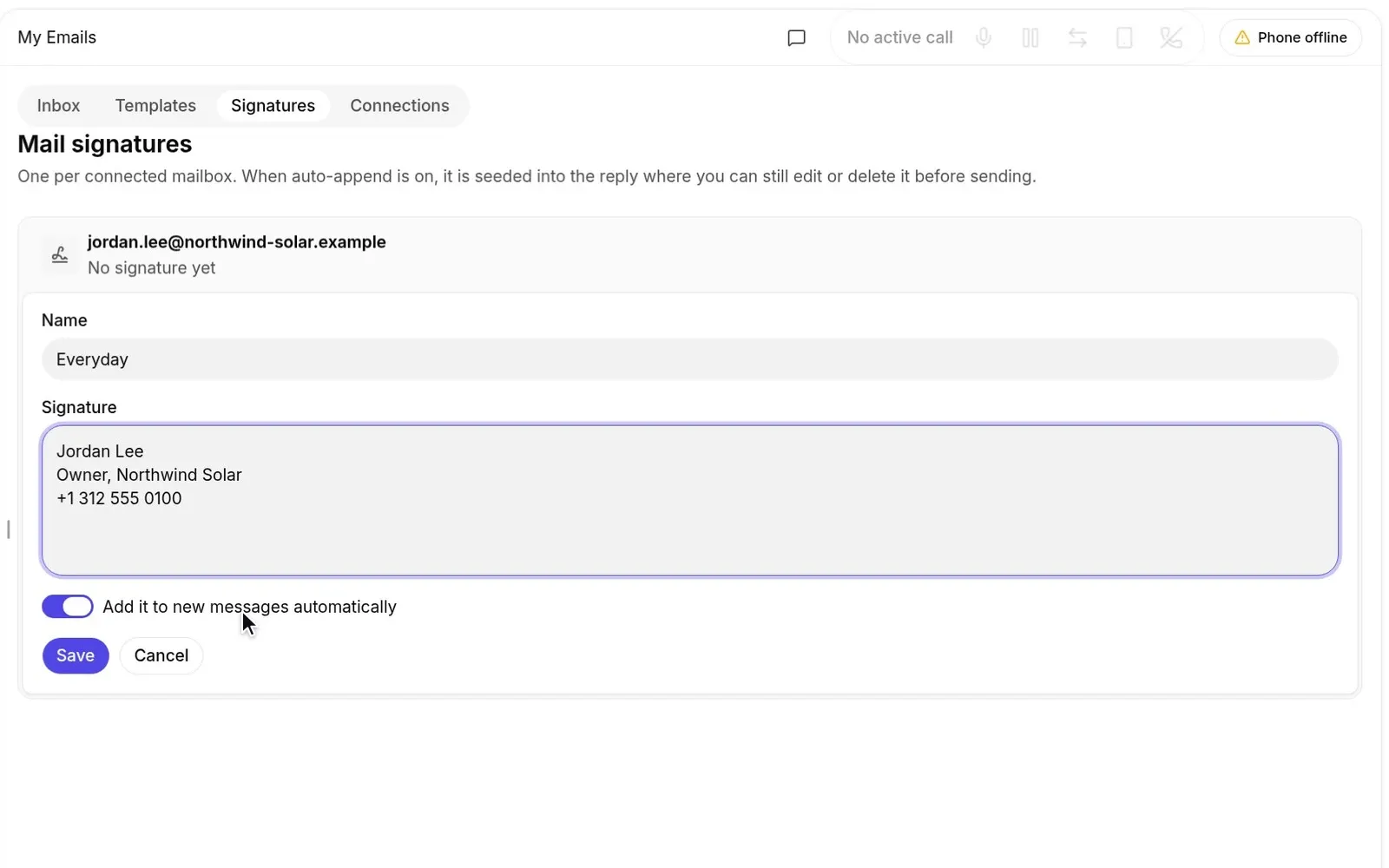
- Enter a Name and the Signature.
- Turn on Add it to new messages automatically if you want it added for you. You can still edit or remove it in each email.
- Press Save.
Disconnect a mailbox
Press Disconnect next to the mailbox and confirm. New mail stops arriving and you can no longer send from that address. Emails already linked to a lead or deal stay on those records; everything else from that mailbox is removed, along with its folders and drafts.