
When someone texts STOP to any of your numbers, Adoptiv opts their number out of texts from your whole workspace and refuses every later text to it. Only they can opt back in, by texting START. Nobody in your workspace can undo an opt-out.
The words that count
The reply has to be the word on its own. Capitals, spaces and punctuation don't matter, so Stop, STOP. and S.T.O.P. all count. A longer message, such as "please stop texting me", doesn't.
| Reply | What happens |
|---|---|
| STOP, STOPALL, UNSUBSCRIBE, CANCEL, END or QUIT | The number is opted out of texts. |
| START, UNSTOP or YES | The number is opted back in. |
Adoptiv sends no automatic reply, to STOP, START, HELP or anything else. A HELP message arrives in the conversation like any other text, for your team to answer. Confirm with your own counsel what your texting needs to send in reply.
What an opt-out covers
- Every one of your numbers. A STOP sent to one of your lines stops texts to that person's number from every line in your workspace.
- Every kind of text. Texts you type, and texts sent by a sequence or a call flow.
- Only the number that replied. If the lead has another mobile number, it can still be texted. To stop all texts to a lead, mark the lead Do not text (below).
- Texts only. It doesn't stop calls or email. See Manage your Do Not Call lists.
See who has opted out
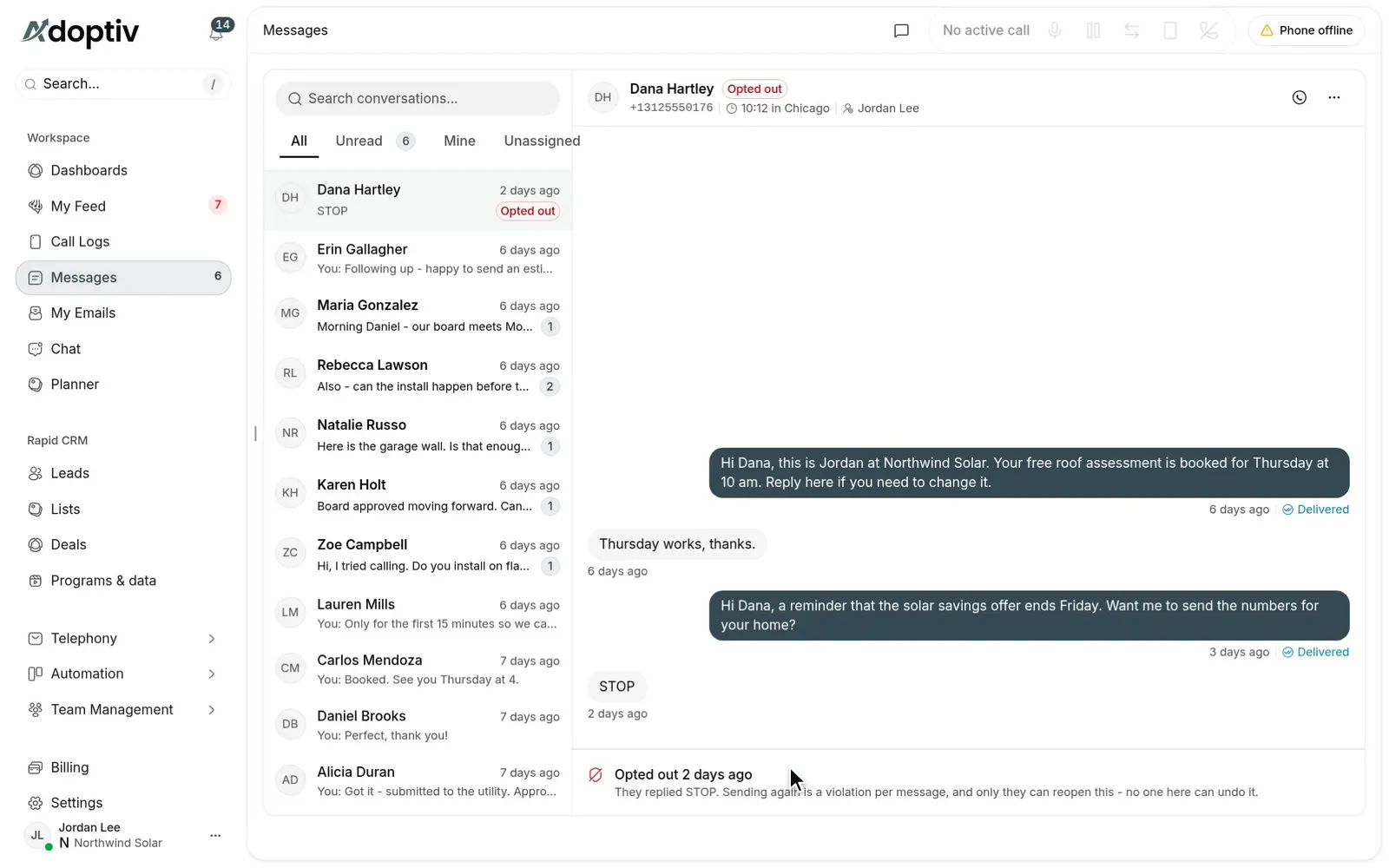
- In Messages, the conversation shows Opted out in the list and at the top. Where the reply box was, it says when they opted out.
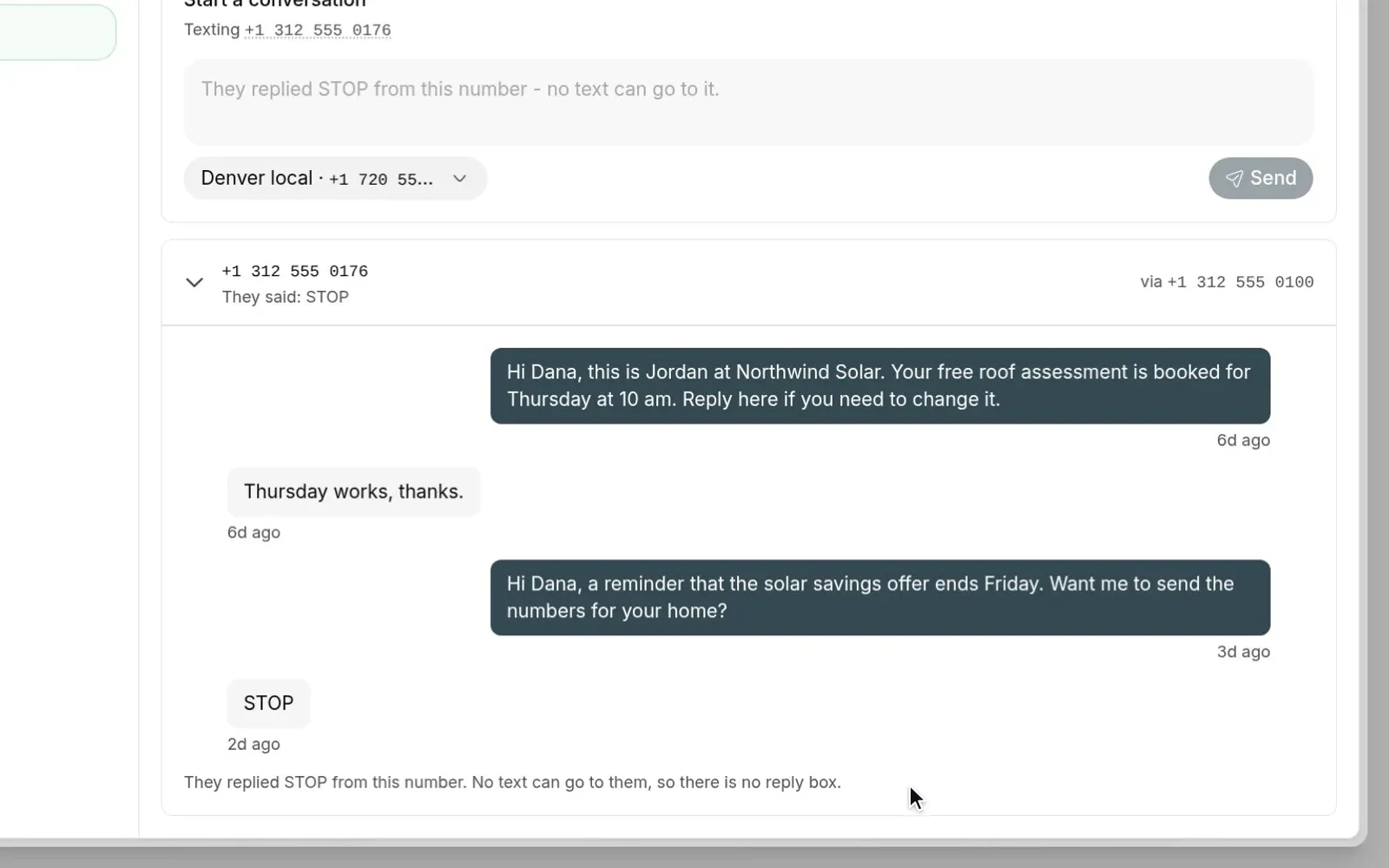
- On the lead's Texts, the conversation says They replied STOP from this number and has no reply box. You can't start a new conversation with that number either.
- A text that goes to them anyway - from a sequence step, for example - isn't sent, and shows as failed.
The Can I contact this person? check on Automation → Suppressions doesn't include STOP replies. Look at the conversation in Messages instead.
Stop texts to a lead yourself
If a lead asks on a call or by email not to be texted, mark the lead:
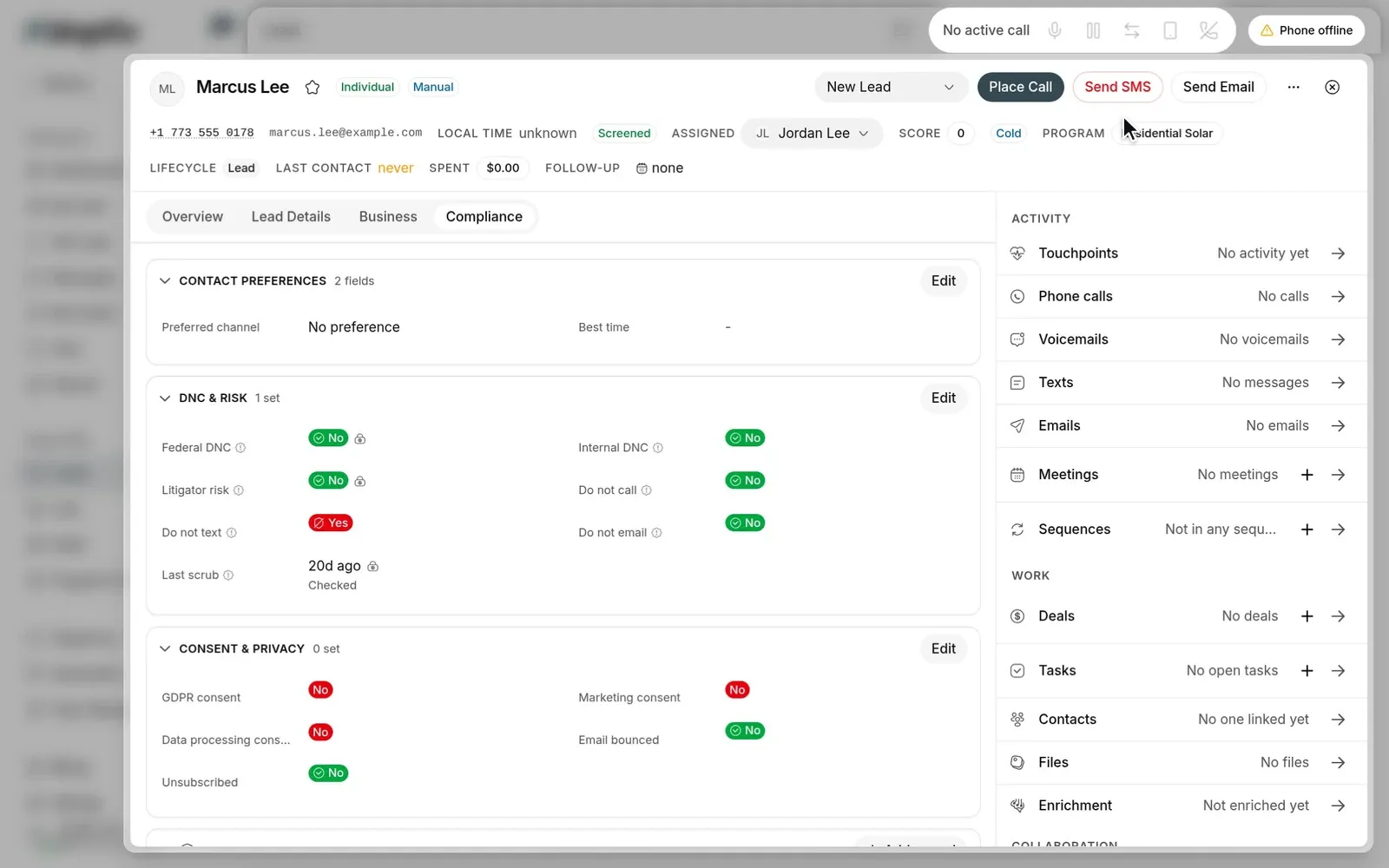
- Open the lead and go to the Compliance tab.
- On DNC & risk, press Edit.
- Set Do not text to Yes and press Save.
Texts to the lead are then refused, and its Send SMS button turns red. A lead marked Internal DNC can't be texted either. To change these flags you need to be able to edit the lead and its Compliance fields; an admin sets that per role.
Opting back in
Only the person can undo a STOP, by texting START, UNSTOP or YES to any of your numbers. Their number can be texted again from then on. Nothing you change on the lead's record lifts a STOP, and setting Do not text back to No only undoes that flag.
For sending texts, see Send and receive texts.