
A number can send texts when its carrier supports texting and its Texting switch is on. Check both by opening the number in Telephony → Numbers. Adoptiv handles 10DLC registration for texting, so you don't register with the carriers yourself.
Before you start
- Your business must be approved. Texts wait for approval, like calls. See Get your workspace approved for calling.
- Only an owner or admin can switch texting on or off for a number.
- Texts are paid from your wallet. For prices, see Pricing.
Check that a number can text
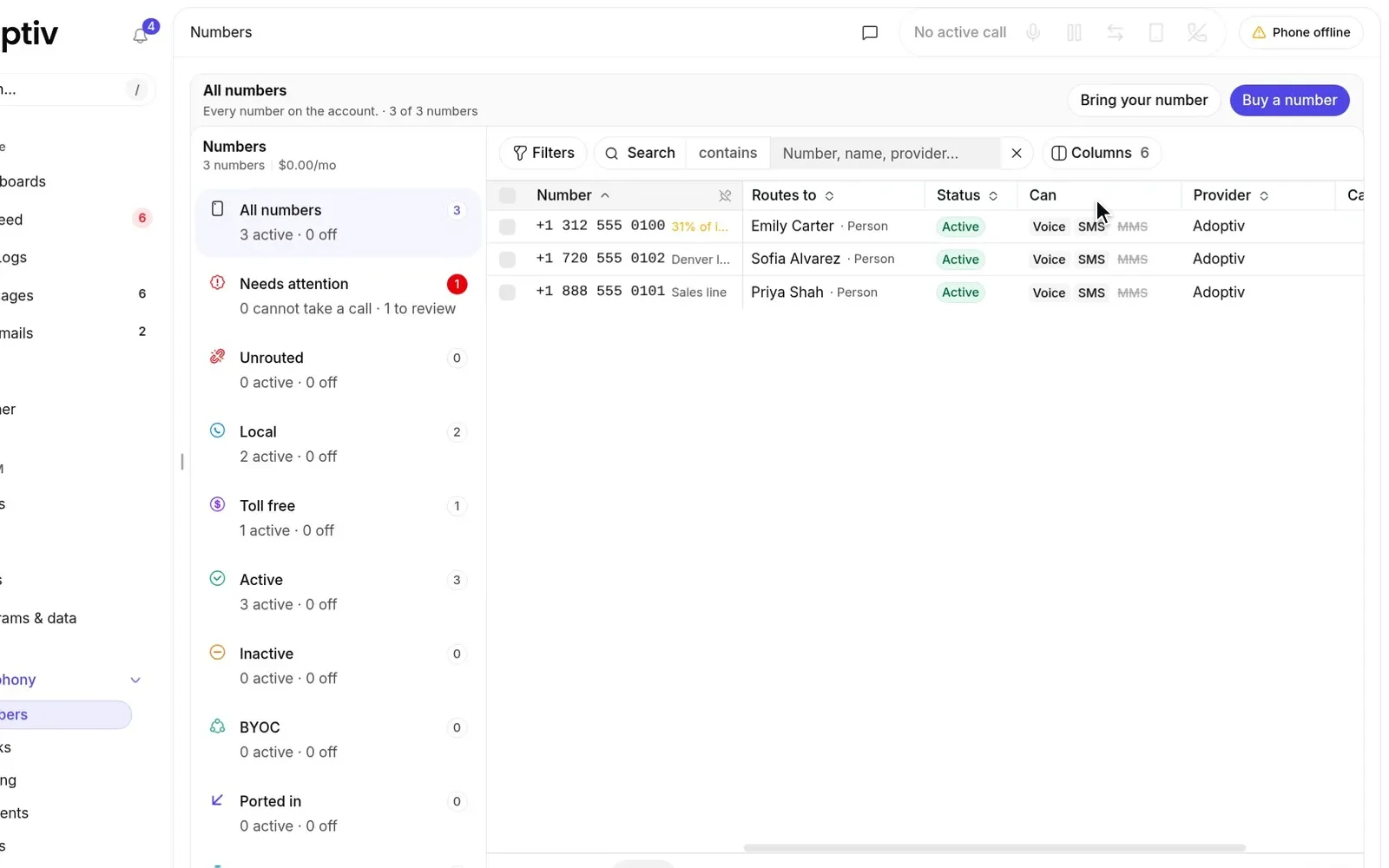
- Open Telephony → Numbers.
- Look at the Can column. SMS means the carrier can carry texts on that number. A crossed-out SMS means it can't.
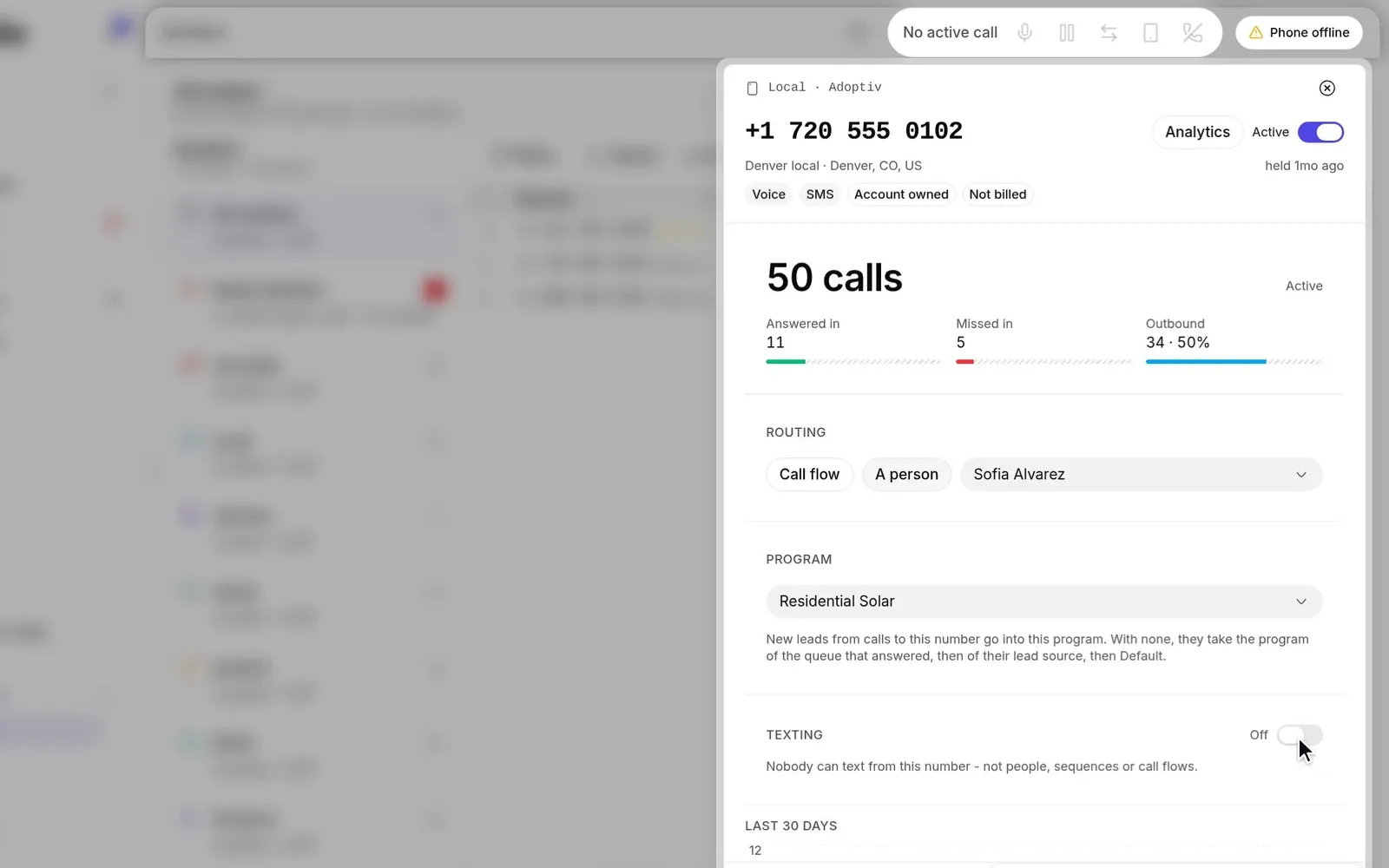
- Click the number. An SMS badge at the top of its panel confirms it.
Switch texting on or off
- Open the number.
- Under Texting, turn the switch on or off.
The Texting section only appears on numbers whose carrier supports texts. When it's off, nobody can text from that number - not people, sequences or call flows.
10DLC registration
Adoptiv handles 10DLC registration for your texting. Carrier registration fees are passed on at cost. They show in Billing, on the Wallet tab, as Carrier registration (10DLC), at cost.
Opt-outs are automatic
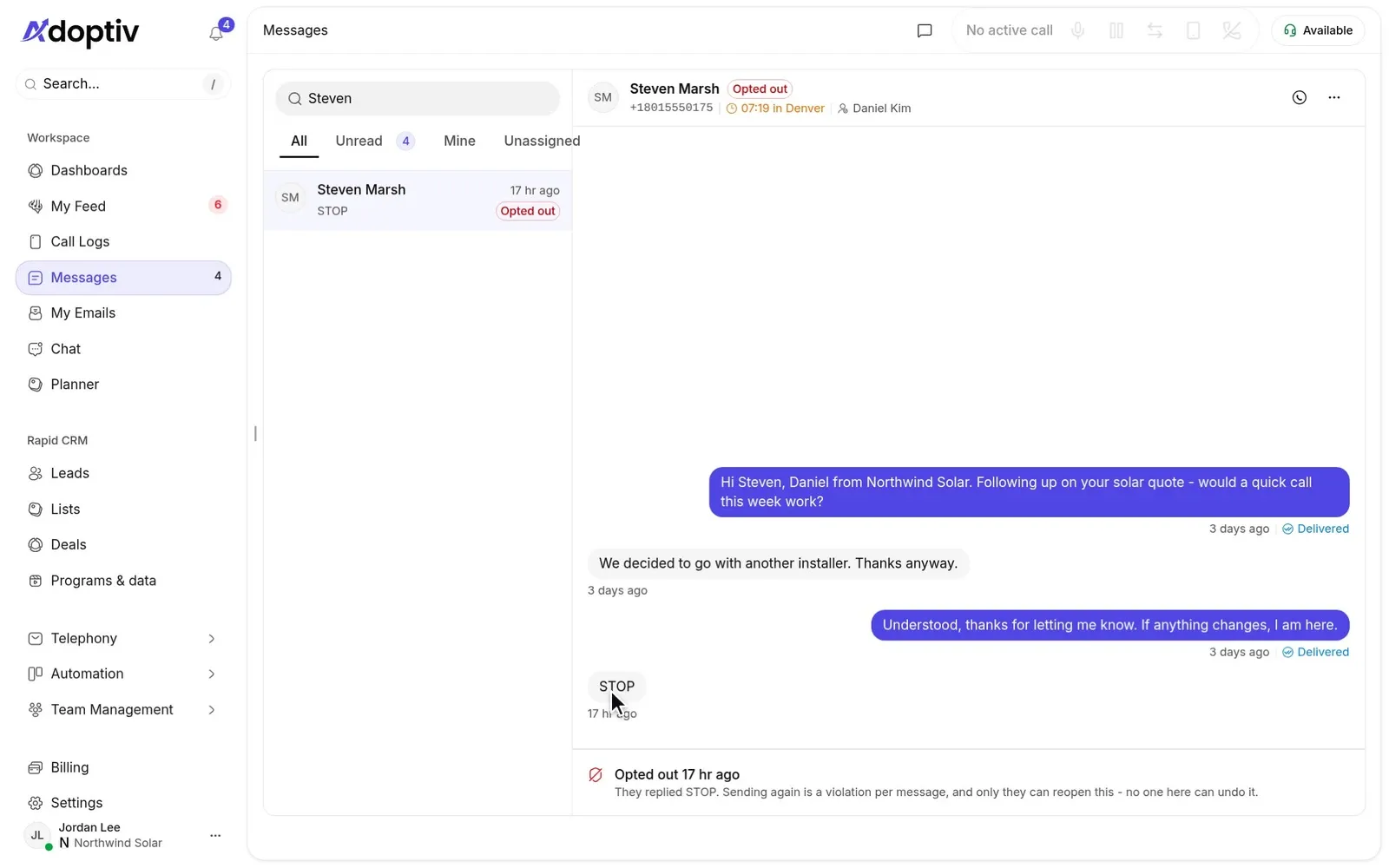
If someone replies STOP they're opted out automatically. STOPALL, UNSUBSCRIBE, CANCEL, END and QUIT work the same way when they're the whole message.
- Their conversation in Messages shows Opted out, and you can't send to them.
- No one in your workspace can undo it. Only they can, by replying START, UNSTOP or YES.
Other things that stop a text
- A lead marked do not text, or on your internal do-not-call list, can't be texted.
- If a conversation says Replies are off on this line, the number can't send texts right now. Check it in Telephony → Numbers.
- A toll-free number you move to Adoptiv may need extra verification before it can text. The port check marks these numbers.
Ready to send? See Send and receive texts.