
To set when you're open, open Telephony → Hours, press Add a schedule, tick your open days and times, and choose where calls go when you're closed. Then use the schedule in a call flow's Business Hours step.
Before you start
- Your role needs the Telephony & AI permission.
- Times follow your organization's time zone, set under Settings → Business Settings → Regional & display. A schedule doesn't have its own time zone.
Create a schedule
- Open Telephony → Hours. Schedules is the first section.
- Press Add a schedule.
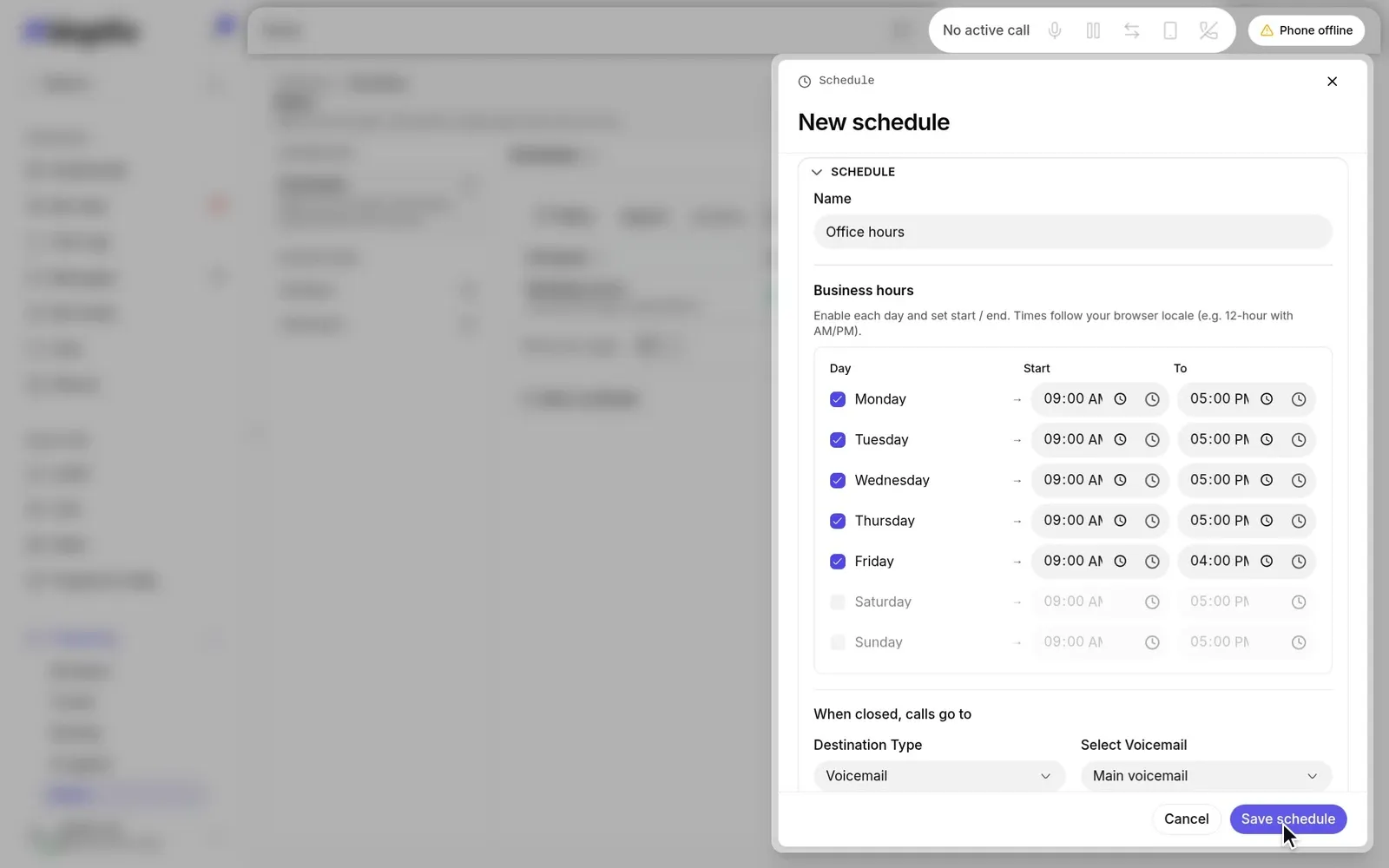
- Type a Name, such as Office hours.
- Under Business hours, tick each day you're open and set its Start and To times. Days you leave unticked are closed. Each day has one opening and one closing time.
- Under When closed, calls go to, press Choose where calls go and pick a destination, such as Voicemail, a Team, a Call Queue or an External Number.
- Press Save schedule.
Use the schedule in a call flow
- Open your flow in Automation → Call flows.
- Add a Business Hours step and pick your schedule.
- Connect Open to where calls should go during the day, such as a Queue or Route to Team step.
- Leave Closed unconnected to send closed-hours calls to the schedule's When closed destination, or connect it to handle them in the flow - for example a Playback Audio message, then Send to Voicemail.
- Publish the flow.
Open a schedule to see Applies to: the flows that use it. See Build a call flow.
Add holidays
Holidays live in calendars. A calendar is a named set of days you close, such as US federal holidays, and says where calls go on those days.
Create a holiday calendar
- On Telephony → Hours, open Calendars and press Add a calendar.
- Type a Name.
- Under On these days, calls go to, choose a destination.
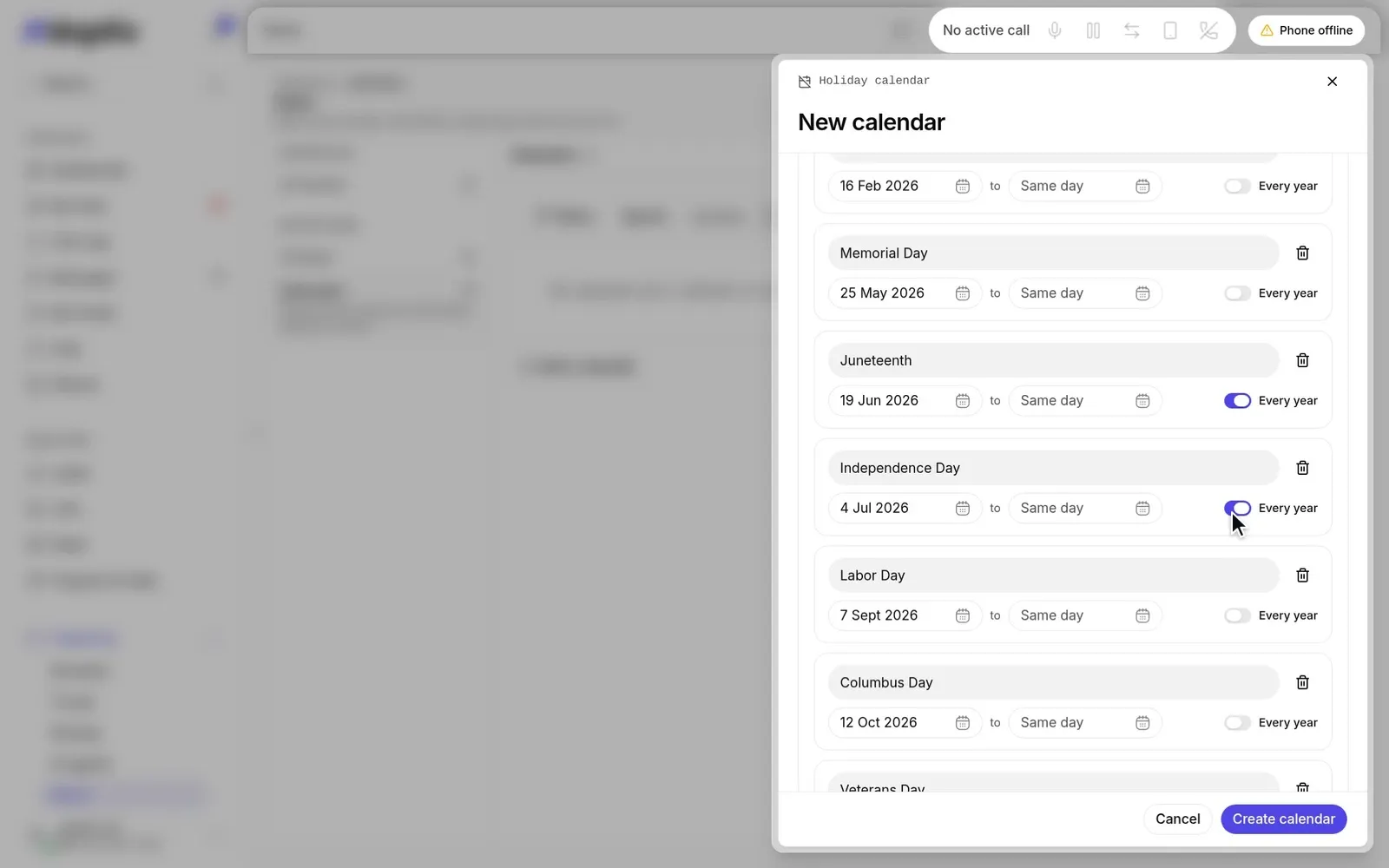
- Open the Dates tab. Press Add a date for each day you close, or Add US federal holidays to add them for this year and the next four.
- Turn on Every year for a date that repeats on the same month and day.
- Press Create calendar.
Add a single holiday
- Open Holidays and press Add a holiday.
- Enter a Name and the Day. For several days in a row, set a Last day (optional).
- Turn on Every year on this date if it repeats.
- Pick the Calendar it belongs to, or New calendar.
- Press Add holiday.
Holidays are whole days. Calls on a holiday go where its calendar says.
Use holidays in a call flow
Add a Holidays step to your flow, usually before Business Hours, and pick your calendars. Leave Holiday unconnected to use the calendar's destination, or connect it to decide in the flow. Normal carries on for regular days.