
To share a dashboard, open it, press ⋯ and choose Share With Teams & Roles. To send it out regularly, choose Schedule… from the same menu.
Before you start
- Only a board's owner or a workspace admin can change who it's shared with. Everyone else who can open the board sees Who Has Access instead, which lists the teams and roles it reaches.
- A scheduled report runs as you. Everyone it reaches sees the figures you see on the board.
Share with teams and roles
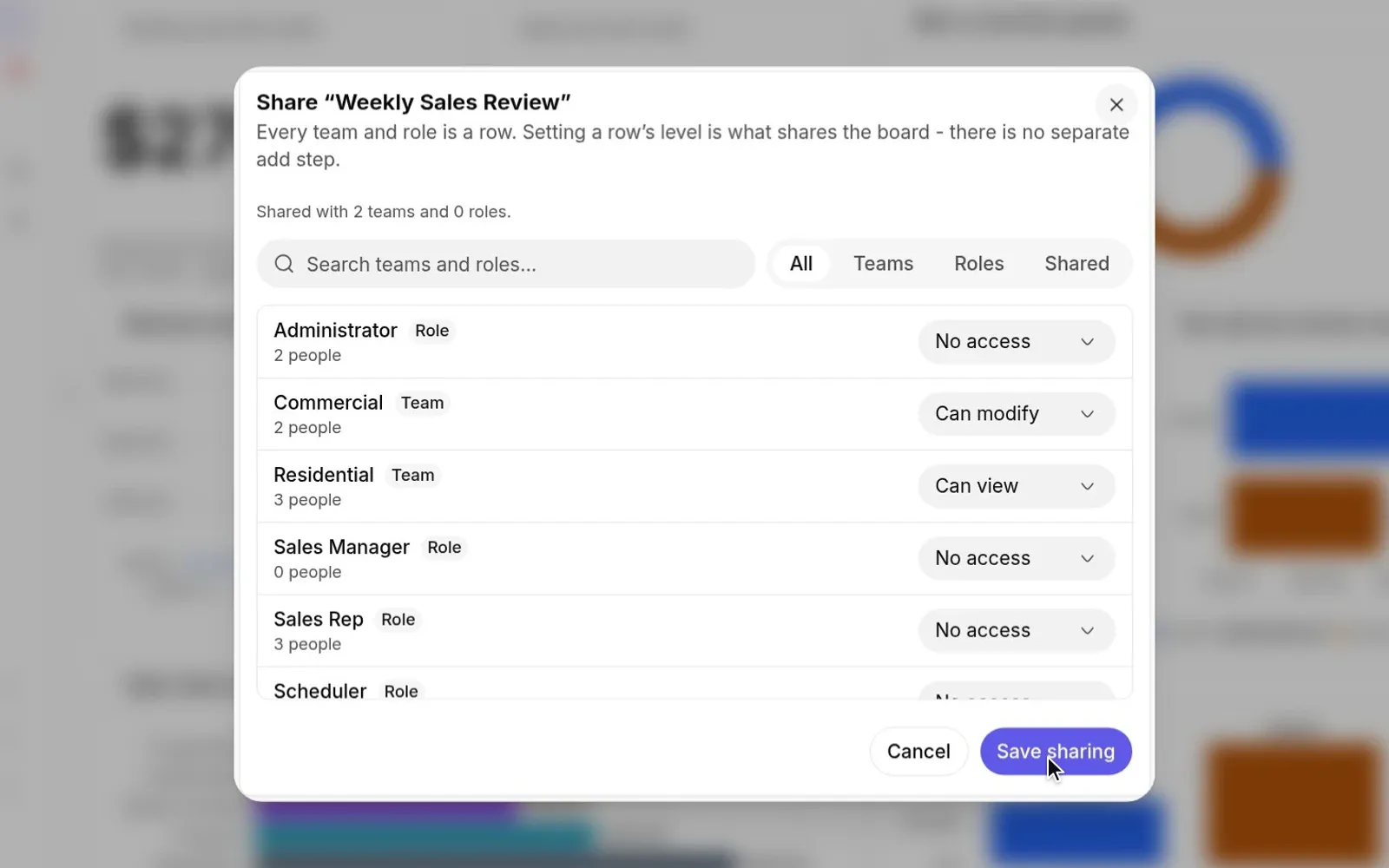
- Open the board, press ⋯ and choose Share With Teams & Roles.
- Every team and role is a row. Set a row to Can view (read-only) or Can modify (edit, but not delete or re-share). Leave it at No access to keep them out.
- Press Save sharing.
A board that isn't shared opens only for its owner and workspace admins. People who can only view a board see View only beside its controls. To hand a board to someone else, choose Transfer Ownership in the same menu.
Download a board or a widget
- Whole board: ⋯ → Export Board → PDF or Picture (PNG).
- One widget: open the widget's own ⋯ menu → Export… → Data as CSV, Data as Excel or Picture (PNG). A live widget has no data to download, only its picture.
Send a board on a schedule
- Open the board, press ⋯ and choose Schedule….
- Give the report a Name.
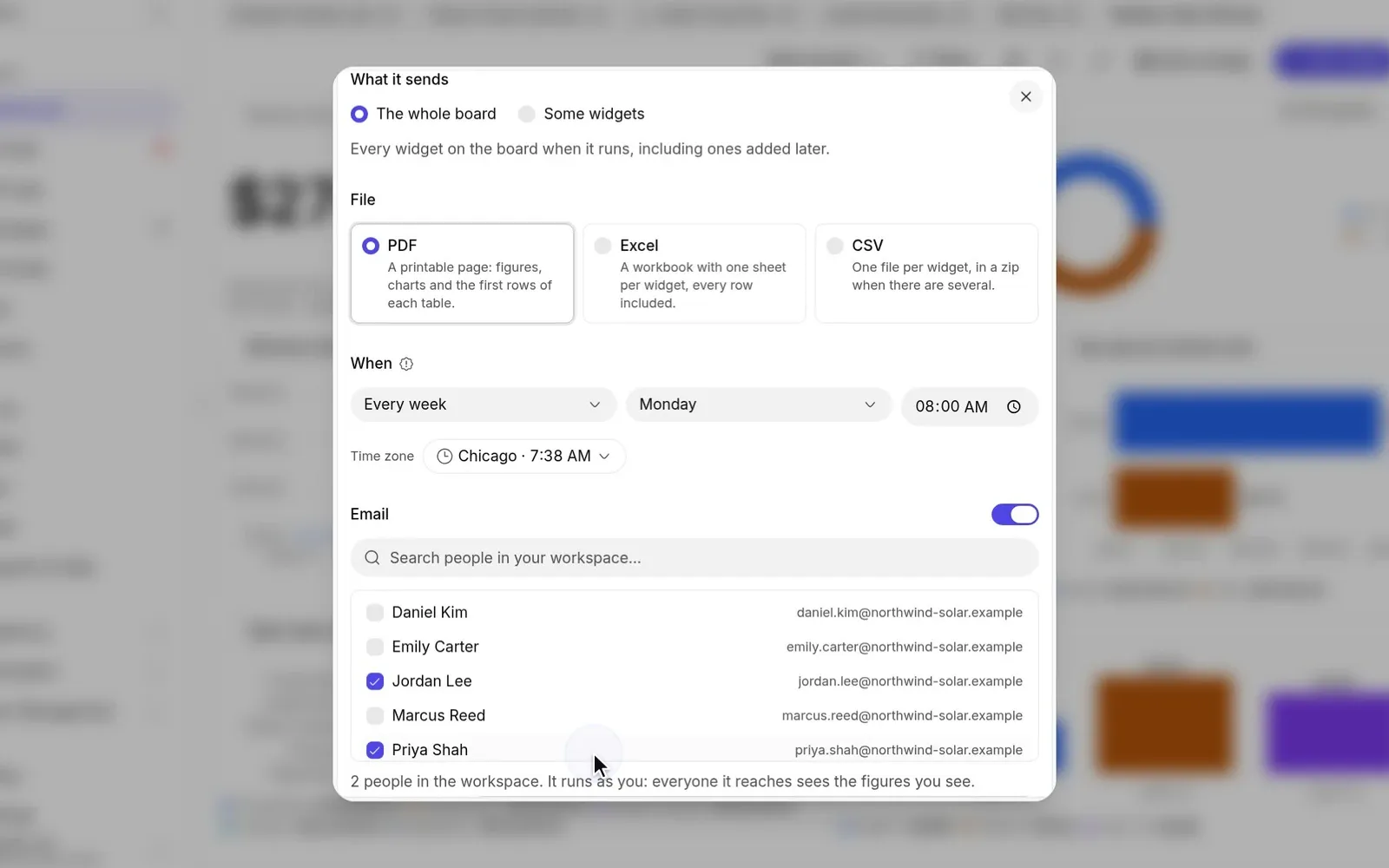
- Under What it sends, choose The whole board or Some widgets. Live widgets are left out, because they show the current moment.
- Under File, pick PDF, Excel or CSV.
- Under When, choose Every day, Every week or Every month, then the day, the time and the Time zone.
- Turn on Email and tick the people in your workspace who should get it. You can also add addresses under Outside the workspace.
- To post it to a channel, paste an incoming-webhook address under Channels for Slack, Microsoft Teams or another webhook.
- Press Schedule.
A channel post carries the headline figures and a download link that works for 7 days. Outside recipients can unsubscribe with the link in each email. A monthly report set for a day a month doesn't have is sent on that month's last day.
Pause, change or delete a schedule
- Press ⋯ and choose Scheduled Reports.
- Switch between This board and All boards to find the report. Each row shows when it runs next and where it goes.
- Use Pause or Resume, Edit, or the delete button on its row.