
To show a board on a screen, open it in Dashboards, press ⋯ and choose Open as Wallboard. For an office TV that stays on with nobody signed in, open /wallboard on the TV and pair it in Settings → Wallboard displays.
Before you start
- Anyone can open a board they can see as a wallboard.
- Pairing a TV takes a workspace owner or admin, or a role with Manage Wallboards. People with that permission can pair screens only for boards whose records they can all see. Anything else needs a workspace admin.
- Paired screens work once your workspace is approved. See Get your workspace approved for calling.
- Live figures come straight from the phone system, so they're offered only in workspaces that have it.
Add live figures to a board
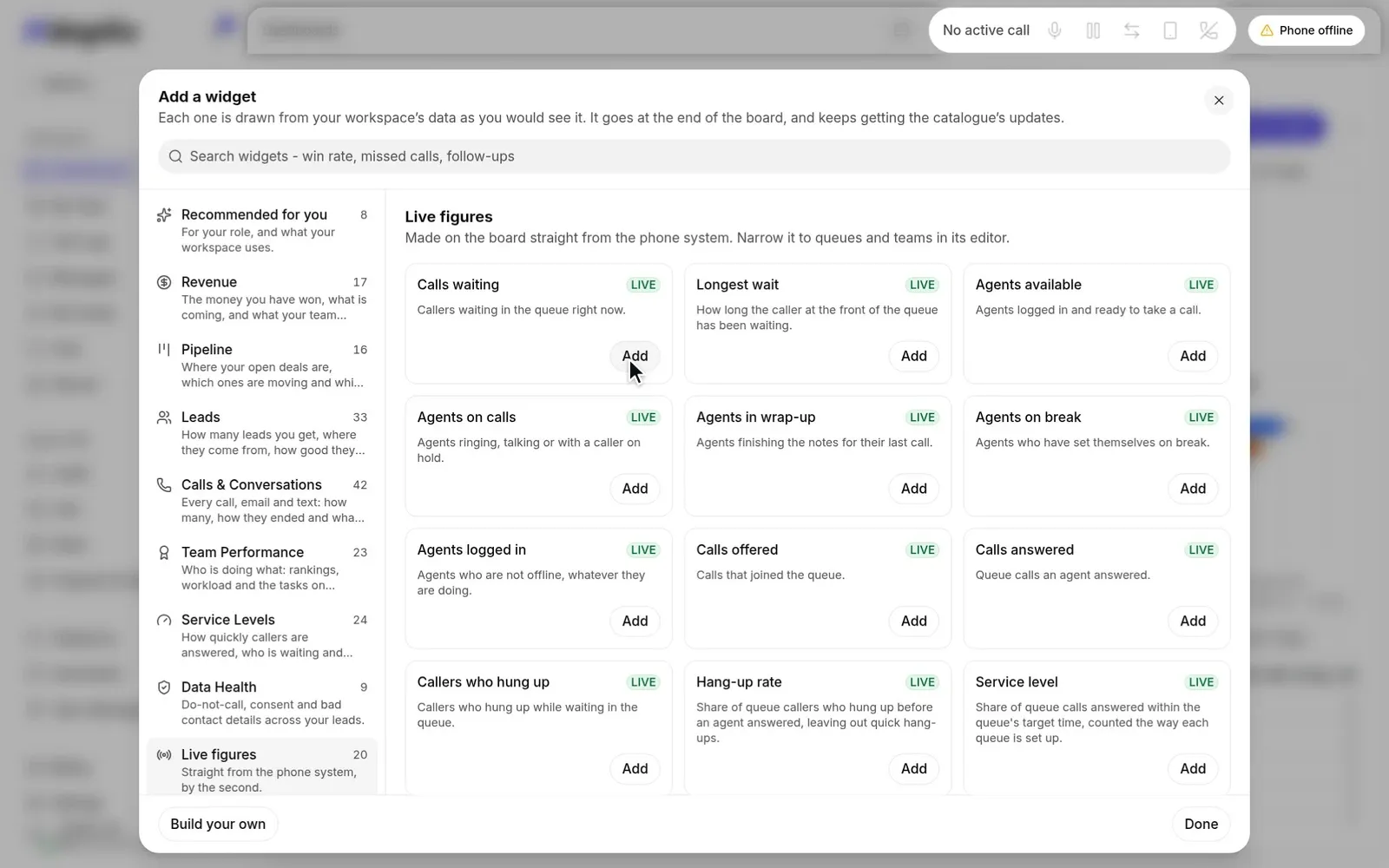
- Open the board and press Add widget.
- Choose Live figures.
- Press Add on a figure such as Calls waiting, Longest wait, Agents available or Service level.
A live figure starts on every queue, for today. Use Edit widget to narrow it to queues and teams. You can add the same figure more than once, for example one per queue.
Show a board on your own screen
- Open the board and press ⋯ → Open as Wallboard. It opens full screen in a new tab, with no sidebar or header.
- Move the tab to a second monitor, or open it on a TV browser that's signed in as you.
It shows the figures you can see. For a quick full-screen view in place, press the Full screen button on the board.
Pair an office TV
- On the TV's browser, open your Adoptiv address followed by
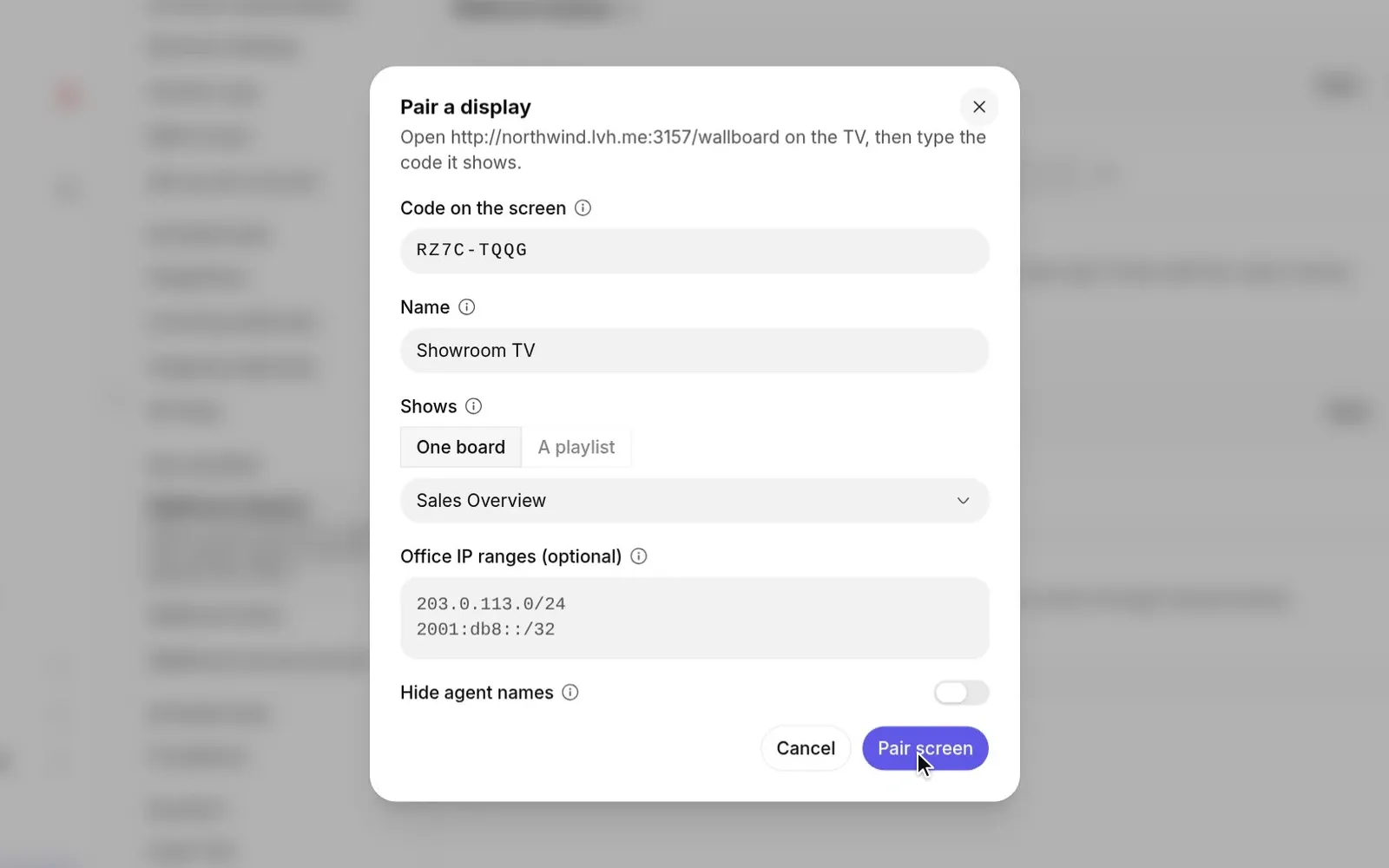
/wallboard. The screen shows Pair this display and a code like XXXX-XXXX. - On your computer, open Settings → Wallboard displays and press Pair a display.
- Type the code into Code on the screen. A code works once and for ten minutes, and the TV shows a new one when it runs out.
- Give the screen a Name, such as the room it hangs in.
- Under Shows, choose One board or A playlist, then pick it.
- Optional: add Office IP ranges so the screen works only from your office, and turn on Hide agent names to show "Agent 1", "Agent 2" instead.
- Press Pair screen. The TV switches to the board within a few seconds.
Rotate boards with a playlist
- In Settings → Wallboard displays, press New playlist.
- Name it, then choose boards under Boards, in order, each with its seconds on screen (10 seconds to one hour). Add a board adds more, up to 50.
- Press Save playlist, then pick it for a screen under Shows.
Changing a playlist updates every screen showing it.
Alerts and announcements
- Settings → Wallboard alerts → New alert watches one live figure. When it stays past your level for the time you set, every board and TV shows it on the ticker, and the people you choose are told in the app, by email, or in Slack or Teams. It clears by itself when the figure recovers.
- Settings → Wallboard announcements → New announcement puts a message of up to 280 characters on the boards' ticker, now or later, for as long as you choose. Team supervisors can post to the boards they can open.
Take a screen down
Open the screen's ⋯ menu and choose Revoke. It goes blank within a few seconds and shows a pairing code instead. Pair again brings it back with its name and settings.