
Open Chat in the sidebar, pick a channel or a direct message on the left, type your message and press Enter. On a computer, the chat icon in the header also opens chat in a small window over the page you're on.
Before you start
- Everyone in the workspace can use Chat.
- Calling someone from a direct message needs the Telephony & AI permission.
Create a channel
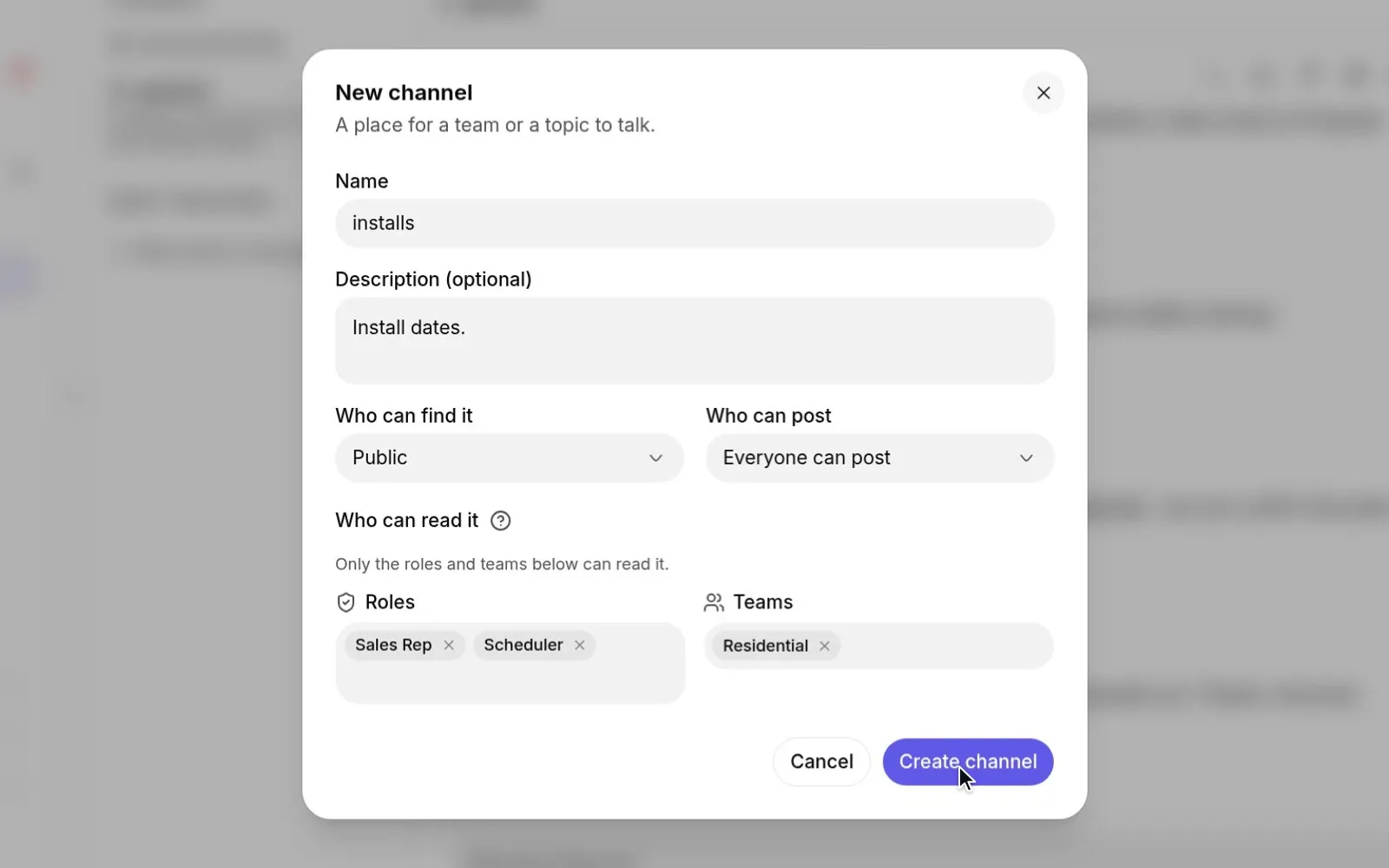
- In Chat, press New channel.
- Enter a Name and, if you like, a Description.
- Under Who can find it, choose Public (everyone in the workspace can find and join it) or Private (only the people you add can see it).
- Under Who can post, choose Everyone can post, Announcements, Slow mode or Read only.
- For a public channel, you can limit Who can read it to certain Roles or Teams. For a private channel, add people under People to add.
- Press Create channel. You become the channel's admin.
Send a direct message
- Next to Direct messages, press New direct message.
- Search for a colleague by name or email.
- Click their name and write your message.
Write and react
- Press Enter to send and Shift+Enter for a new line. Press the up arrow to edit your last message.
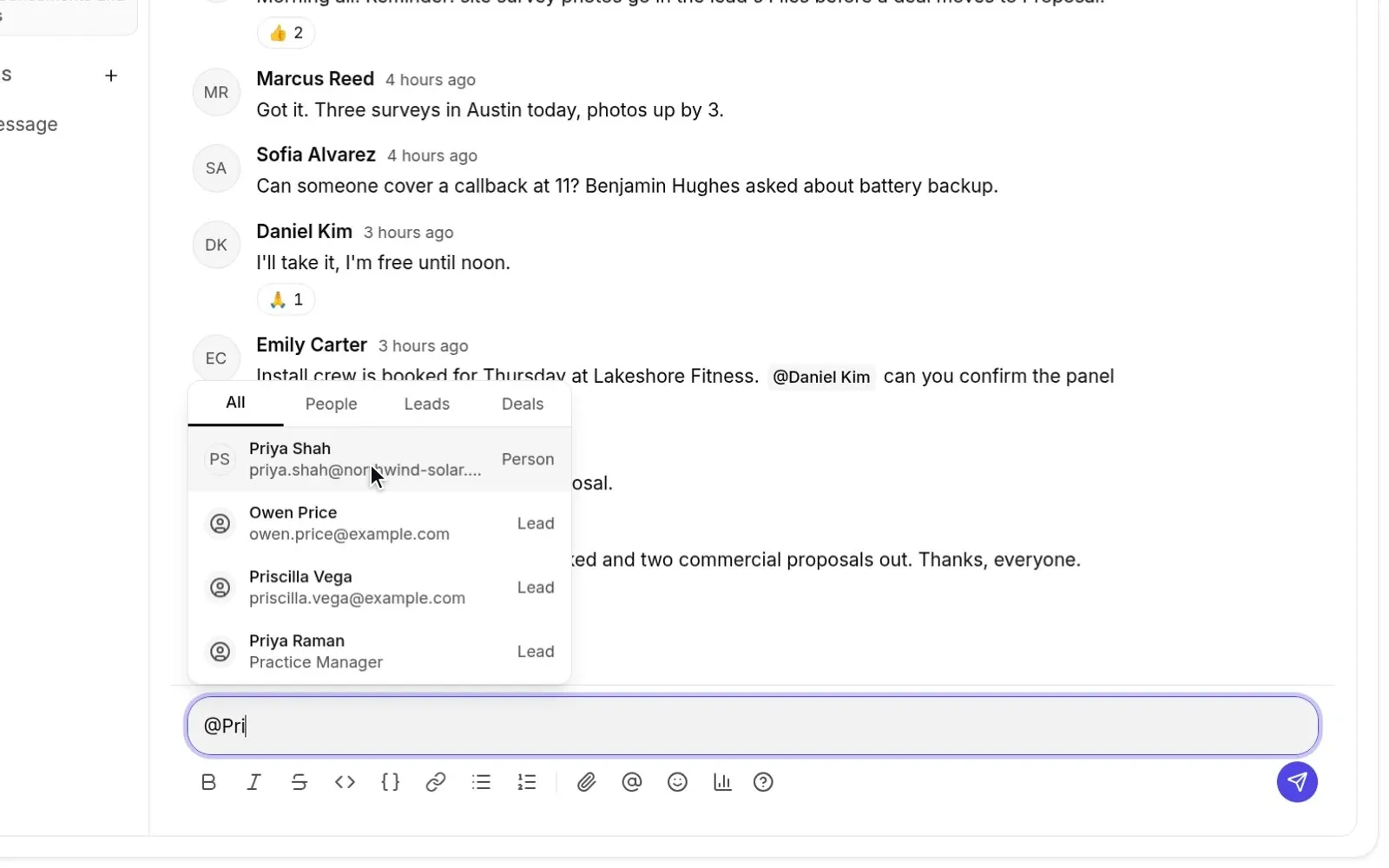
- Type @ to mention a colleague, a lead or a deal.
- Attach up to 10 files per message, 25 MB each. You can also drop or paste files into the message box.
- In a channel, you can also Create poll.
- Hover over a message to add a reaction or Reply in thread. Its More actions menu has Edit, Pin to channel, Bookmark, Copy link and Delete, where you're allowed to use them.
Find and catch up
The icons at the top of a conversation open Search messages, Pinned messages, Bookmarks and, in a channel, Polls. Summarize recent messages uses your workspace's AI to sum up the latest messages, and runs only when you ask.
Control notifications
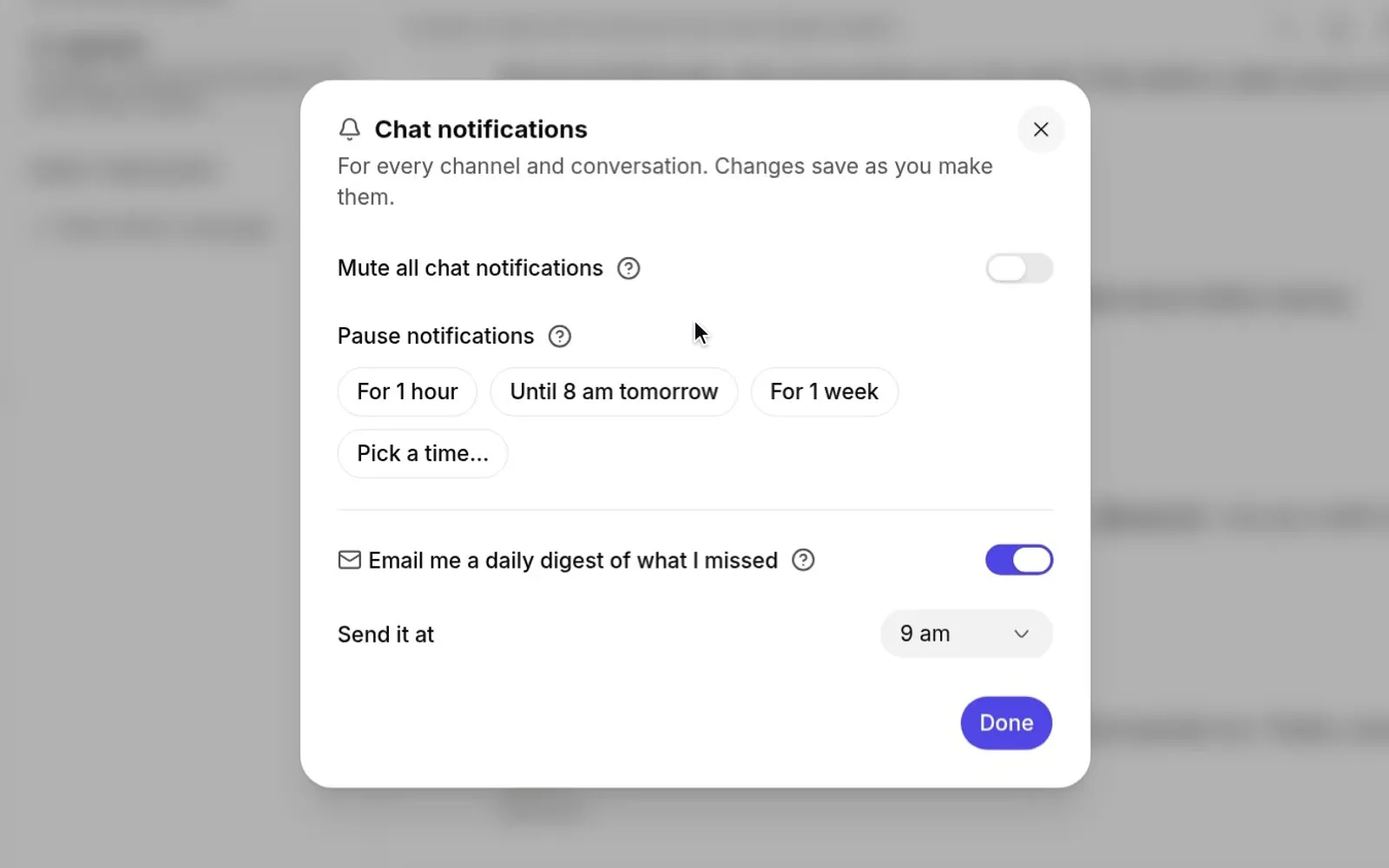
- Press Notification settings (the bell icon at the top of Chat).
- Turn on Mute all chat notifications, or use Pause notifications to silence chat for a while.
- Turn on Email me a daily digest of what I missed and pick the hour, if you want a summary by email.
Changes in this dialog save as you make them. To quiet just one channel, press Mute channel at the top of it.
Manage a channel
Press Channel settings in the channel. Channel admins and workspace admins can change its name, description, who can post and its members, and can Archive channel. Anyone in the channel can Leave channel. Find archived channels with Archived channels at the top of Chat. In a direct message, Hide conversation takes it out of your list until they message you again.