To invite someone, open Team Management → Members, press Invite someone, enter their email address, choose a CRM role and press Send invitation. They get an email with a link to create their account.
Before you start
- You need to be a workspace admin or have the Invite Users permission. To open Team Management you also need Manage Settings, Manage Team or Manage Roles.
- Each new person needs a free seat. If you're out of seats, add some first. See Plans, seats and your bill.
- Create the roles you want to give people before you invite them. See Roles and permissions.
Send invitations
- Open Team Management → Members.
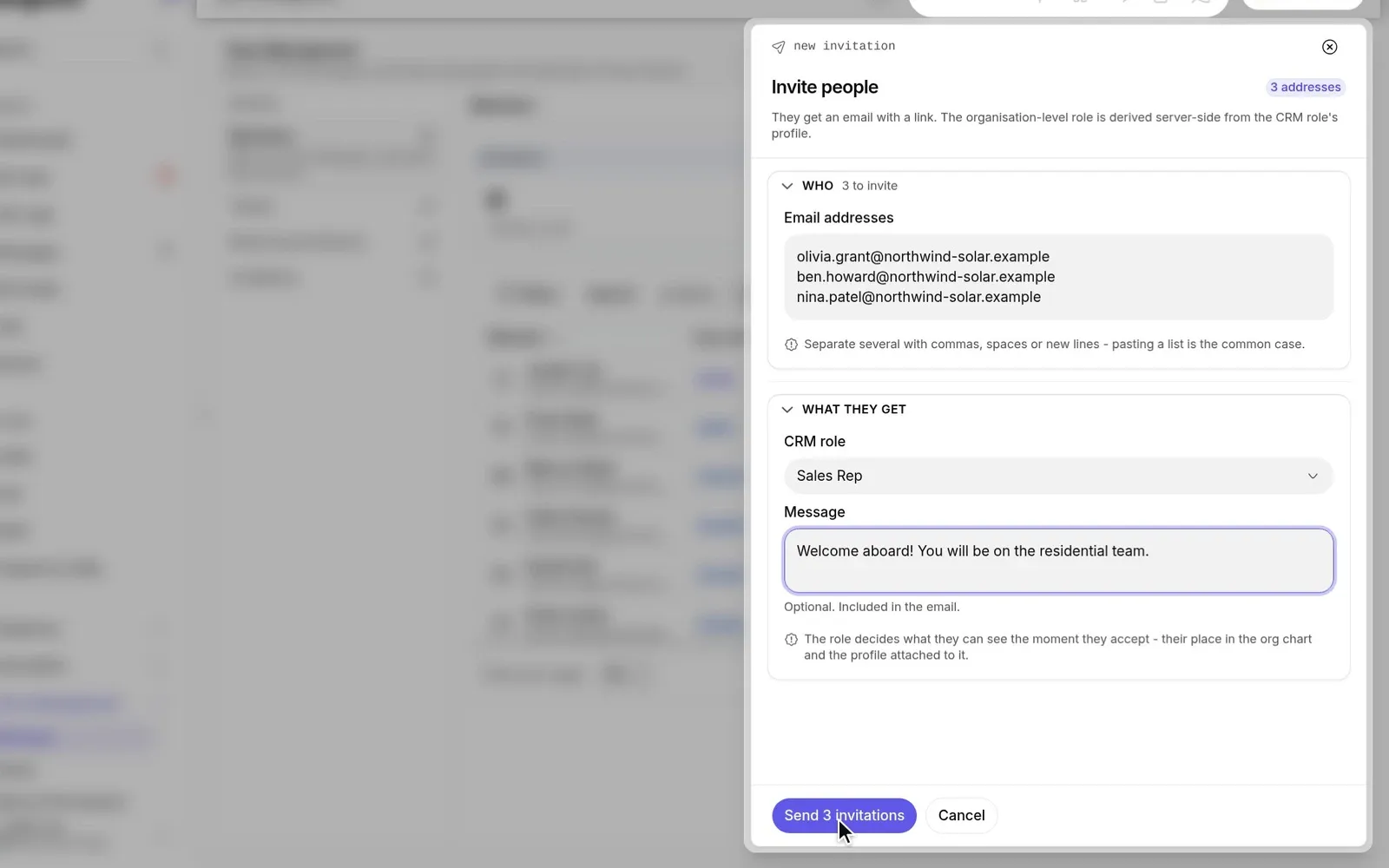
- Press Invite someone.
- Under Email addresses, type one address or paste several, separated by commas, spaces or new lines. You can invite up to 50 people at once.
- Choose a CRM role. It decides what they can see the moment they accept.
- Optionally add a Message. It's included in the email.
- Press Send invitation. With several addresses, the button says how many invitations it will send.
Adoptiv skips anyone who's already in your workspace or already has an invitation waiting.
What your teammate does
- They open the link in the email. It works for 7 days.
- On the You're invited page, they enter their first and last name, phone number and a password, and agree to the terms.
- They press Create account.
- They confirm their email from the verification link Adoptiv sends, then sign in.
Resend or revoke an invitation
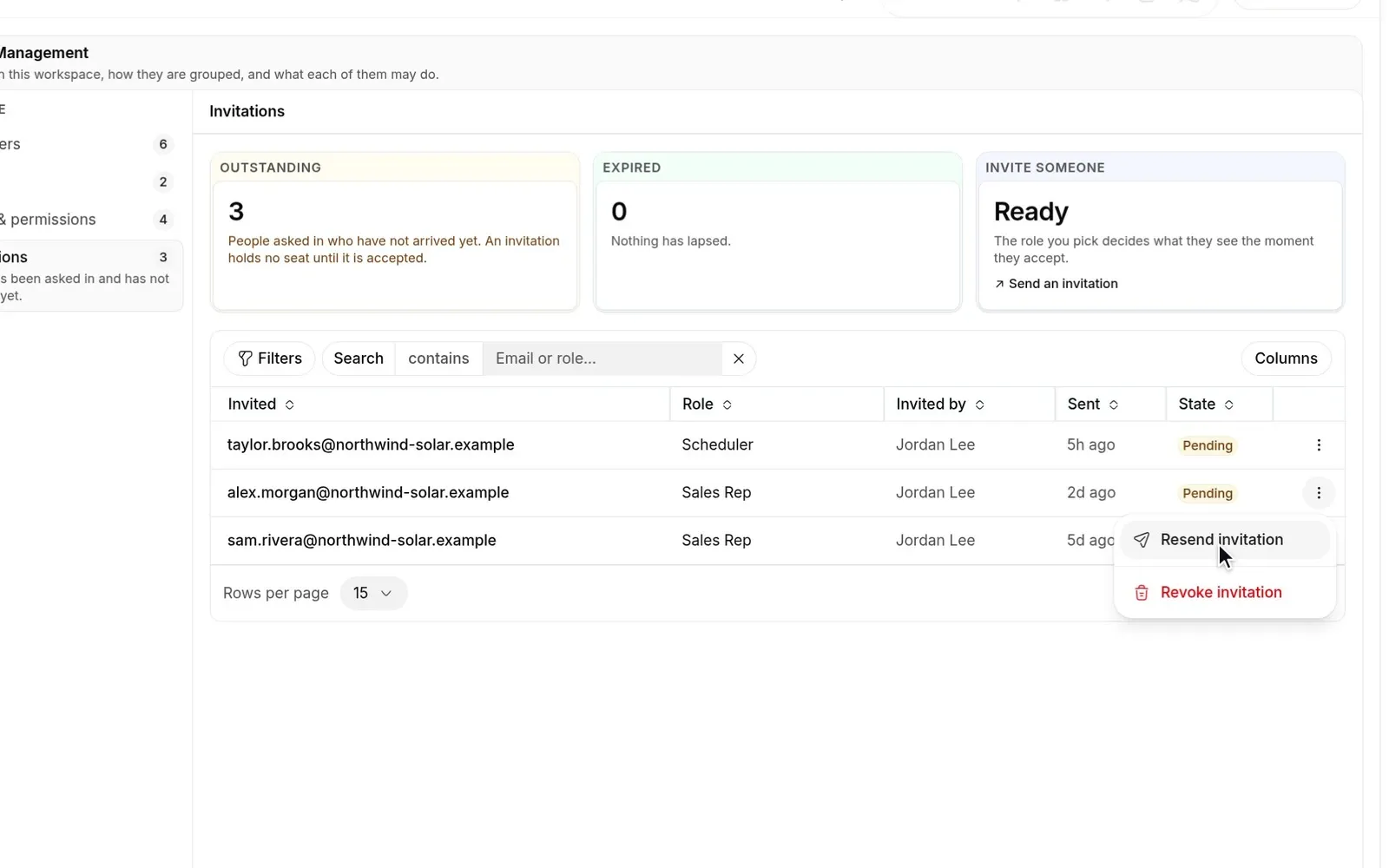
- Open Team Management → Invitations. Each invitation shows as Pending or Expired.
- Open the ⋯ menu on its row.
- Choose Resend invitation to send a fresh email with a new link. Any earlier link stops working.
- Or choose Revoke invitation to cancel it. Their link stops working, and you can invite them again at any time.
An invitation doesn't use a seat until it's accepted.