
Everything about your plan and bill is on the Billing page in the sidebar. The My Plan & Pricing tab shows your plan and seats, and the Invoices tab holds every invoice. For current prices, see our pricing page.
Before you start
- Billing is for workspace owners and admins, and for roles with Manage Billing. Anyone else sees "Billing is not yours to see".
- Plans and top-ups open once your business is verified. Until then you can read the Billing page but not change it. See Get your workspace approved for calling.
See your plan and seats
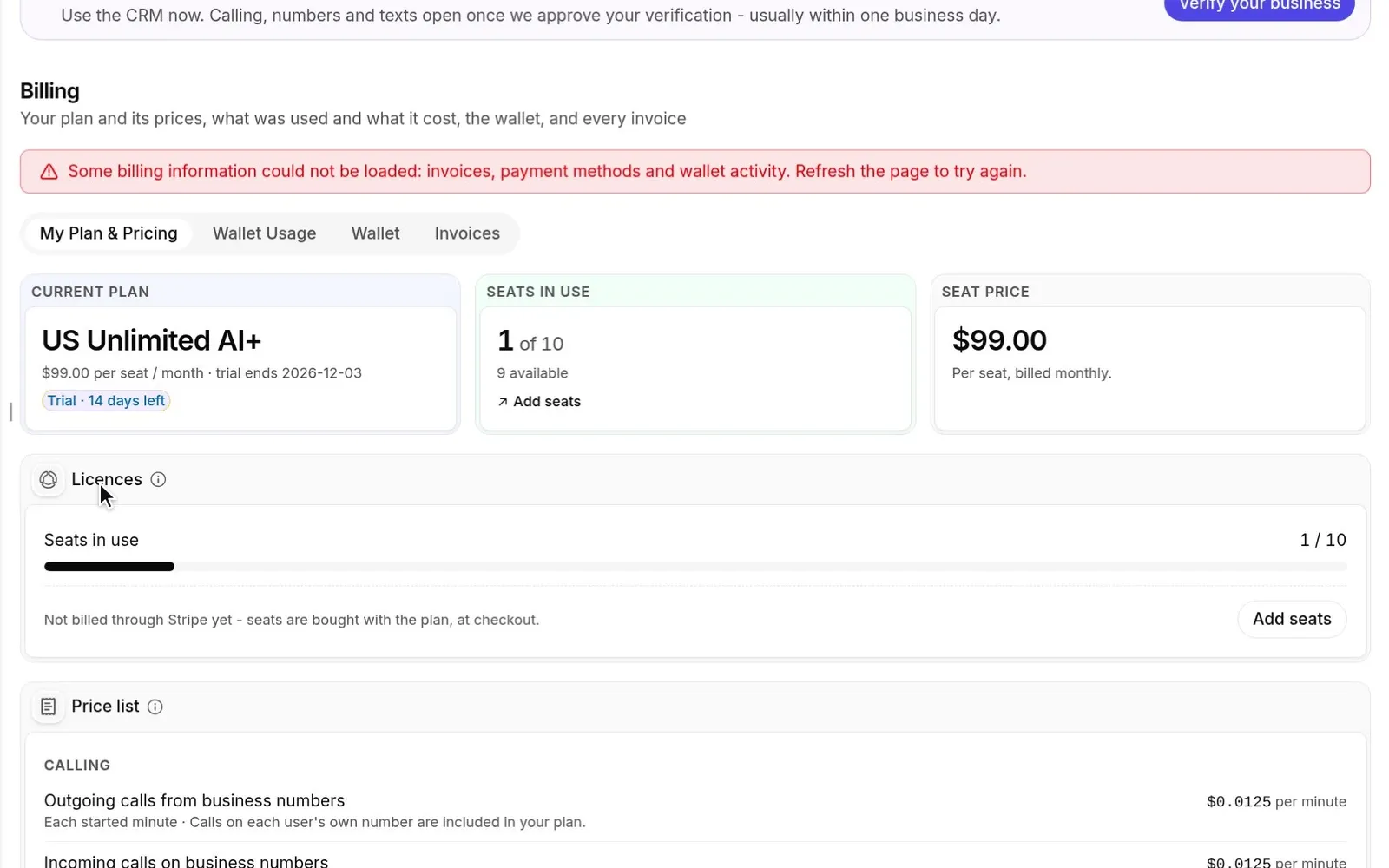
Open Billing. The My Plan & Pricing tab shows:
- Current plan, its price and when it renews.
- Seats in use out of the seats you pay for.
- Price list: what your wallet pays for. Anything on your plan that isn't on this list is included in the seat price.
- Plans: the plans you can move to, and a comparison.
How seats work
Every active member holds a seat, whether or not they have ever signed in. Inviting or reactivating a member needs a free seat. When every seat is in use, nobody new can join until you add seats. A workspace with no plan has no seats, so members can't be invited until you choose one.
Buy or change a plan
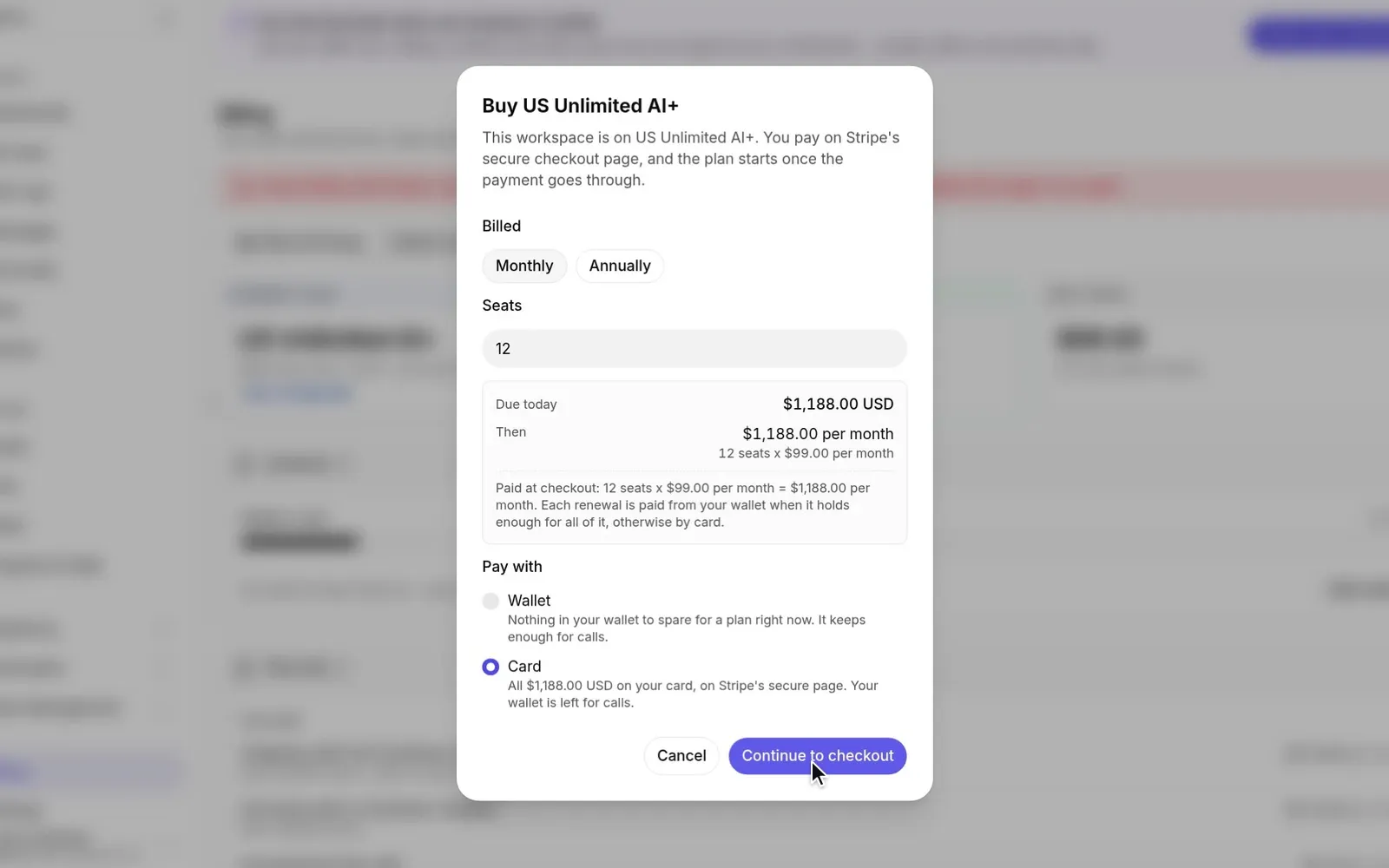
- On My Plan & Pricing, scroll to Plans and press Choose on the plan you want.
- If the plan offers both, pick Monthly or Annually under Billed.
- Enter the number of Seats. It can't be fewer than your active members.
- Check Due today and what you'll pay after that.
- For a first purchase, choose Pay with: Wallet (when it has credit to spare) or Card.
- Press the confirm button. Continue to checkout takes you to Stripe's secure page. If you already pay by card, it reads Switch to and the plan's name, and the change is charged to the card on file.
To move your current plan between monthly and annual billing, press Switch to annual billing or Switch to monthly billing on its card. Plans marked Talk to us are arranged with our billing team: press Contact us.
Add seats
- On My Plan & Pricing, press Add seats.
- Enter the new Total seats and check the price.
- Press Add (the button names how many seats you're adding).
The prorated difference is charged to the card on file now, and the new total renews with your plan. To pay for fewer seats, enter a lower total. You can't go below the number of active members, so remove members first. If Stripe doesn't bill your workspace yet, seats are bought with the plan instead.
Invoices and payments
- The Invoices tab lists every invoice. Press PDF to download one, or Download invoice history for all of them.
- A declined payment shows under Needs attention with Pay now. Update payment method changes the card Stripe charges.
- Under Where bills go, set a billing email. Left empty, invoices go to the workspace's owners and admins.
Cancel your subscription
- On My Plan & Pricing, find your current plan under Plans and press Cancel subscription.
- Choose a Reason for canceling and add feedback if you like.
- Press Cancel Subscription, then Confirm cancellation.
Your subscription stays active until the end of the billing period and doesn't renew. When the plan ends, calls and texts stop and the workspace becomes read-only: everyone can still sign in and see leads, deals and history. Choose a plan again at any time to turn everything back on. Changed your mind before the end date? Press Keep subscription on your plan's card.