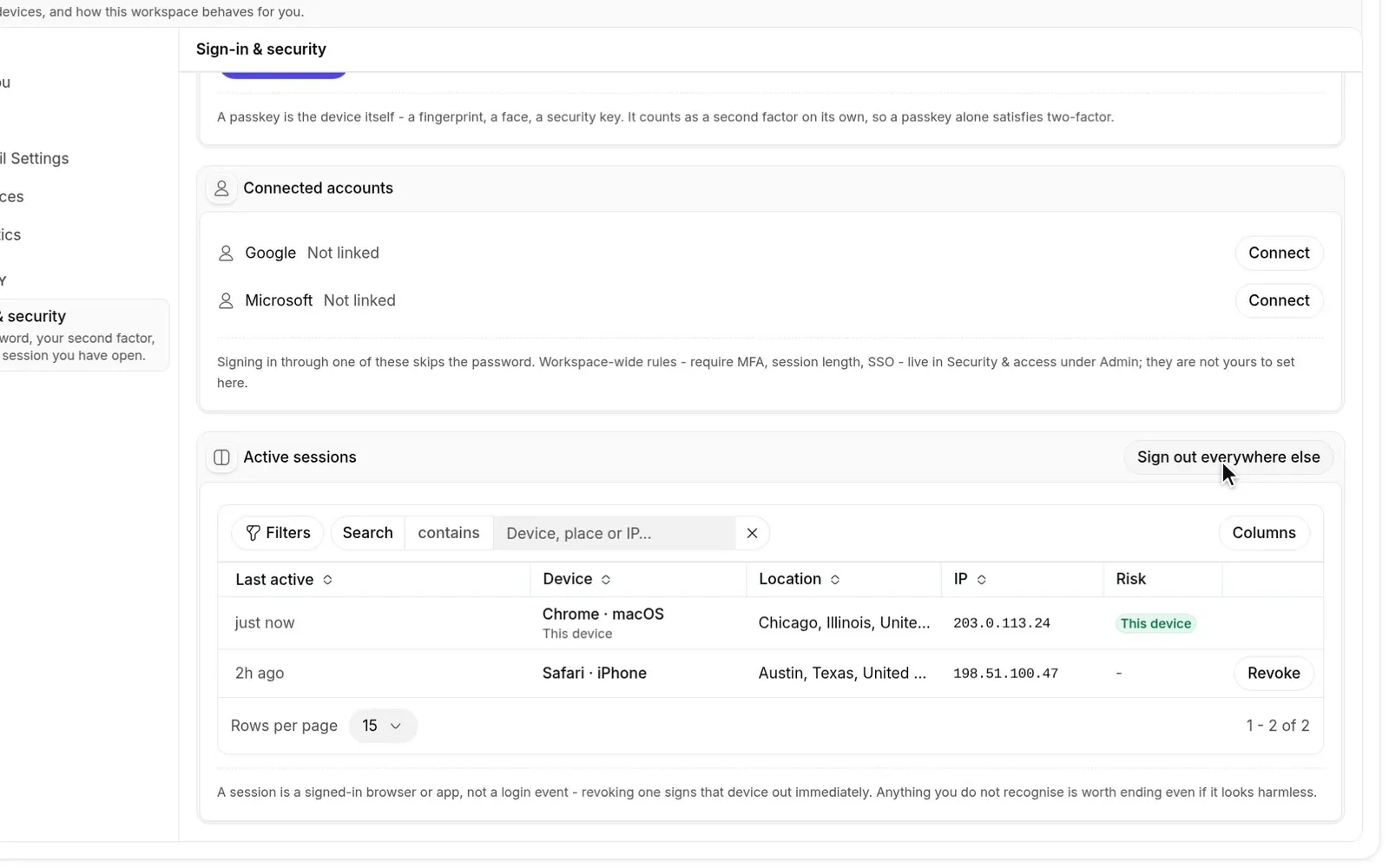
Your password, two-factor and signed-in devices are in Profile → Sign-in & security. To get there, open the menu with your name at the bottom of the sidebar, choose Profile, then choose Sign-in & security.
These settings belong to you, not the workspace. Anyone can change their own.
Change your password
- Next to Password, press Change.
- Enter your Current password, then a New password of at least 8 characters, and type it again in Confirm new password.
- Press Change password.
Changing your password doesn't sign you out of other devices. End those sessions separately (below) if you think one isn't yours. If you sign in only with Google or Microsoft, press Set a password to get a link by email.
Turn on two-factor
- Have an authenticator app ready on your phone.
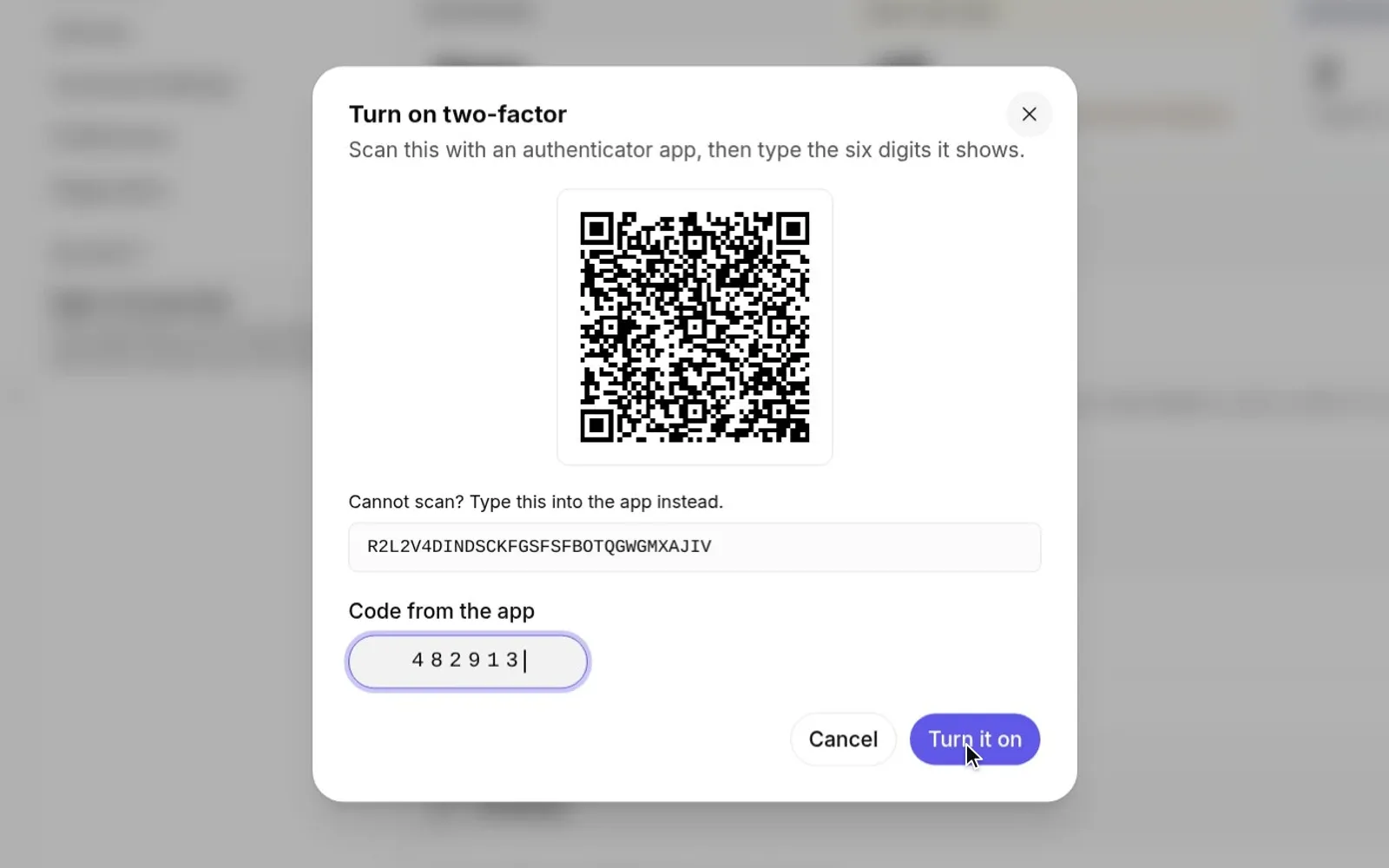
- Under Two-factor, next to Authenticator app, press Set up.
- Scan the code with the app. If you can't scan it, type the key shown under it into the app instead.
- Type the six digits the app shows into Code from the app and press Turn it on.
- Save your 10 backup codes somewhere safe. They're shown only once. Press I have saved them.
Each backup code signs you in once if you lose your phone. To get a fresh set, press Regenerate next to Backup codes. The old codes stop working straight away. To switch two-factor off, press Turn off and enter a current code.
Add a passkey
- Under Passkeys, press Add a passkey.
- Give it a Name, such as "Work laptop", if you like, and press Continue.
- Follow your browser's prompt: a fingerprint, your face or a security key.
A passkey counts as a second factor on its own, so a passkey alone turns on two-factor. If you remove your only second factor, two-factor turns off with it.
Signing in with two-factor
After your password, the One more step screen asks for your second factor. Choose Use passkey / biometric, or enter the 6-digit code from your app and press Verify. Lost your phone? Choose Use a backup code.
Sign in with Google or Microsoft
Under Connected accounts, press Connect next to Google or Microsoft and approve it. Signing in through a connected account skips the password. Disconnect removes it. If it's your only way in, Adoptiv refuses rather than lock you out.
Sign out other devices
Active sessions lists every browser and app signed in as you, with its location and IP address. Sessions idle for over a week are marked Idle 7d+.
- Press Revoke on a row to sign that device out immediately.
- Press Sign out everywhere else to end every session except this one.
To see your recent sign-ins and failed attempts, open Settings → Activity Logs.