
Billing and settings, in 8 short videos
Your plan, seats, wallet credit, workspace settings, integrations and security. Watch it through in a minute, or read each step.
4 articles8 videos · 1:129 min read
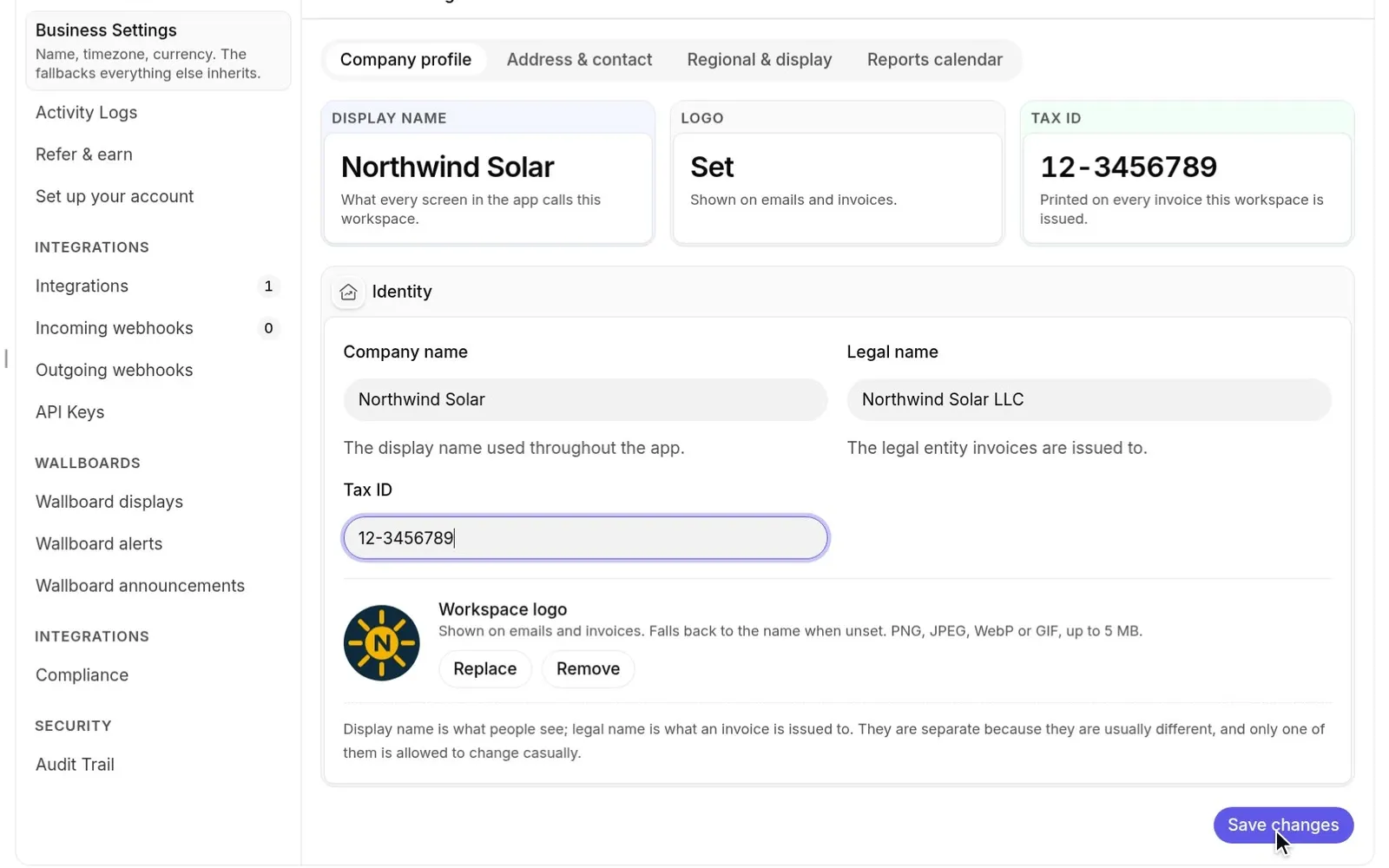 0:09Step 1 · Company profile
Video 1 of 8
Workspace settings
Settings opens on Business Settings, Company profile: the company name Northwind Solar is shown, the legal name Northwind Solar LLC and a tax ID are typed, the workspace logo is in place, and the pointer rests on Save changes.
Read this part of the articlePrefer to read?
The four articles, in order
- 1
Workspace settings
Set your company's name, logo, address, time zone, currency and reporting calendar, and find your way around the rest of Settings.
2 min read · 2 videosAll 6 sections: Workspace settings - 2
Plans, seats and your bill
See your plan and seats, buy or change a plan, add seats, find invoices and payments, and cancel - all on the Billing page.
3 min read · 2 videosAll 7 sections: Plans, seats and your bill - 3
Add credit to your wallet
Top up the wallet that pays for usage, turn on auto-recharge, set a low-balance alert, manage your cards and see what was spent.
2 min read · 2 videosAll 7 sections: Add credit to your wallet - 4
Secure your sign-in
Change your password, turn on two-factor with an authenticator app or a passkey, link Google or Microsoft, and sign out devices you don't recognize.
2 min read · 2 videosAll 6 sections: Secure your sign-in
Other topics
Still need help?
Chat with our team, or email us and we will get back to you.