
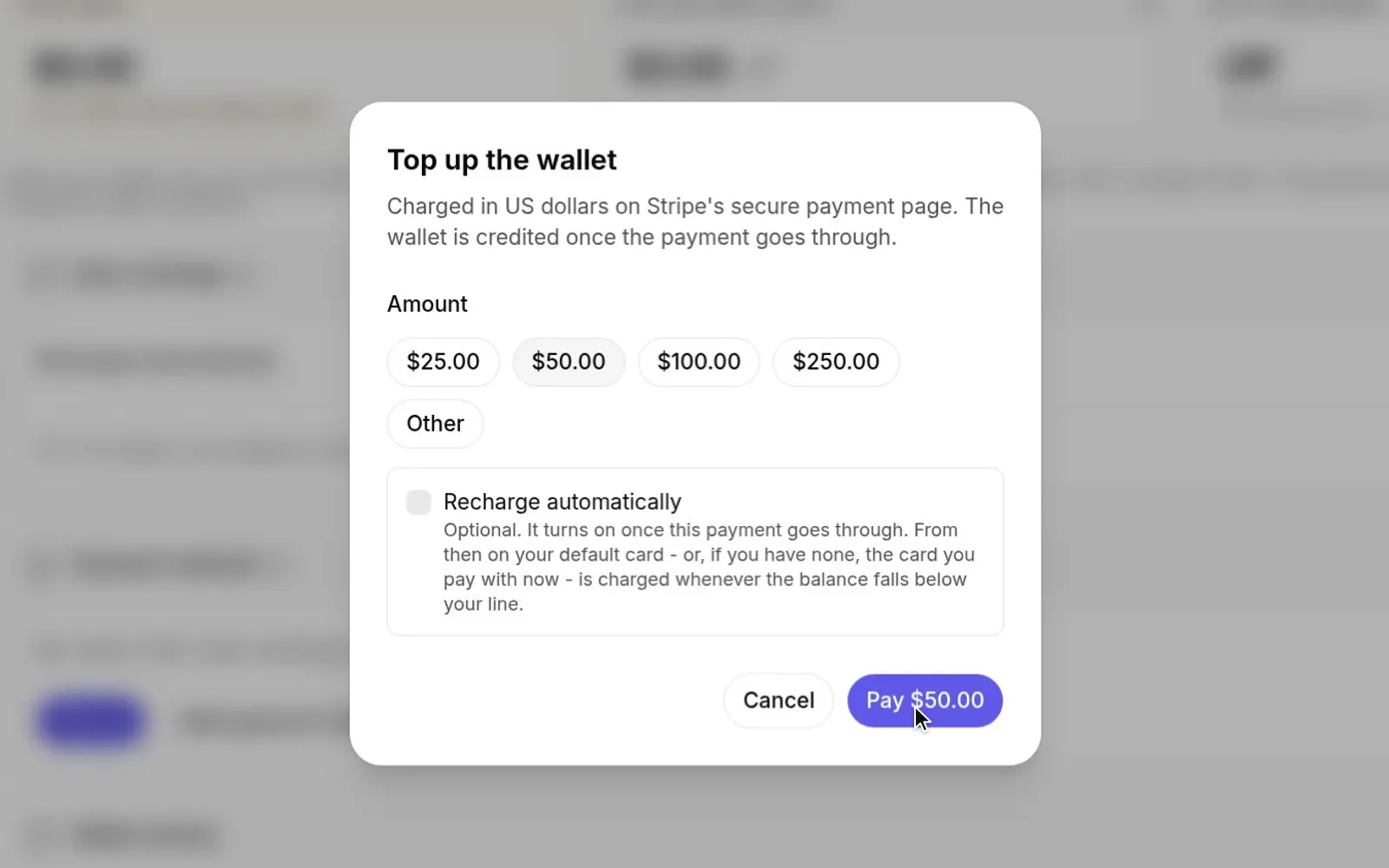
To add credit, open Billing, choose the Wallet tab and press Top up. You pay in US dollars on Stripe's secure page, and the wallet is credited once the payment goes through.
The wallet pays for metered usage: the items on the Price list on the My Plan & Pricing tab. It's separate from your plan's subscription. New self-serve workspaces start with $10 of credit (see Your free trial and starting credit). For current rates, see our pricing page.
Before you start
- You need to be a workspace owner or admin, or have Manage Billing.
- Top-ups open once your business is verified. See Get your workspace approved for calling.
Top up
- Open Billing and choose the Wallet tab. You can also click the Wallet card in the sidebar.
- Press Top up.
- Pick an amount, or choose Other and type any amount from $5 to $1,000.
- Optional: tick Recharge automatically to set up auto-recharge at the same time.
- Press Pay (the button shows the amount) and finish paying on Stripe's page.
Back on the Wallet tab, the Available balance updates once the payment lands. Once you've saved an auto-recharge amount, a Top up button for that amount appears too.
Turn on auto-recharge
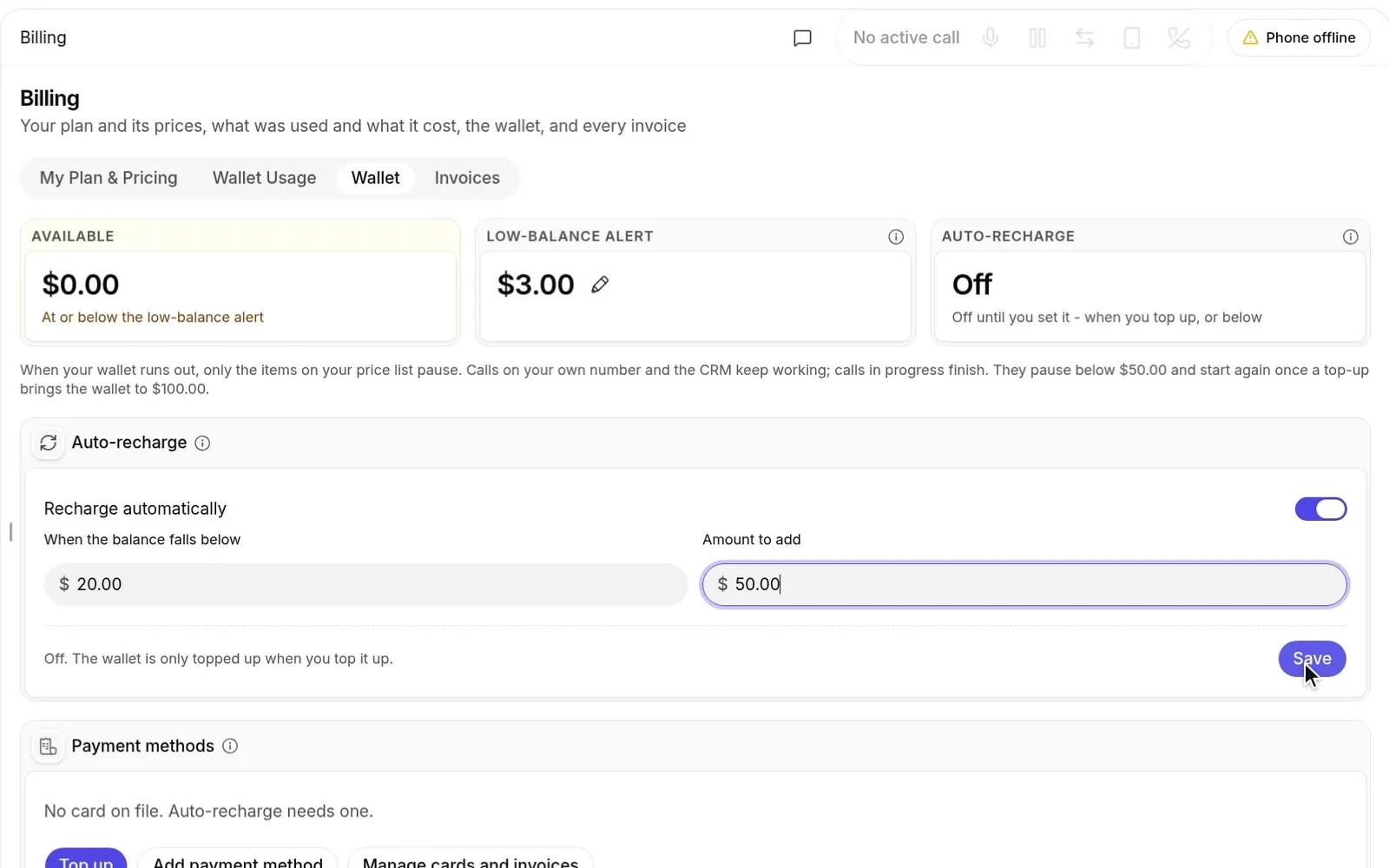
- On the Wallet tab, go to the Auto-recharge card and switch on Recharge automatically.
- Enter When the balance falls below and Amount to add.
- Press Save.
When the available balance drops below your line, your default card is charged the amount you chose. Auto-recharge has no default amounts and needs a default card. If you tick it while topping up, it starts once that payment goes through. If a recharge fails, the card says so.
Set a low-balance alert
- On the Low-balance alert tile, press the pencil button.
- Type the balance at which you want an email, and press Save.
The alert only warns you. It doesn't add money.
Manage your cards
- Add payment method saves a new card.
- Open a card's ⋯ menu to choose Make default or Remove. Auto-recharge charges the default card.
- Manage cards and invoices opens Stripe's billing page for the card your subscription uses.
See what was spent
- Wallet activity on the Wallet tab lists this period's charges and top-ups. Press Download statement for a copy.
- The Wallet Usage tab breaks usage down by hour or by day, line by line, and shows who, which number and which lead each charge was for.
When the wallet runs out
The line under the tiles on the Wallet tab says what running out does in your workspace. Either the items on your price list keep charging and the balance can go below zero, or only those items pause - calls on your own number and the CRM keep working, and calls in progress finish.