
Your workspace's own details live in Settings → Business Settings: the company name and logo, the address, the time zone, the currency and the calendar reports count by. Your personal settings, such as your password and notifications, are in your Profile instead.
Before you start
- Business Settings shows to workspace owners and admins, and to roles with Manage Settings, Manage Team or Manage Roles.
- Only owners and admins can save the Company profile and Address & contact tabs.
- Saving Regional & display and Reports calendar takes an owner, an admin or Manage Settings.
Company profile
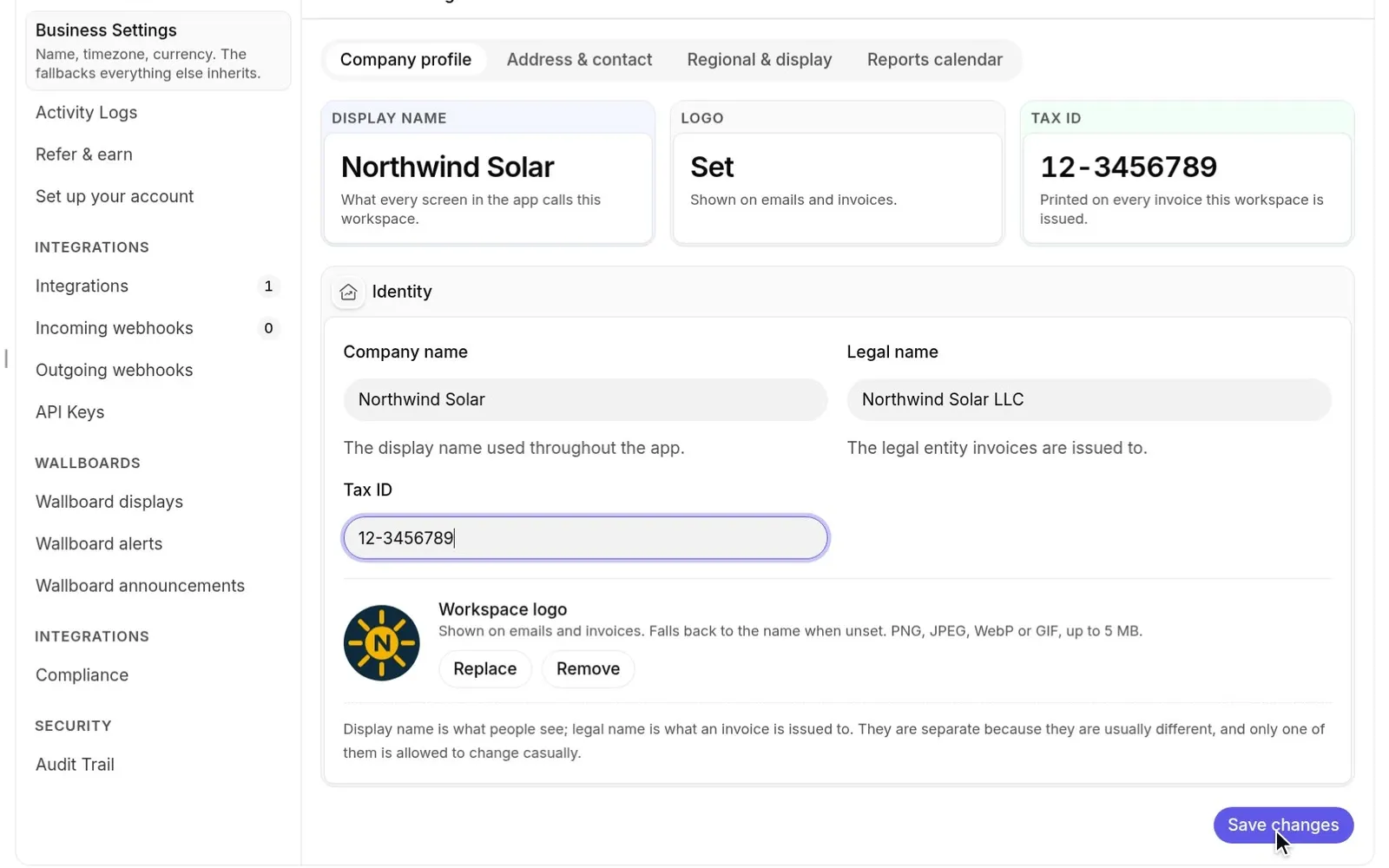
- In the sidebar, open Settings. Business Settings opens first, on Company profile.
- Set the Company name every screen shows, the Legal name invoices are issued to, and your Tax ID.
- Under Workspace logo, upload your logo. It shows on emails and invoices.
- Press Save changes.
Address and contact details
- Open the Address & contact tab.
- Fill in the Business address. It's printed on invoices. Country is required, because billing uses it to work out tax.
- Add the Phone, Support email and Website customers reach you on.
- Press Save changes.
Time zone, currency and formats
- Open the Regional & display tab.
- Choose the Timezone. It's the fallback for anyone who hasn't set their own.
- Pick the Time format (12-hour or 24-hour), Date format and Locale.
- Choose the Default currency that totals are shown in.
- Press Save changes.
Reports calendar
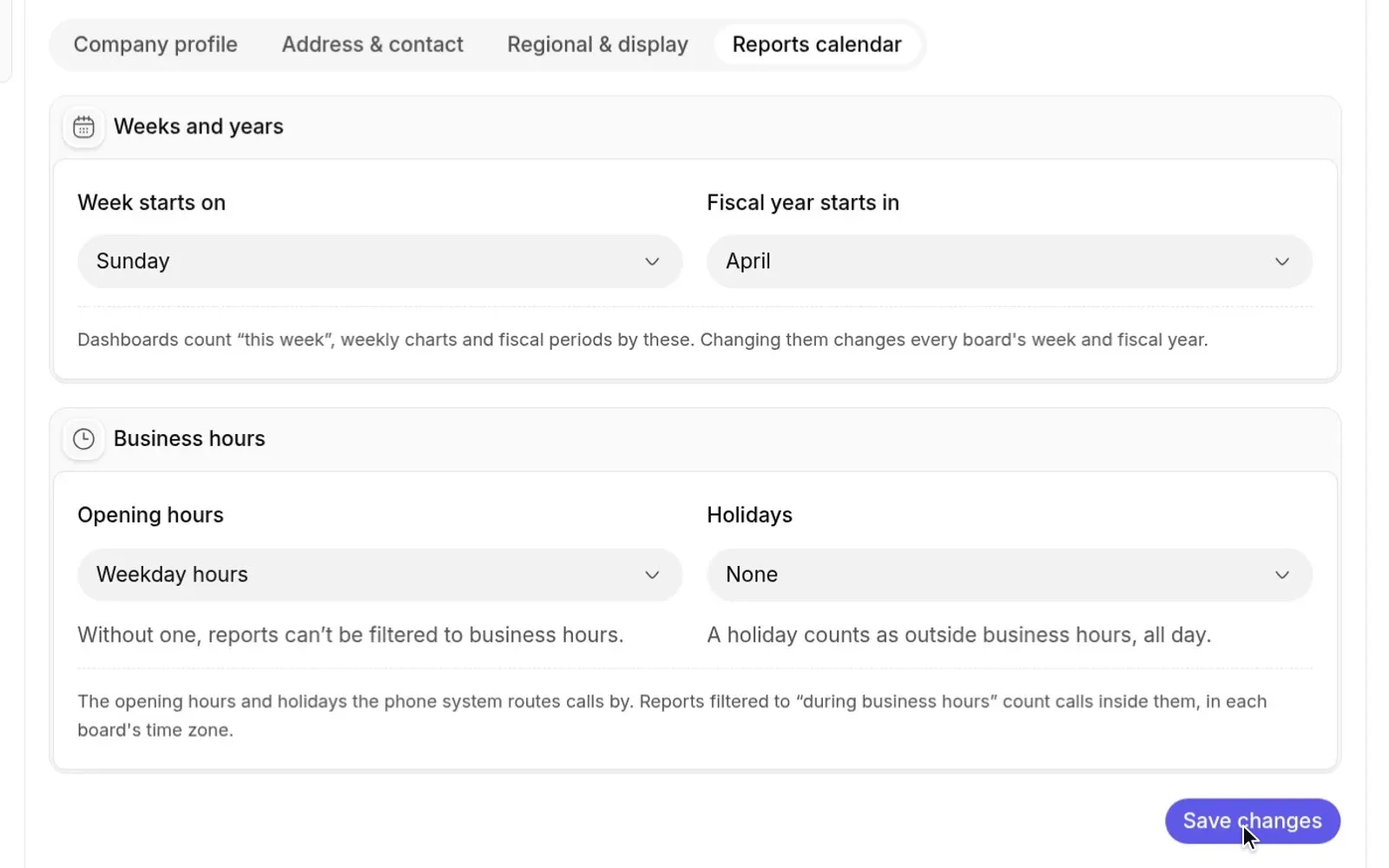
- Open the Reports calendar tab.
- Set Week starts on and Fiscal year starts in. Every dashboard counts "this week" and fiscal periods by these.
- Under Business hours, choose the Opening hours and Holidays schedules your phone system already uses. Without opening hours, reports can't be filtered to business hours.
- Press Save changes.
To create those schedules, see Set your business hours and holidays.
The rest of Settings
What you see in the Settings list depends on your role.
- Activity Logs: your own sign-ins, failed attempts and changes to how you sign in.
- Set up your account (owners and admins): roles, dashboards and call outcomes for how you work.
- Integrations: meeting and calendar apps. See Connect Zapier and calendars.
- Incoming webhooks: addresses another system posts to so that a call flow runs.
- Wallboard displays, Wallboard alerts and Wallboard announcements: see Show live numbers on a wallboard.
- Compliance: enrichment jobs and, for admins, consent evidence. See Keep consent evidence.
- Audit Trail: who changed what in the workspace.
Billing has its own page in the sidebar (see Plans, seats and your bill), and people, teams and roles are under Team Management.