
Making and taking calls, in 15 short videos
Call from your browser or phone, answer, transfer, wrap up and find past calls. Watch it through in three minutes, or read each step.
6 articles15 videos · 2:4814 min read
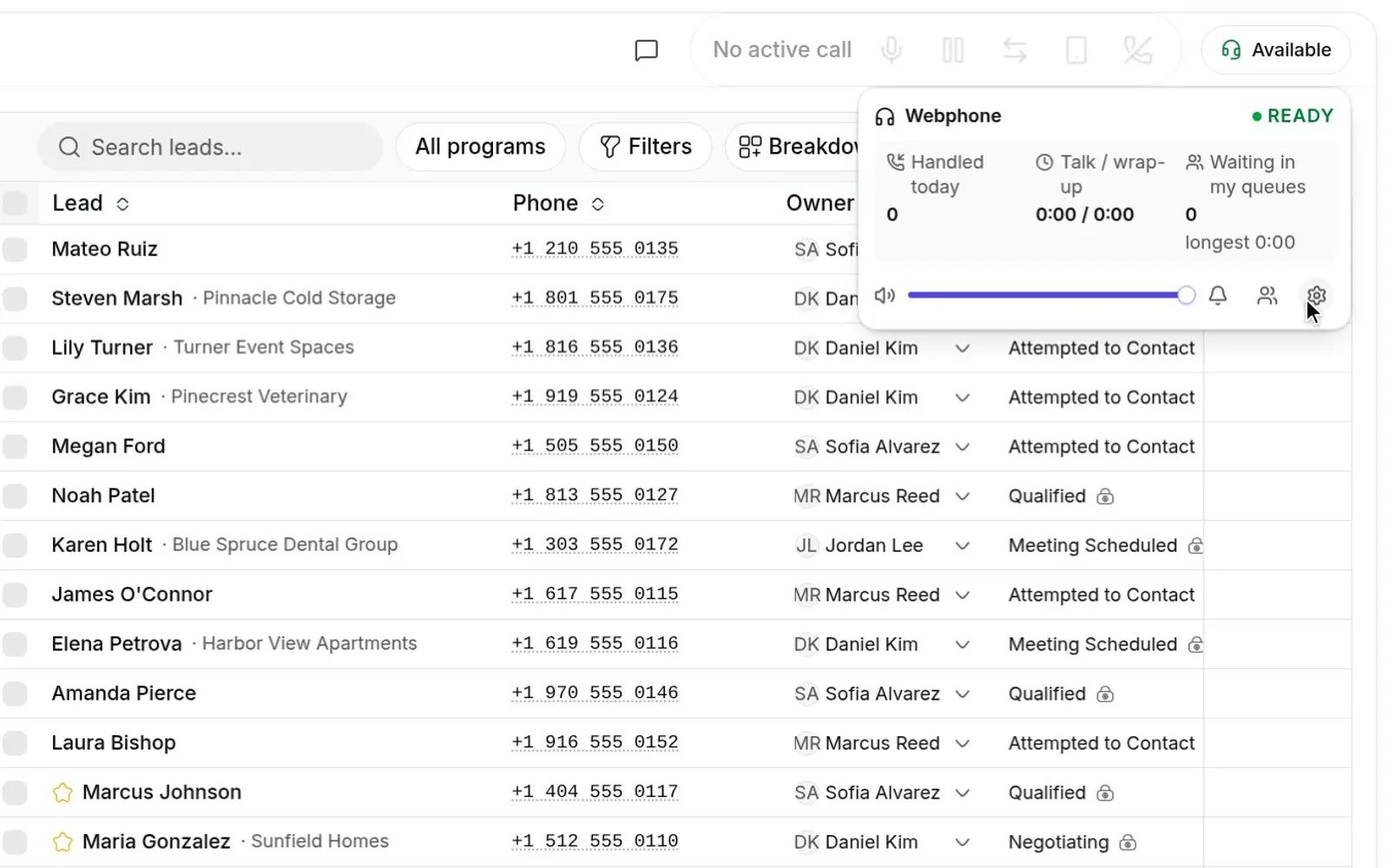 0:13Step 1 · Check that your phone is ready
Video 1 of 15
Make your first call
Clicking the phone status button at the top right opens the Webphone card reading Ready, with the volume slider, the ringer bell, Call a teammate and the gear; the gear opens Audio settings with Choose microphone & speaker and Test sound.
Read this part of the articlePrefer to read?
The six articles, in order
- 1
Make your first call
Call a lead from their record, check the number you call from, and use the call controls in your browser.
3 min read · 3 videosAll 7 sections: Make your first call - 2
Answer calls and see who's calling
Answer calls in your browser, set your status so the right calls reach you, and see the caller's lead open as soon as you pick up.
3 min read · 3 videosAll 6 sections: Answer calls and see who's calling - 3
Transfer, hold and three-way calls
Put a caller on hold, hand a call to a teammate, queue or outside number, or bring a third person into the call.
2 min read · 2 videosAll 6 sections: Transfer, hold and three-way calls - 4
Wrap up after a call
Save a disposition, notes and a follow-up when a call ends, and how wrap-up time keeps queue calls away while you finish.
2 min read · 3 videosAll 5 sections: Wrap up after a call - 5
Call logs and recordings
Find any call in Call Logs, filter and export the list, open a call to see its details, and play or download its recording.
2 min read · 2 videosAll 7 sections: Call logs and recordings - 6
Forward your calls and choose which devices ring
Send unanswered calls to your cell phone or voicemail, pick which of your devices ring, and set up a desk phone.
2 min read · 2 videosAll 4 sections: Forward your calls and choose which devices ring
Other topics
Still need help?
Chat with our team, or email us and we will get back to you.