
Every call made or taken in your workspace is listed in Call Logs. Click a call to see who handled it, how it ended and what was said, and to play its recording.
Before you start
- Your role needs the Telephony & AI permission to see Call Logs.
- You see the calls you handled, calls about leads assigned to you, and calls on your queues. If your role can see the leads of people under you, you see their calls too. Owners and admins see every call.
Find a call
- Open Call Logs.
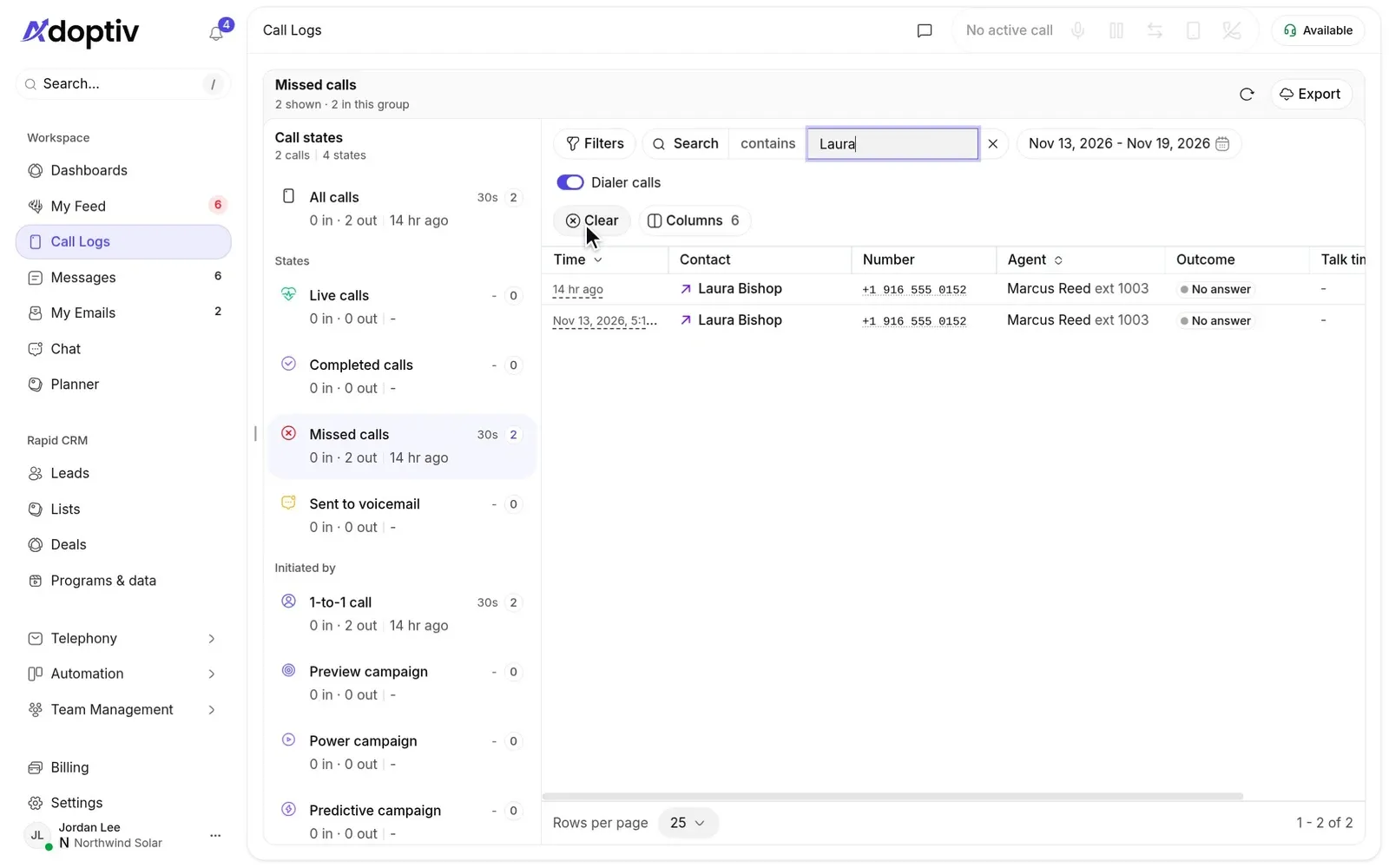
- Use the side rail to narrow the list: All calls, or one of the states Live calls, Completed calls, Missed calls or Sent to voicemail.
- Pick a date range, or press Filters to filter by things like Direction, Duration, Outcome or Reached agent. Type a name or number in Search.
- Press Clear to remove your filters.
Choosing Sent to voicemail opens your voicemail inbox instead. See Voicemail and missed calls.
Choose your columns
The list starts with Time, Contact, Number, Agent, Outcome, Talk time and Recording. Press Columns to add others, such as Direction, Wait, Hold, Queue, Program or AI, or to switch Rows between Compact and Comfortable. Adoptiv remembers your choice.
Outcome is the disposition the agent picked at wrap-up, or how the call ended if there isn't one.
Open a call
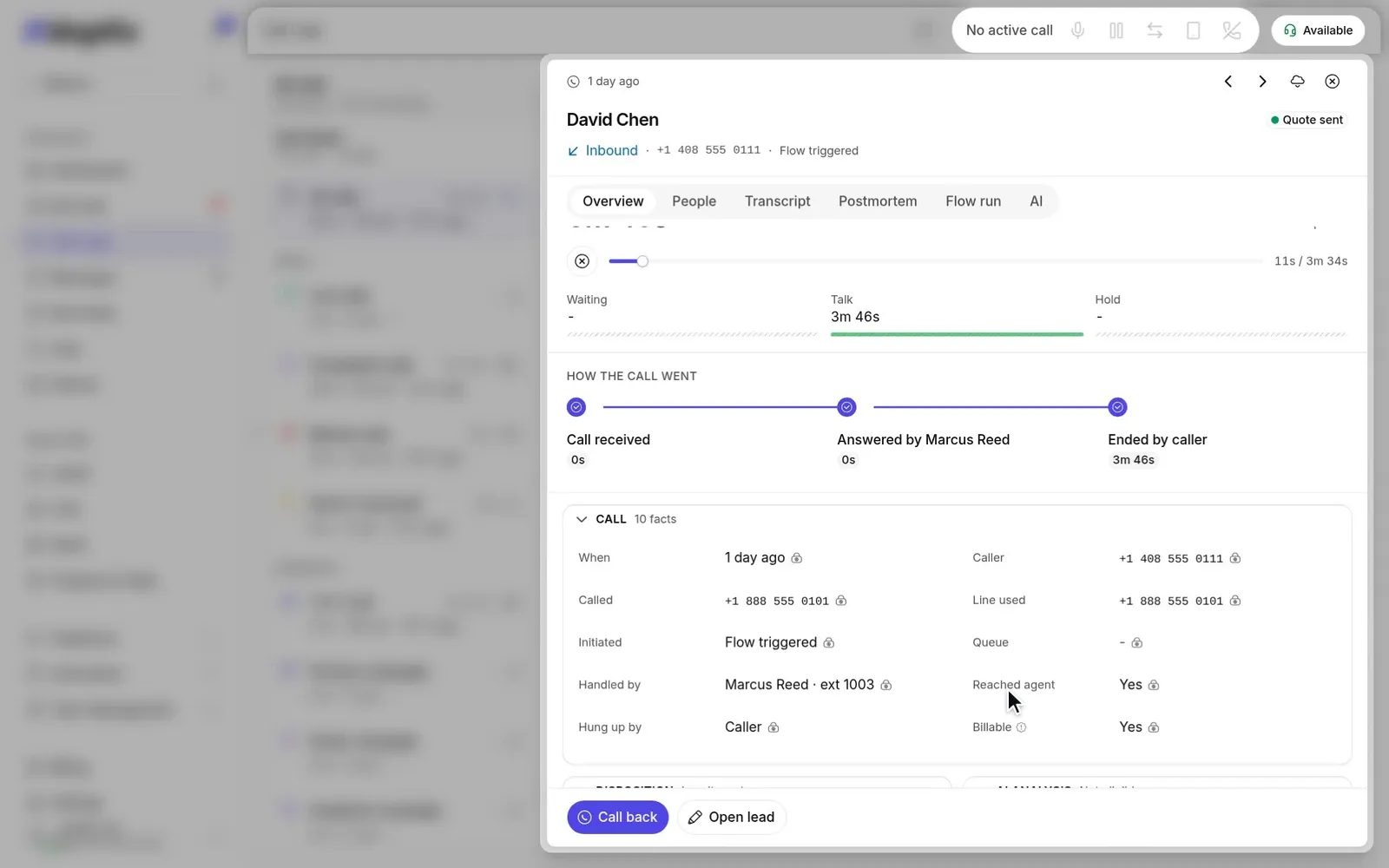
Click a row to open the call on the right. The Overview shows:
- how long the caller waited, talked and was on hold,
- the recording, when there is one,
- a Call card with who called, which number they called, who handled it and who hung up,
- the Disposition, which you can Set or Change,
- Notes about the call.
Other tabs, such as Transcript and AI, appear when the call has them. See AI call summaries and analysis. Use K and J to move to the previous or next call.
Play or download a recording
- In the list, the Recording column says Recorded when a call has one.
- Open the call and press play on the recording. Drag the bar to skip ahead.
- To keep a copy, press the download button at the top of the call (Download the recording).
A call that was never answered shows No recording - the call was never answered. Anyone who can open the call can play and download its recording.
Call someone back
Click the number in the Number column, or open the call and press Call back. The call dialog opens so you can check the number you call from. If the caller isn't a lead yet, use Create lead.
Export the list
Press Export to download the calls on the current page as a CSV file.