
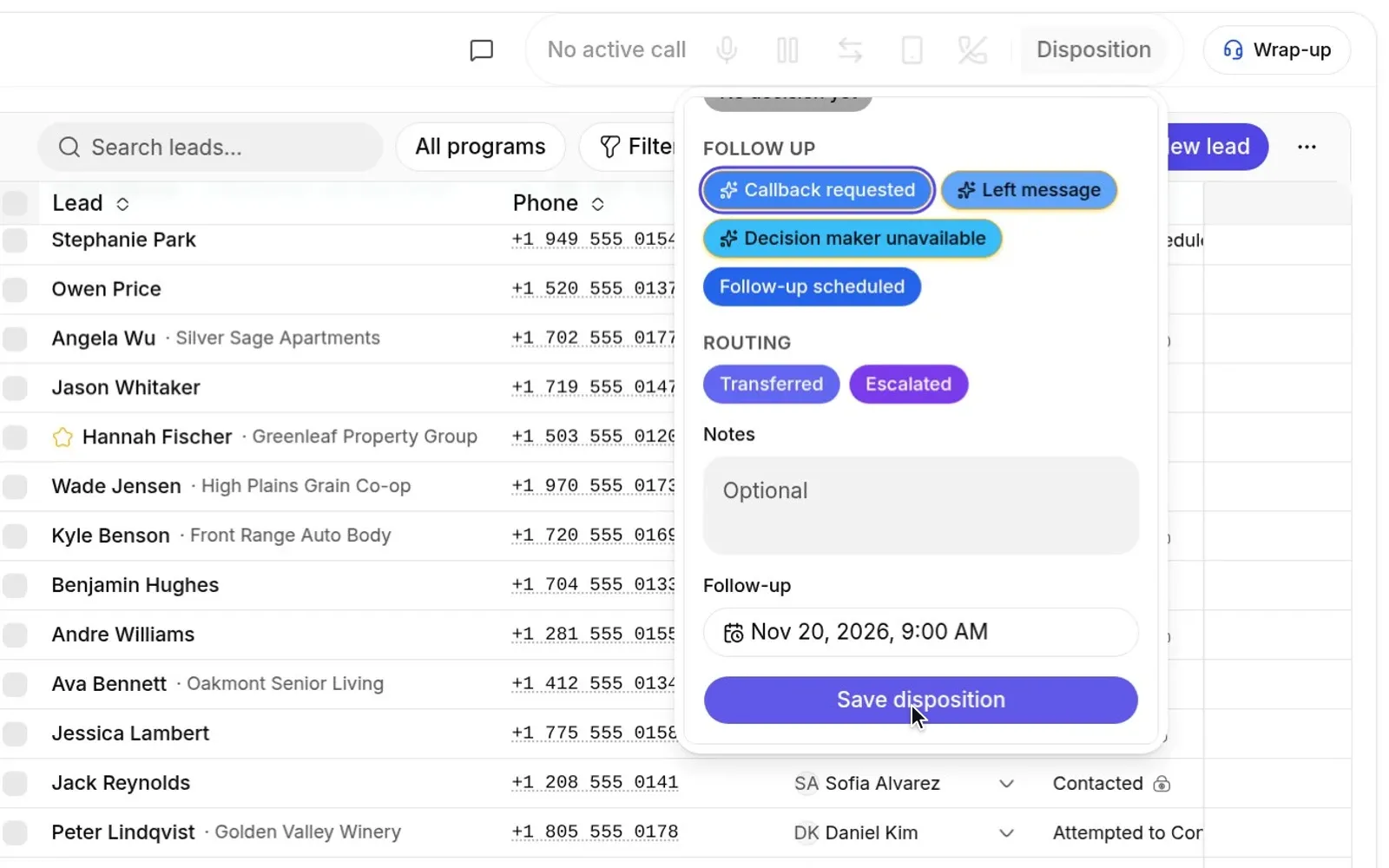
When a call ends, the wrap-up panel opens by itself. Pick a disposition - how the call went - add notes or a follow-up if you need to, and press Save disposition.
Save a disposition
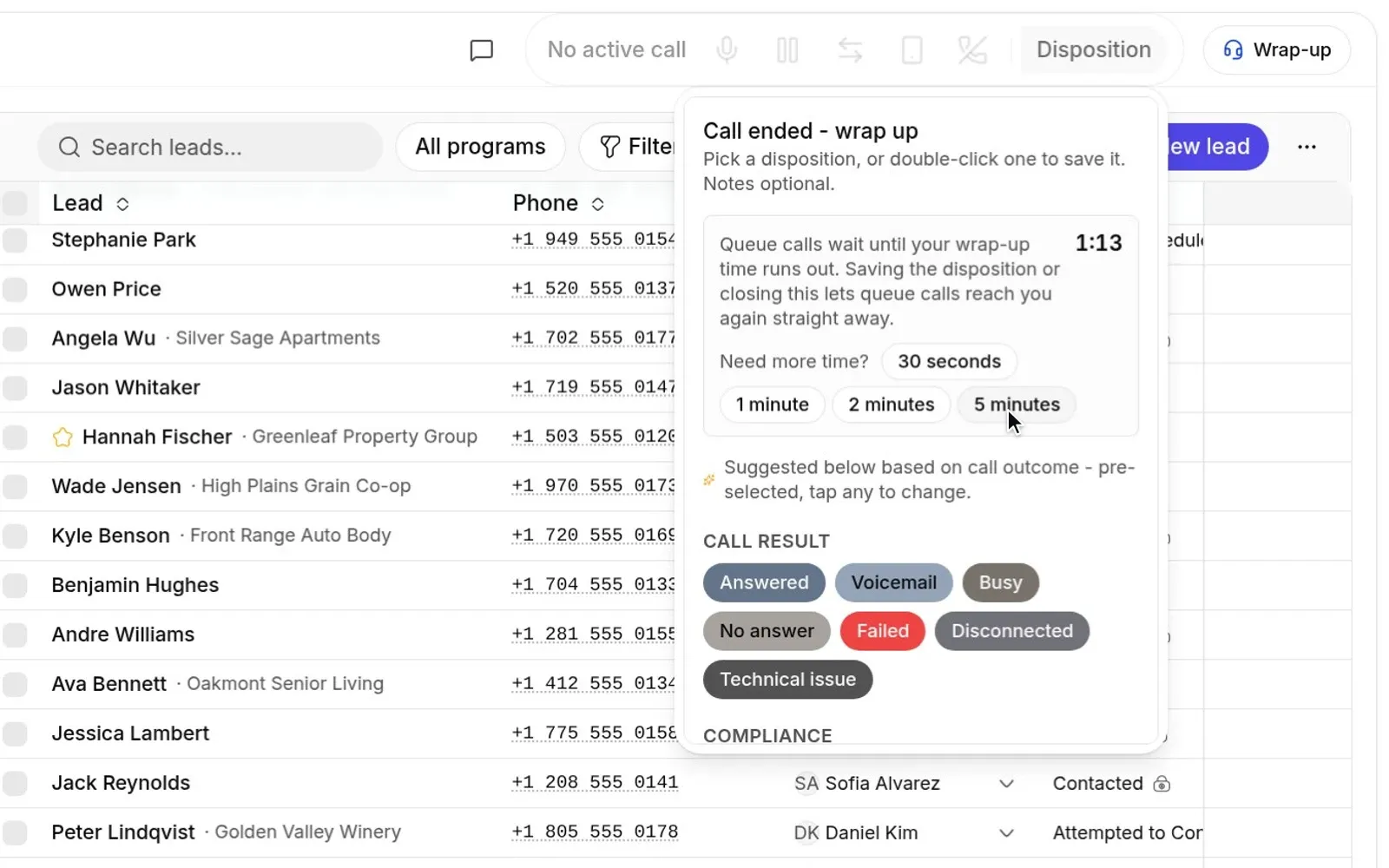
- When the call ends, Call ended - wrap up opens from the call controls at the top of the screen. If you closed it, press Disposition there to open it again.
- Click the disposition that fits. They're grouped by category. Adoptiv may pre-select one based on how the call ended and mark it with a sparkle. Click any other to change it.
- Type Notes if you want. They're optional.
- To plan the next contact, click Set a follow-up and pick a time such as Tomorrow 9 am, In 2 days or Next week, or your own day and time. This shows only when the call is linked to a lead you can edit.
- Press Save disposition. You see Wrap-up saved, and the follow-up is saved on the lead.
A disposition is required
Every call with a customer needs a disposition, so there's no skip button. Calls between teammates don't ask for one. If your workspace has no dispositions at all, the panel shows No dispositions configured - close instead.
If the follow-up can't be saved, you see Wrap-up saved, but not the follow-up and the reason. Set it on the lead's record instead.
Your wrap-up time
While you wrap up, queue calls wait for you, and a timer in the panel shows how long you have left. Saving the disposition, or closing the panel, lets queue calls reach you again straight away.
- Need longer? Under Need more time?, pick 30 seconds, 1 minute, 2 minutes or 5 minutes. You can add time once per call.
- When the time runs out, queue calls can reach you again. You can still save the disposition.
Set the wrap-up time
Who can do this: owners, admins, and roles with Manage Settings.
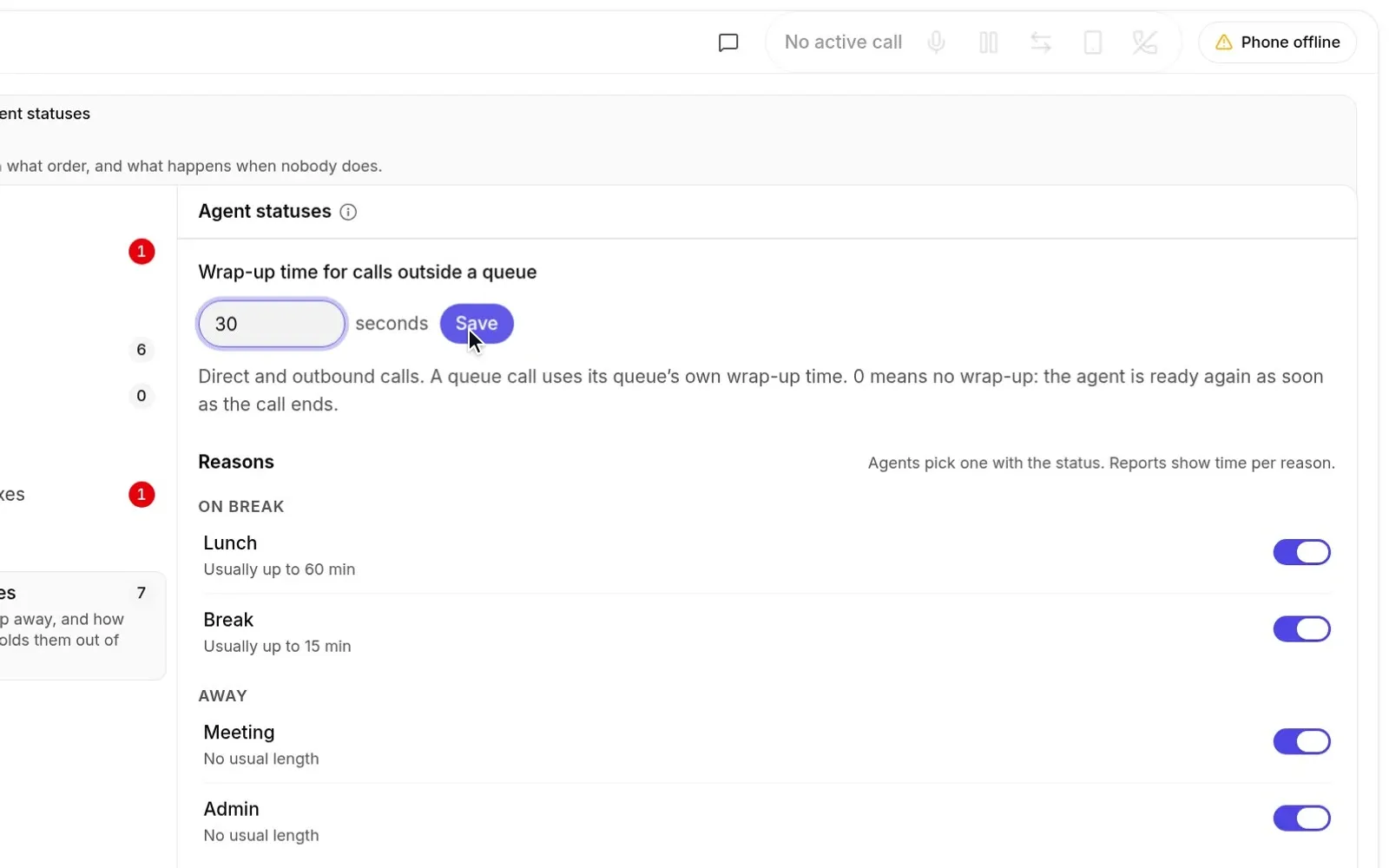
- Open Telephony → Routing and choose Agent statuses.
- Under Wrap-up time for calls outside a queue, enter a number of seconds from 0 to 3600. Enter 0 for no wrap-up time.
- Press Save.
This covers direct and outbound calls. A queue call uses its own queue's wrap-up time. On the same page, under Reasons, you can add the reasons agents pick when they ask for more time.
Change a disposition later
- Open Call Logs and click the call.
- On the Disposition card, press Set or Change and pick one.