
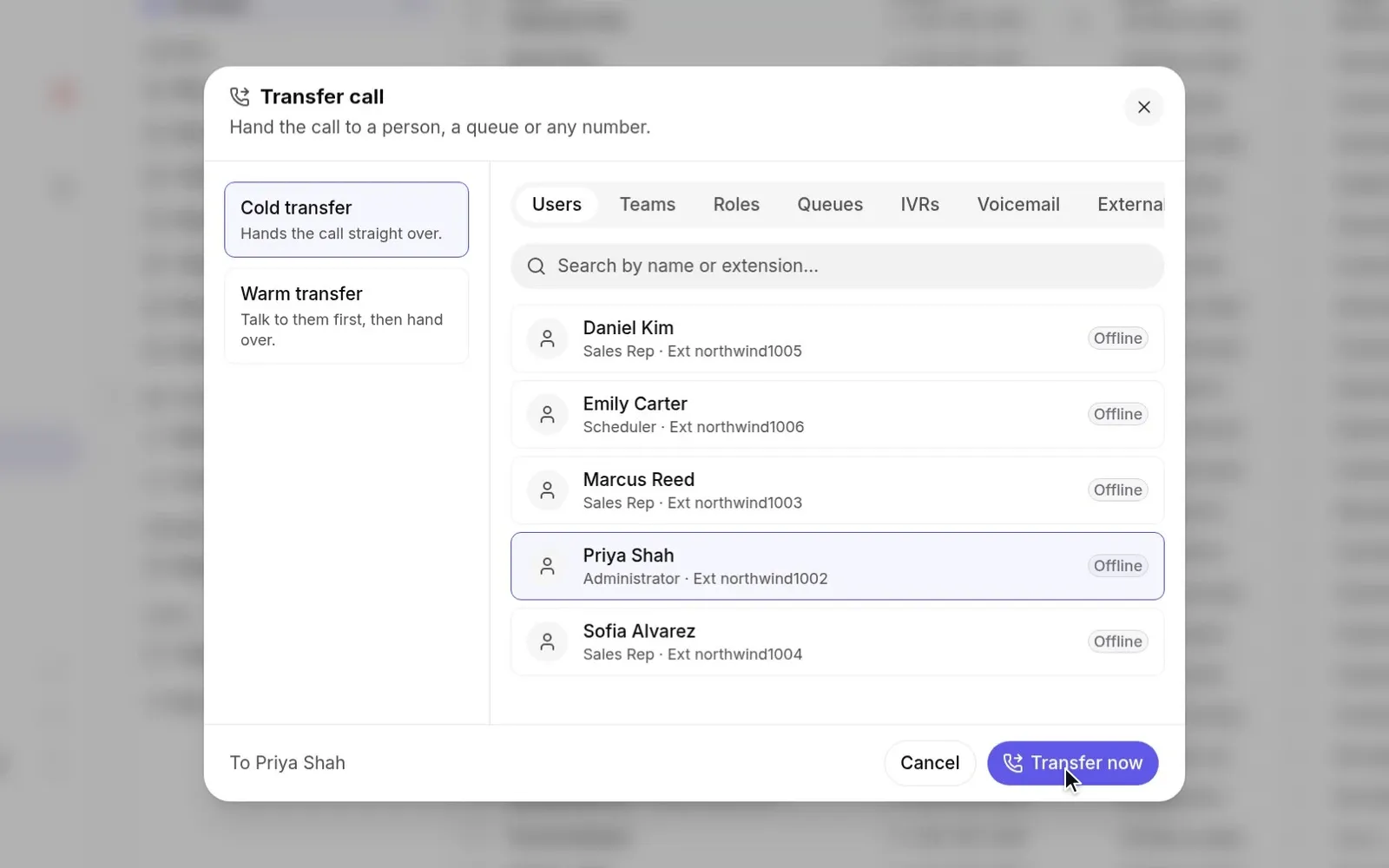
To hand a live call to someone else, press Transfer call in the call controls, pick a person, queue or number, and press Transfer now. To talk to them first, choose Warm transfer. A warm transfer can also become a three-way call.
Before you start
- Your role needs the Telephony & AI permission. Without it, the transfer dialog says your role doesn't include Telephony.
- The call must be connected or on hold.
Put a call on hold
- Press Hold in the call controls. The caller hears your workspace's hold music.
- Press Resume to pick the call back up.
To change what callers hear, see Hold music and greetings.
Transfer straight away (cold transfer)
- Press Transfer call. On a narrow screen, it's in the ⋯ menu.
- Leave Cold transfer selected. It hands the call straight over.
- Pick a tab: Users, Teams, Roles, Queues, Voicemail or External.
- Click where the call should go. People show their status, such as Available, and you can search by name or extension.
- For External, type the number with its country code, for example +1 415 555 0123.
- Press Transfer now.
Talk to them first (warm transfer)
A warm transfer works with a person on the Users tab or a number on the External tab.
- Press Transfer call and choose Warm transfer.
- Pick the person, or type the number.
- Press Start consultation. Your caller goes on hold with music while Adoptiv calls the other person.
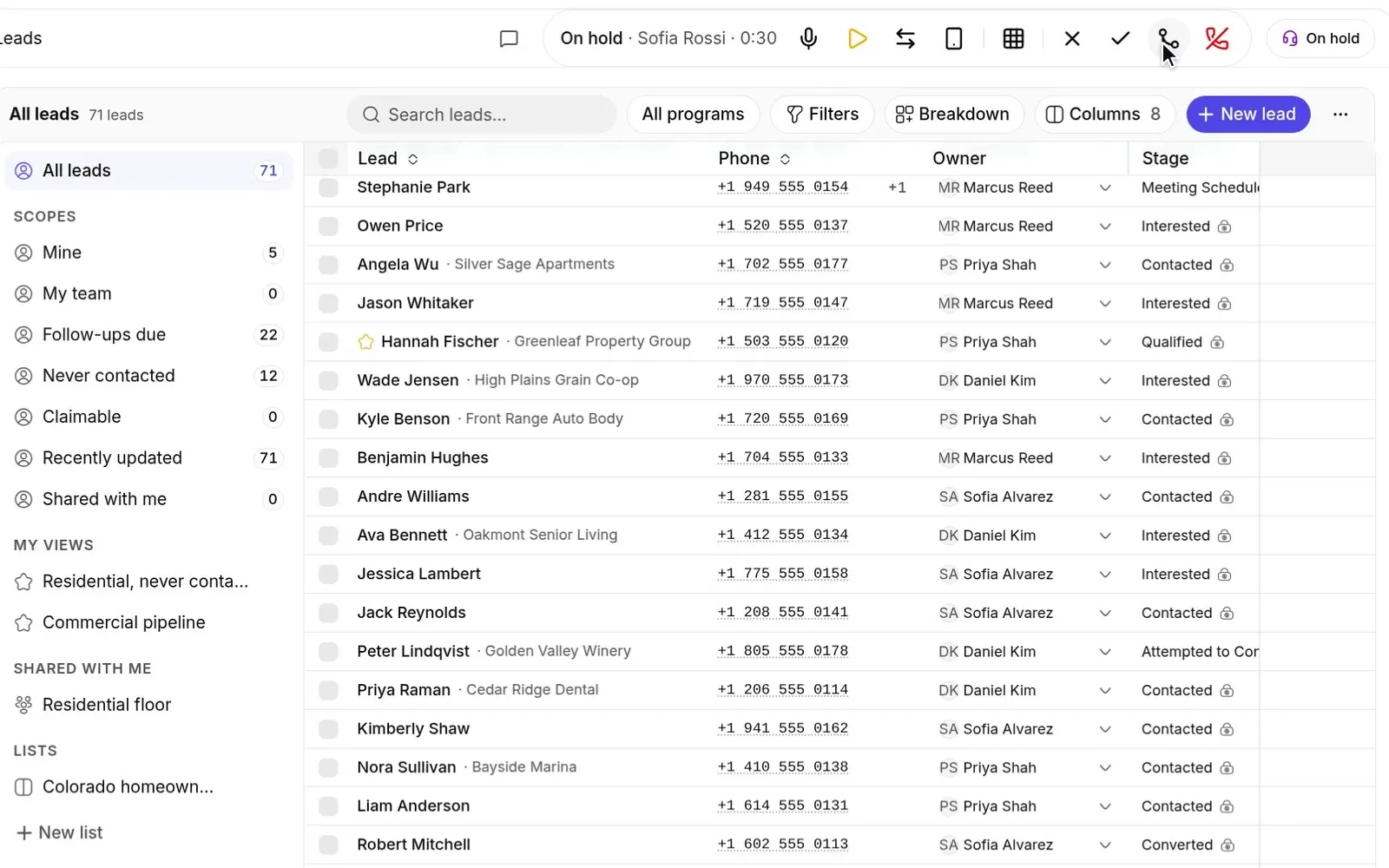
- When they answer, use the buttons in the call controls:
- Complete transfer - connect the parties and leave hands your caller over and drops you off the call.
- Merge into a 3-way puts all three of you on one call.
- Cancel consult ends the second call and takes you back to your caller.
On a narrow screen these are in the ⋯ menu as Hand over and leave, Bring them in (3-way) and Cancel - back to the customer. Hand-over and merge only work once the other person has answered.
Leave or end a three-way call
- Leave the 3-way - the others keep talking: you drop off and the other two stay connected.
- End the 3-way for everyone: the call ends for all three.
Move a call to your desk phone
- Press Switch to another device in the call controls.
- Under Switch call to, pick Desk Phone. Only a device that shows Ready can take the call.