
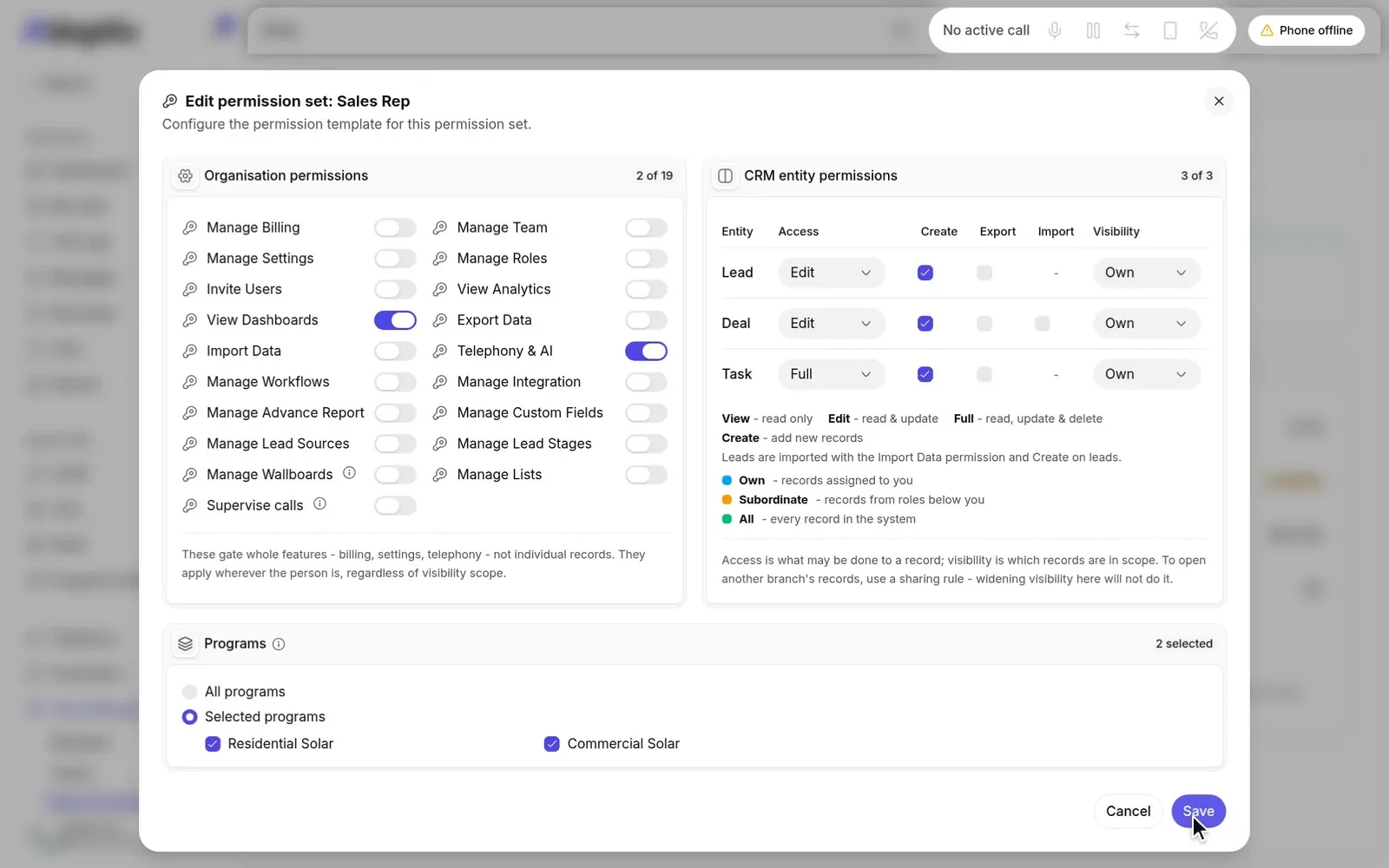
If you run more than one program, you can limit people to some of them. Open the role's permission set in Team Management → Roles & Permissions, choose Selected programs in the Programs card, tick the programs and press Save.
Before you start
- You need to be a workspace admin or have the Manage Roles permission.
- The Programs card appears only when your workspace has more than one program. See Keep lines of business apart with programs.
- Workspace owners and admins always see every program.
Limit a permission set to some programs
- Open Team Management → Roles & Permissions.
- On the Roles tab, hover over the role and press Permissions. Or open the Profiles tab and press Edit permissions.
- In the Programs card, choose Selected programs.
- Tick each program this set may reach. You need at least one.
- Press Save.
The limit applies to every role that uses this permission set. If you're not an admin, you can tick only programs you can reach yourself. The others show More access than yours.
What a limited person sees
- Leads and deals only from their programs. This is on top of their Visibility (Own, Subordinate or All): a record has to pass both.
- Reports, lists, exports and search show only their programs.
- Stages, sources, custom fields and pipelines shared by every program, plus those of their own programs.
- Lead in another program wherever a call, task or other record points at a lead they can't reach.
- "This person already exists in another program." when they add someone who is already a lead elsewhere.
- On an incoming call from a lead only in programs they can't reach, a short card with the name, program and owner, and Create a lead in my program.
Leads and deals can be assigned only to people who can reach their program, so the owner pickers list only those people. An agent on a call with a lead in their own program that someone else owns can work that lead for the call and its wrap-up.