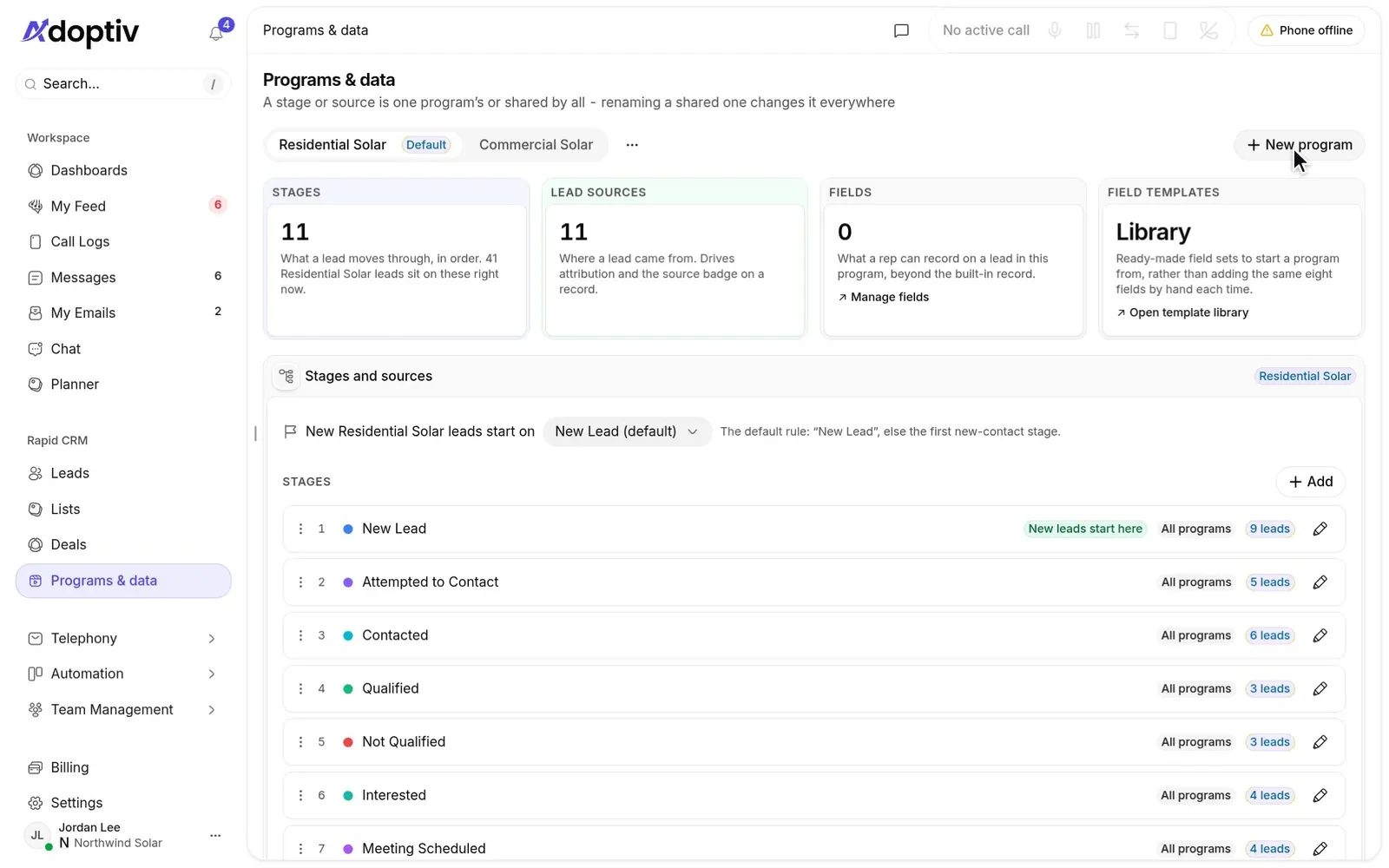
A program is a line of business with its own lead stages, lead sources and custom fields, such as Solar and Roofing. To add one, open Programs & data and press New program.
How programs work
- Every workspace starts with one program, marked Default. If you sell one thing, you may never need another.
- Every lead belongs to one program. A stage, source or group of fields is either one program's own or shared by all programs.
- A person can be a lead in more than one program. Those are separate records, and duplicate checks only look within a program.
- Each lead list belongs to one program. Deal pipelines can be shared or belong to one program.
- You can limit which programs each role can see. See Limit who sees which programs.
Before you start
To create, copy, rename, archive or restore programs you need Manage Settings, Edit on the Leads row of your permission set, and access to every program. Owners and admins have all three.
Create a program
- In the sidebar, under Rapid CRM, open Programs & data.
- Press New program.
- Enter a Name and press Create program.
The new program starts with everything shared by all programs. Then give it its own stages and sources and custom fields.
To start from an existing program instead, open the ⋯ menu beside the program tabs and choose Copy program…. The copy gets that program's own stages (with their order and start stage), sources, field groups and fields, and deal pipelines. Leads, deals and lists aren't copied.
Work in one program
- On Leads, the program button in the toolbar switches between All programs and a single program. People limited to some programs see All my programs.
- The New lead form and imports ask which program a lead joins.
- A phone number can be given a Program in its settings under Telephony → Numbers, so leads created from calls to it land in that program.
Move leads to another program
- Open the lead. In the facts strip, press the program's name beside Program.
- Pick the program and press Move to and its name.
To move many, tick them in the grid, open the bar's ⋯ menu and choose Move to program….
A moved lead keeps its stage if the new program uses it, otherwise takes the stage with the same name, otherwise the program's start stage. A source only the old program uses is cleared. Fields of the old program stay on the record, read-only. Open deals move with the lead; closed ones stay. A lead stays put if its owner can't see the new program, or if it has an open deal in a pipeline only its current program uses.
Rename, archive or restore
- Rename… is in the ⋯ menu beside the program tabs. Every lead, deal and list keeps its place.
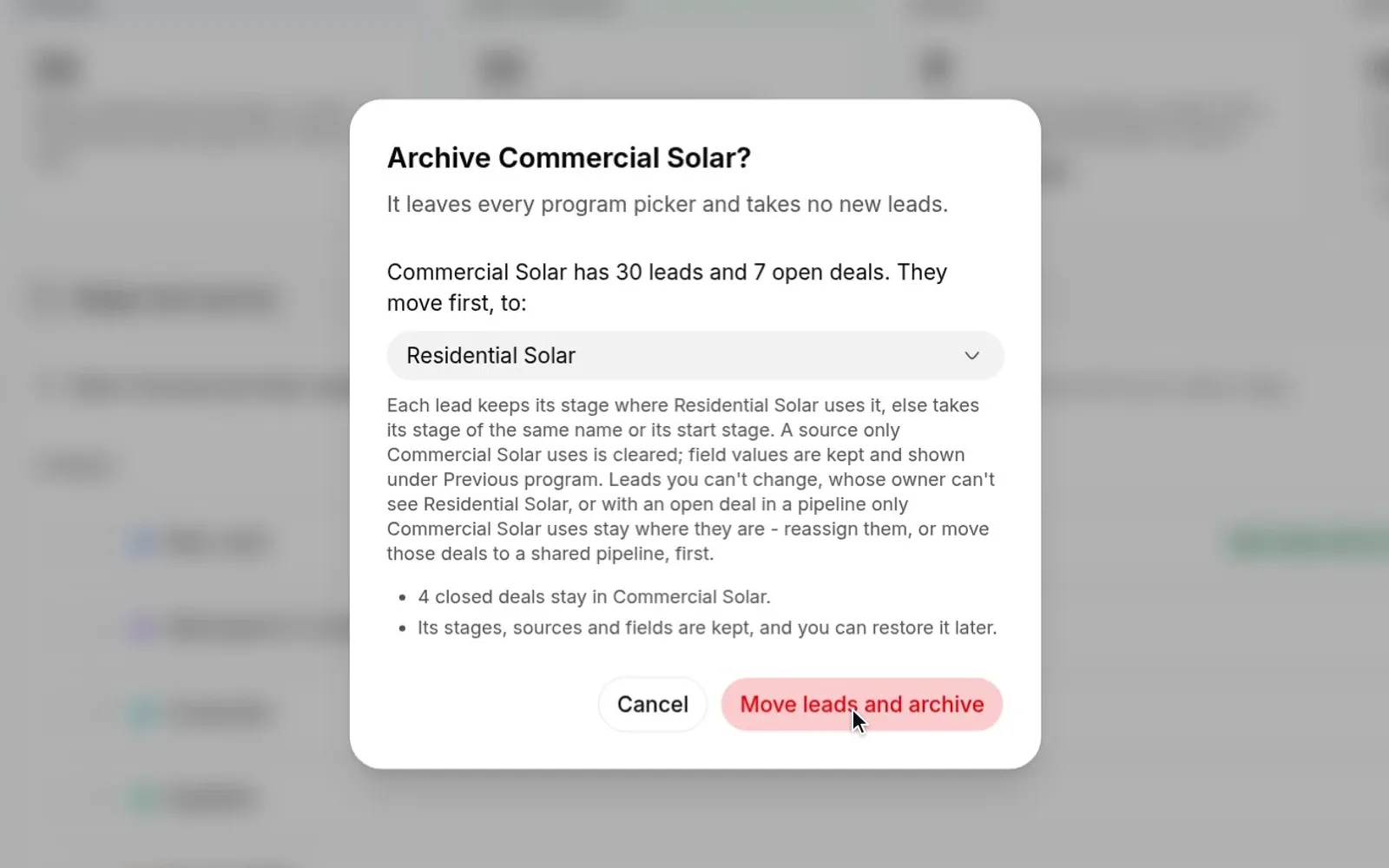
- Archive… moves the program's leads and open deals to the program you choose, then archives it. Press Move leads and archive and keep the page open while they move. Its lists are archived too, and phone numbers and queues stop filing new leads into it. The Default program can't be archived.
- To bring one back, press Restore under Archived programs at the bottom of the page. Its stages, sources and fields were kept.