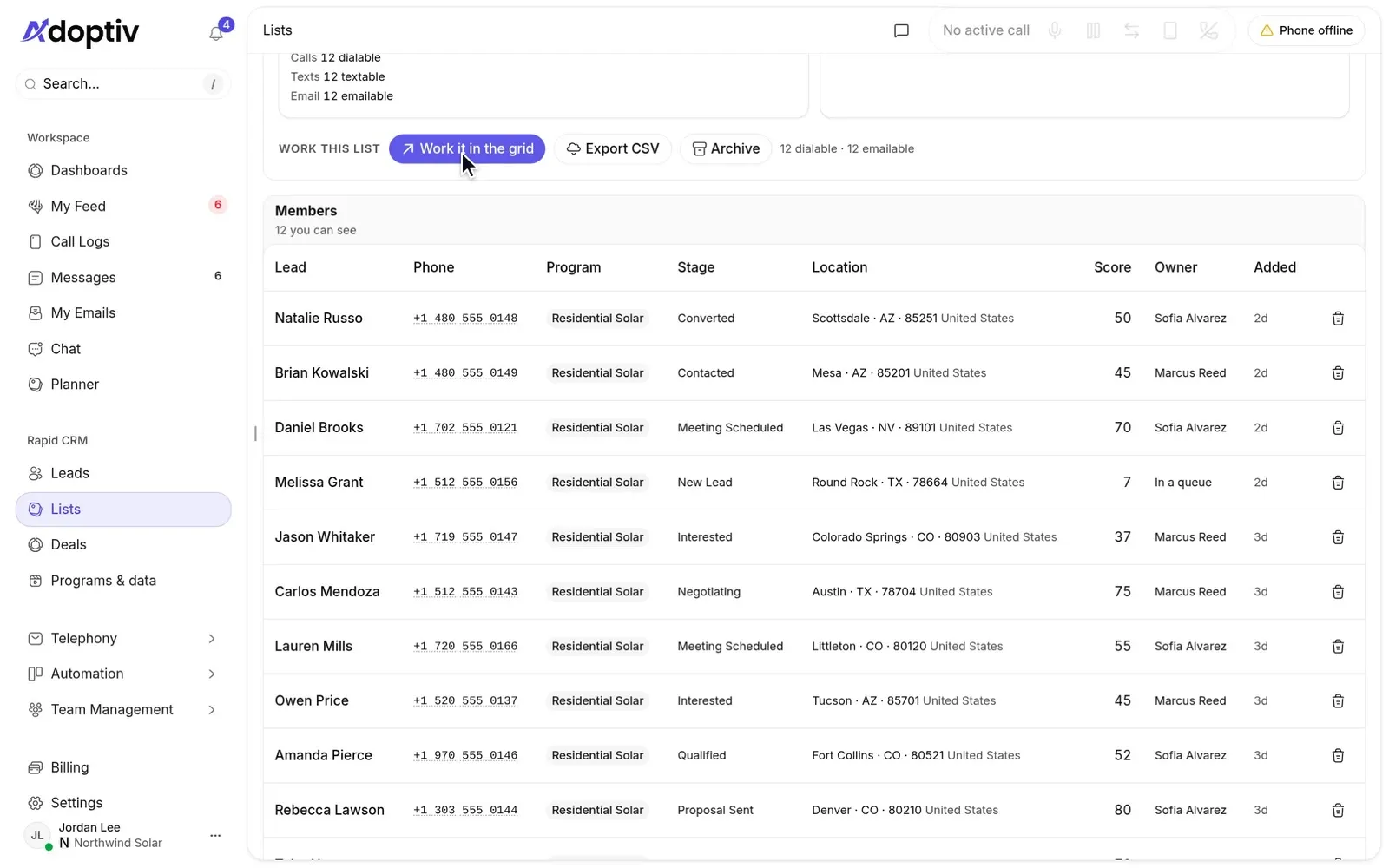
A lead list is a working set of leads you can open in the grid, export, or update in bulk. Create one from Lists → New list, or tick leads in the Leads grid and choose Add to → New list….
Static and smart lists
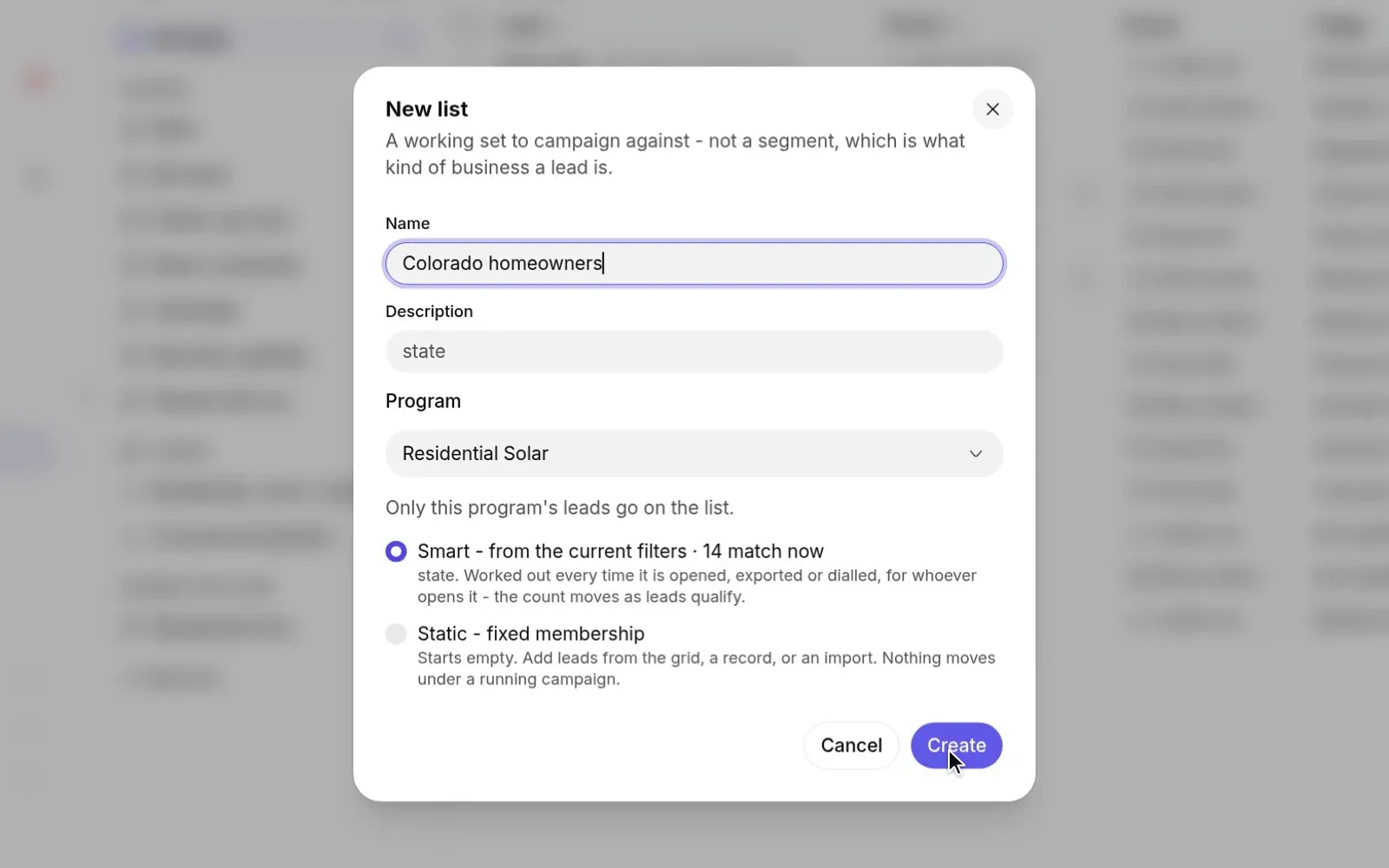
- Static - fixed membership: starts empty, and you add or remove leads yourself.
- Smart - from the current filters: its leads are whichever leads match its filters. It's worked out each time it's opened or exported, for whoever opens it, so the count moves. You can't add or remove leads by hand.
Every list belongs to one program, and only that program's leads go on it.
Before you start
- To create a list, you need Create on the Leads row of your permission set.
- Anyone who can read leads can open the lists of programs they can see. Only the person who made a list, an admin, or someone with Manage Lists can change it.
Create a static list
- In the sidebar, under Rapid CRM, open Lists.
- Press New list.
- Enter a Name and, if you like, a Description.
- Pick the Program.
- Press Create.
Create a smart list
- On Leads, set the Filters the list should match.
- In the panel on the left, under Lists, press New list.
- Choose Smart - from the current filters. It shows how many leads match now.
- Enter a Name, pick the Program, and press Create.
Add and remove leads
- On Leads, tick the leads, or tick the box in the header and press Select all [number] matching.
- Press Add to and choose A list…, or New list… to start a new one with them.
- Pick the list and press Add to and its name.
Leads already on the list, and leads in a different program, are left off. You can also put every lead from an import on a list from the import's row on the Imports tab.
To remove leads, click the list in the panel on the Leads page, tick them, open the ⋯ menu in the bar and choose Remove from the list. The leads themselves aren't touched. You can also press Remove on a lead in the list's page, or in the Lists module on a lead's record.
Work a list
Click a list in the panel on the Leads page to show only its leads, then use any bulk action. To see the list's own page, open Lists and click it. The page shows its Members, Geography, Deals, Activity and Overlap with other lists. From there you can:
- Press Work it in the grid to open the Leads grid on the list.
- Press Export CSV to download every member you can see.
- On a smart list, press Freeze as static list to make a static copy of who matches now.
- Press Archive to take it out of the panel and every list picker. Nothing is lost.
To bring an archived list back, filter the Lists page on Status: Archived and choose Restore list from its menu. Only a workspace admin can Delete for good, and only an archived list. The leads stay in the workspace.