
Custom fields hold what your leads or deals carry beyond the built-in record, such as a policy number or a budget. To add one, open Programs & data, press Manage fields, then press New field.
Before you start
You need Manage Custom Fields or Manage Settings. To change who can see and edit a group of fields, you need Manage Roles.
Open the custom fields page
- In the sidebar, under Rapid CRM, open Programs & data and press Manage fields on the Fields card. You can also open the ⋯ menu on the Leads page and choose Custom fields.
- Choose Leads or Deals at the top.
When you come from a program, the page shows that program's fields and the shared ones. Press Show every program to see them all.
Make a group
Groups sort fields into sections on the record, and carry who may see and change them.
- Press New group.
- Enter a Name and, if you like, a Description.
- If you have more than one program, set the Program to Every program, or to one program so only its leads show these fields.
- Pick a Colour, and choose whether to Offer its fields as columns in the leads grid.
- Press Add group.
Add a field
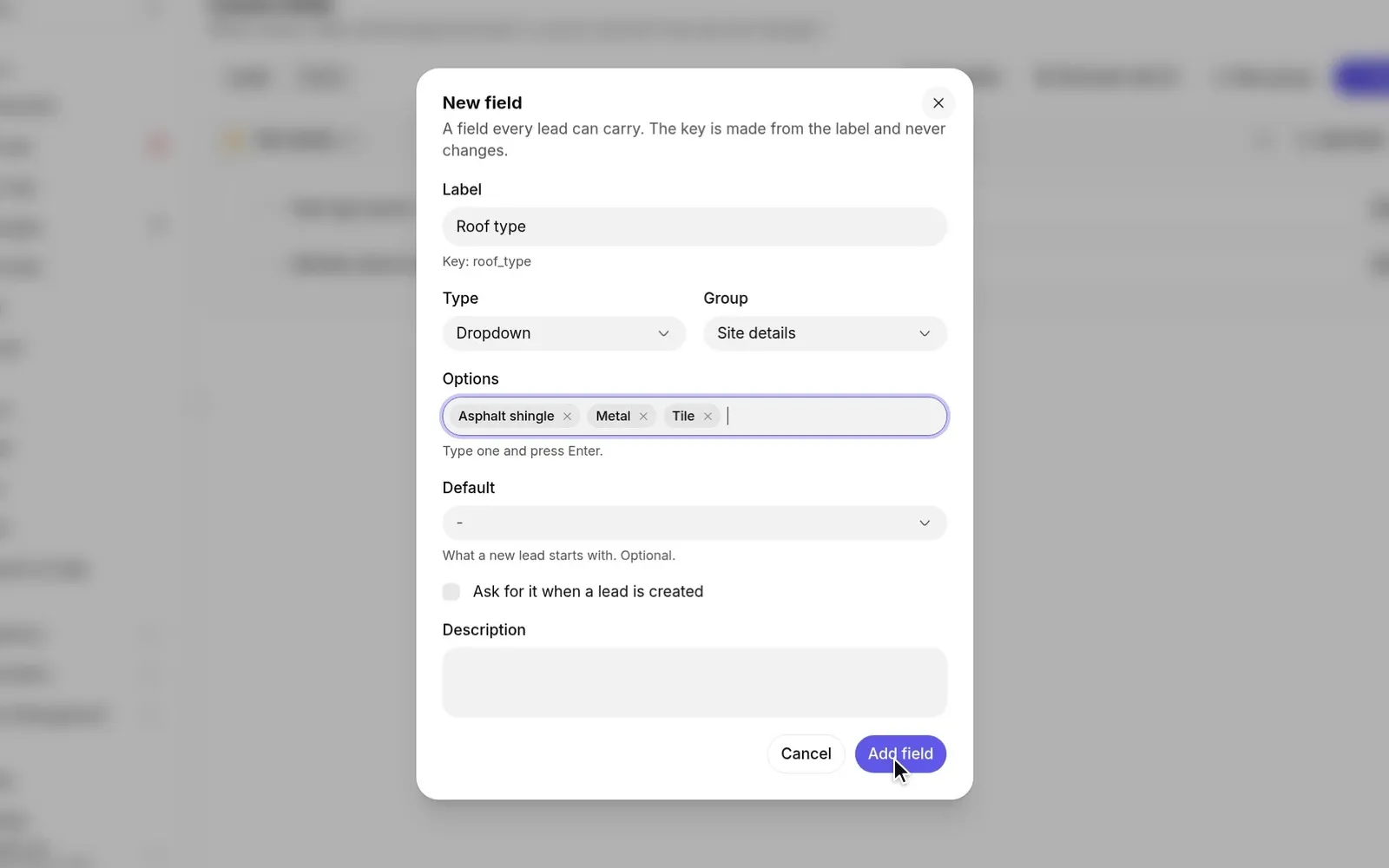
- Press New field, or Add field on a group.
- Enter the Label. A Key is made from it, and the key never changes.
- Choose the Type: Text, Number, Currency, Date, Yes / no, Dropdown, Multi-select, Email, Phone or URL.
- Choose the Group.
- For a dropdown or multi-select, type each choice under Options and press Enter.
- If you like, set an Allowed range for a number or currency, or the Longest value for text, plus a Placeholder, a Default and a Description.
- For a lead field, tick Ask for it when a lead is created to make it required on the New lead form.
- Press Add field.
A required field only applies to new leads. An existing lead without a value shows Required - not filled in yet.
Change or delete a field
- Click the field to open it, then press Edit.
- Change its label, type, group, options or other settings, and press Save.
- To delete it, press Delete [field name]… at the bottom while editing, then Delete field. If records have a value in it, you type the field's label first.
Removing a dropdown option leaves it on records that already have it. Deleting a field removes it and every value in it for good.
Choose who can see and edit a group
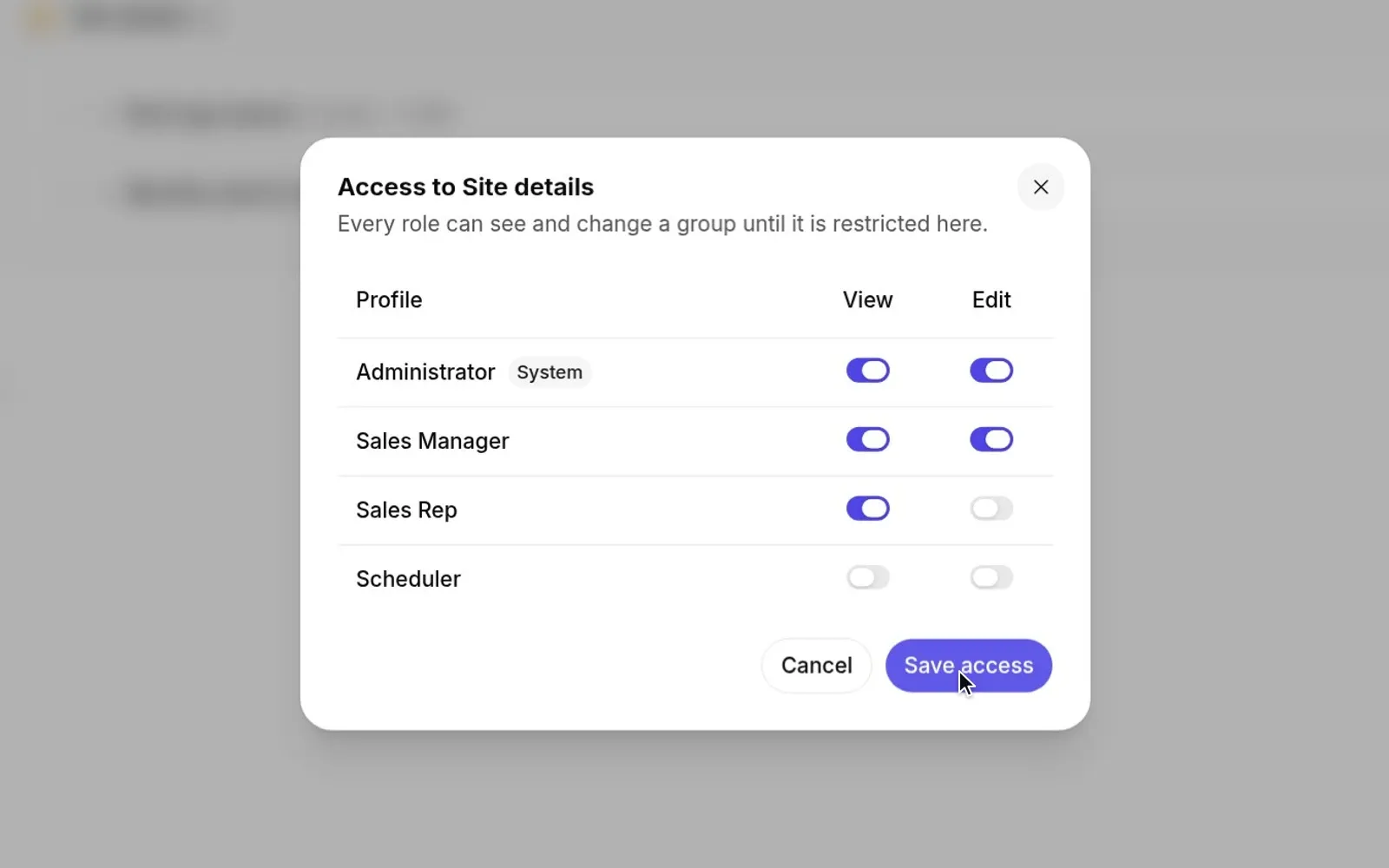
- Open the group's ⋯ menu and choose Who can see and edit….
- For each permission set, tick View and Edit as needed.
- Press Save access.
Every role can see and change a group until you restrict it here.
Start from a template or AI
- Press Templates to open Field templates, a library of ready-made groups of fields. If you have more than one program, choose where under Import into. Then press Import on a template.
- Press Generate with AI and describe the fields you need, paste a CSV header, or attach a screenshot. You keep, refine or drop each suggested field before it's created.