To give another system a key for posting into your incoming webhooks, open Settings → API Keys and press Create key. The same page holds your own Blacklist Alliance key for compliance lookups, and a log of the lookups Adoptiv made.
Before you start
- API keys are managed by workspace owners and admins, and by roles with Manage Settings.
- A workspace API key works only with incoming webhooks; Adoptiv has no other API that takes it. See Send leads in with incoming webhooks.
Create a workspace API key
- Open Settings → API Keys.
- Under Workspace API keys, press Create key.
- Enter a Name after the system that will use it, so you know later what revoking it would stop.
- Choose an Expiry: No expiry, 30 days, 90 days or 1 year.
- Press Create key.
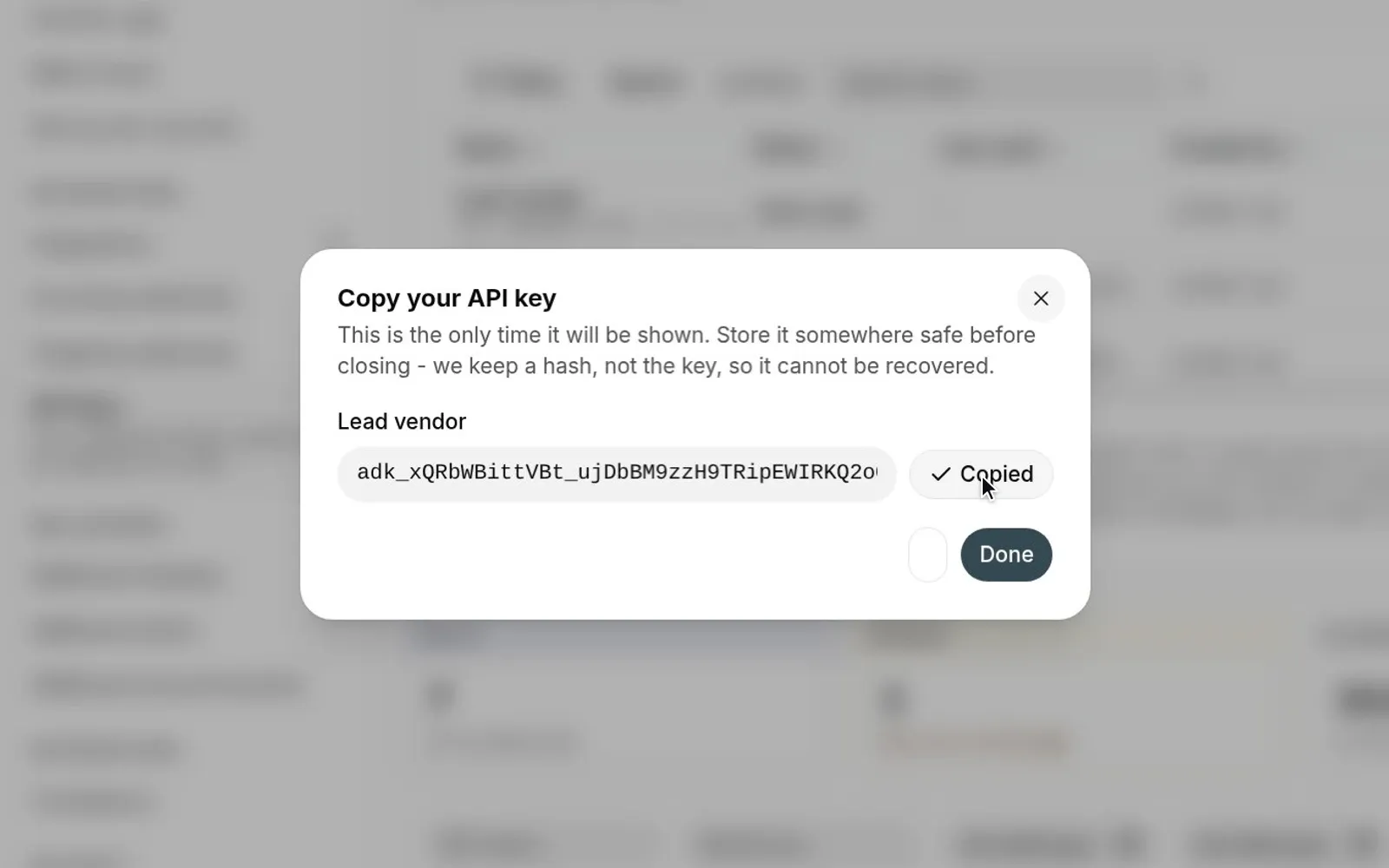
- Under Copy your API key, press Copy and store the key somewhere safe. This is the only time it's shown: Adoptiv doesn't keep the key itself, so it can't be recovered.
- Press Done.
A workspace can have up to 25 active keys.
Use the key
The other system sends the key, which starts with adk_, with each request to one of your incoming webhooks, in either header:
Authorization: Bearer adk_…x-webhook-token: adk_…
One key works on every webhook in the workspace, so you don't have to hand out a separate token for each. A webhook with a signing secret still needs a valid signature: the key doesn't replace it.
Check and revoke keys
The list shows each key's Name with its last four characters, its Status (Active, Never used, Expired or Revoked), when it was Last used and who created it. To revoke one:
- Press Revoke on the key's row.
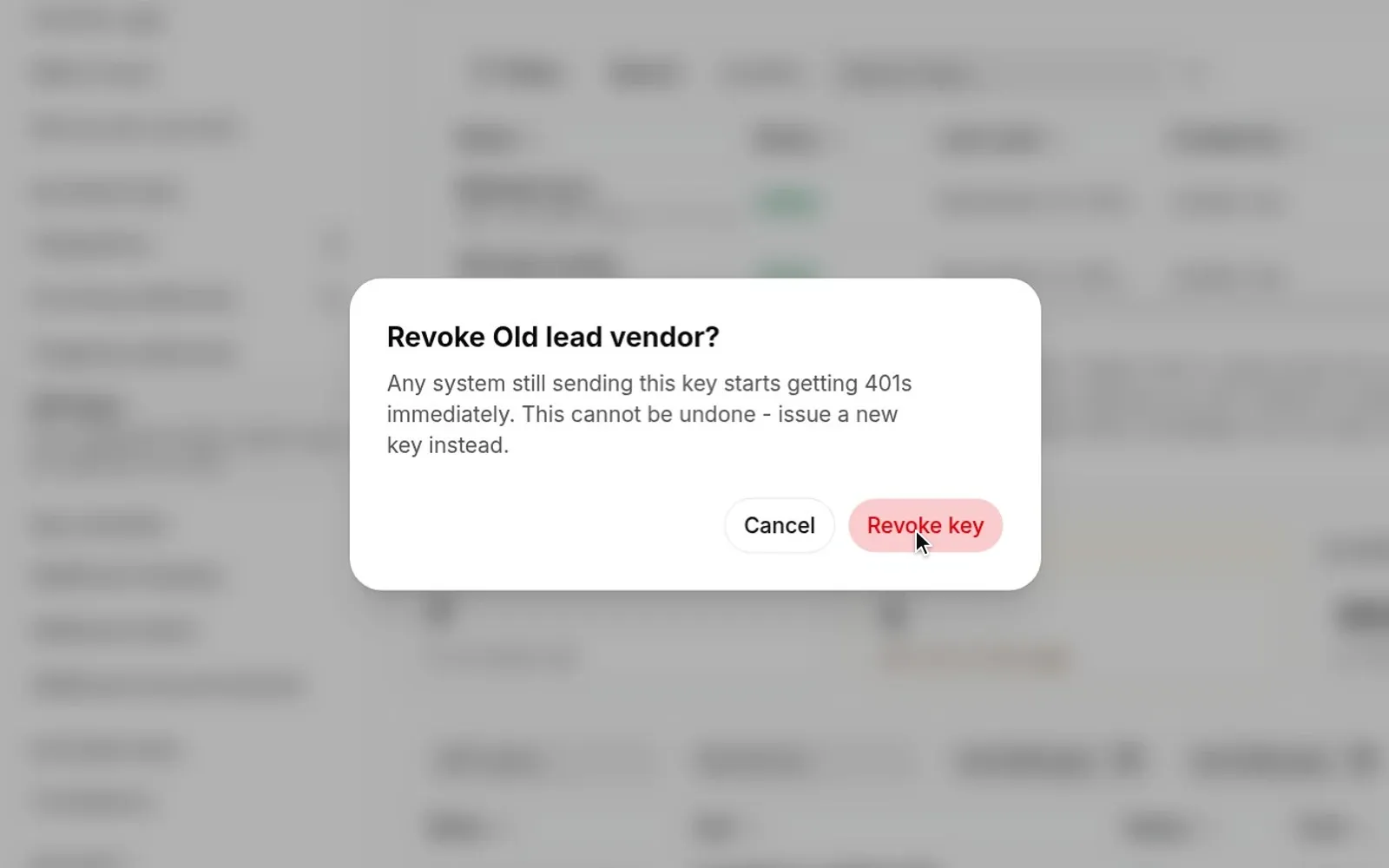
- Press Revoke key.
Any system still sending that key is refused at once with a 401. A revoked key can't be turned back on, so create a new one instead. The row stays, so you can still see what the key was and when it last worked.
Use your own Blacklist Alliance key
Without a key here, your workspace's litigator lookups use Adoptiv's own key. Add yours to run them on your own Blacklist Alliance account.
- On Settings → API Keys, find Blacklist Alliance (BLA) key.
- Paste your key into API key.
- Choose the API version your account uses, or leave it on Provider default.
- Press Save credential.
A saved key is never shown, only its first characters and length. To replace it, type a new one; leave the field blank to keep it. To see the whole key, use the reveal button in the field and confirm your password. That's recorded in the audit trail.
Read the API log
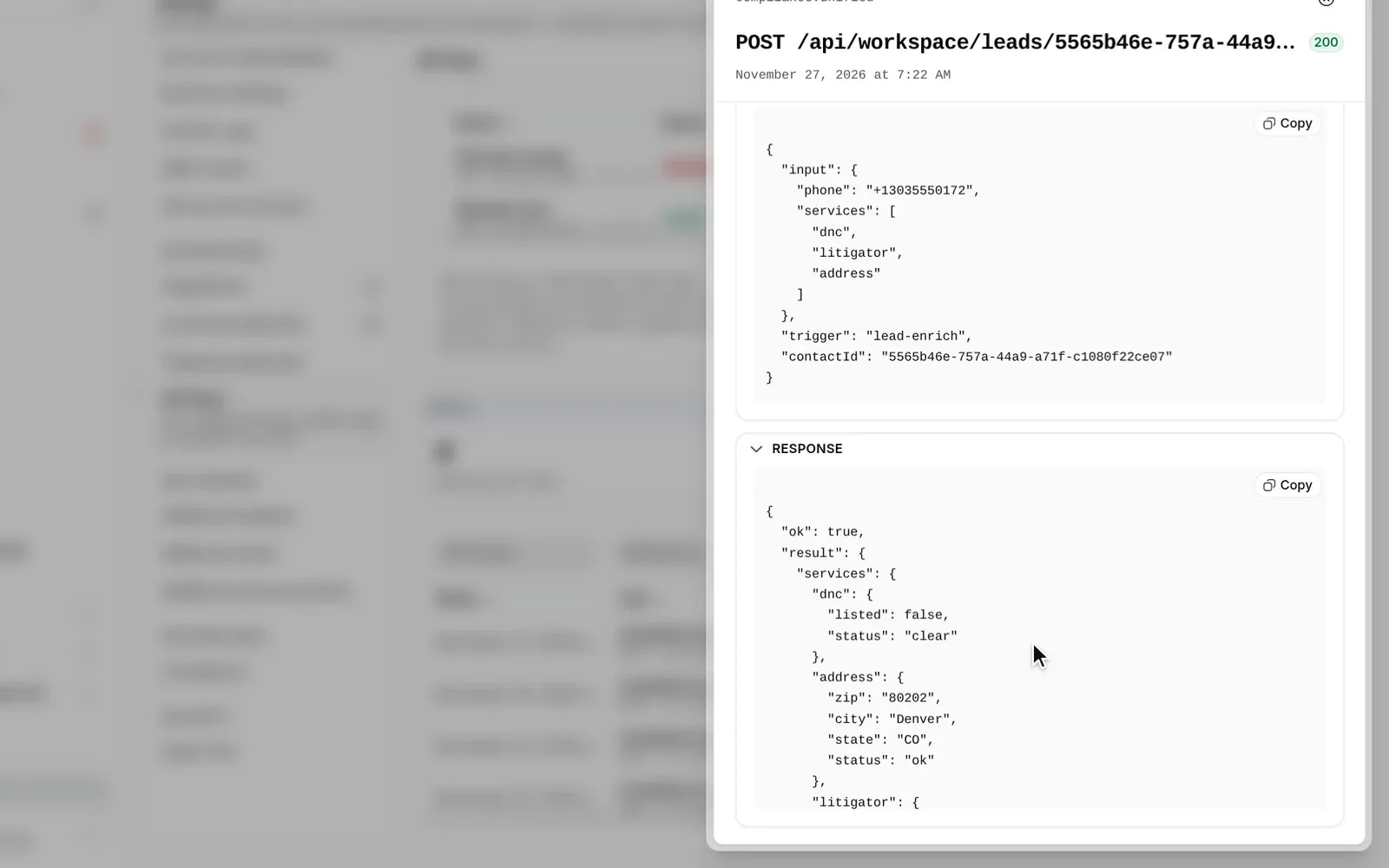
Below the keys, the log lists the outside lookups, such as compliance checks, that Adoptiv made for your workspace: When, the Call, its Status, how long it Took and who it was Started by (a person, or Adoptiv for automatic ones).
- Filter by API name, by who started it, or by dates, and press Refresh.
- Press Details on a row to see the request and the response.
Requests to your incoming webhooks aren't in this log. They're on each webhook's page in Settings → Incoming webhooks.