An outgoing mail server sends your workspace's automatic emails, such as sequence emails, from your own domain. Open Settings → Integrations, choose the Outgoing mail tab and press Add a server.
Before you start
- Outgoing mail servers are managed by workspace owners and admins, and by roles with Manage Settings.
- You need an account with one of the providers: SMTP (any mail server), Mailgun, SendGrid, Amazon SES or Resend.
- The From address must be on a domain that provider may send for, or mail will bounce. SPF, DKIM and DMARC are set in your domain's DNS, and Adoptiv doesn't check them.
- For your own one-to-one email, you can connect your mailbox instead. See Connect your mailbox.
What goes out through it
- Sequence emails go out through the workspace's default server. See Follow up automatically with sequences.
- Email steps in a call flow use the server picked under From (sender), or the default server when it's left on - default sender -.
- New email: only the people, teams and roles you choose can pick it as their From address.
Emails to leads never fall back to an Adoptiv address. Without a working server, these emails don't go out.
Add a server
- Open Settings → Integrations and choose the Outgoing mail tab.
- Press Add a server.
- Choose the Provider. For Resend, Open the setup guide walks you through it.
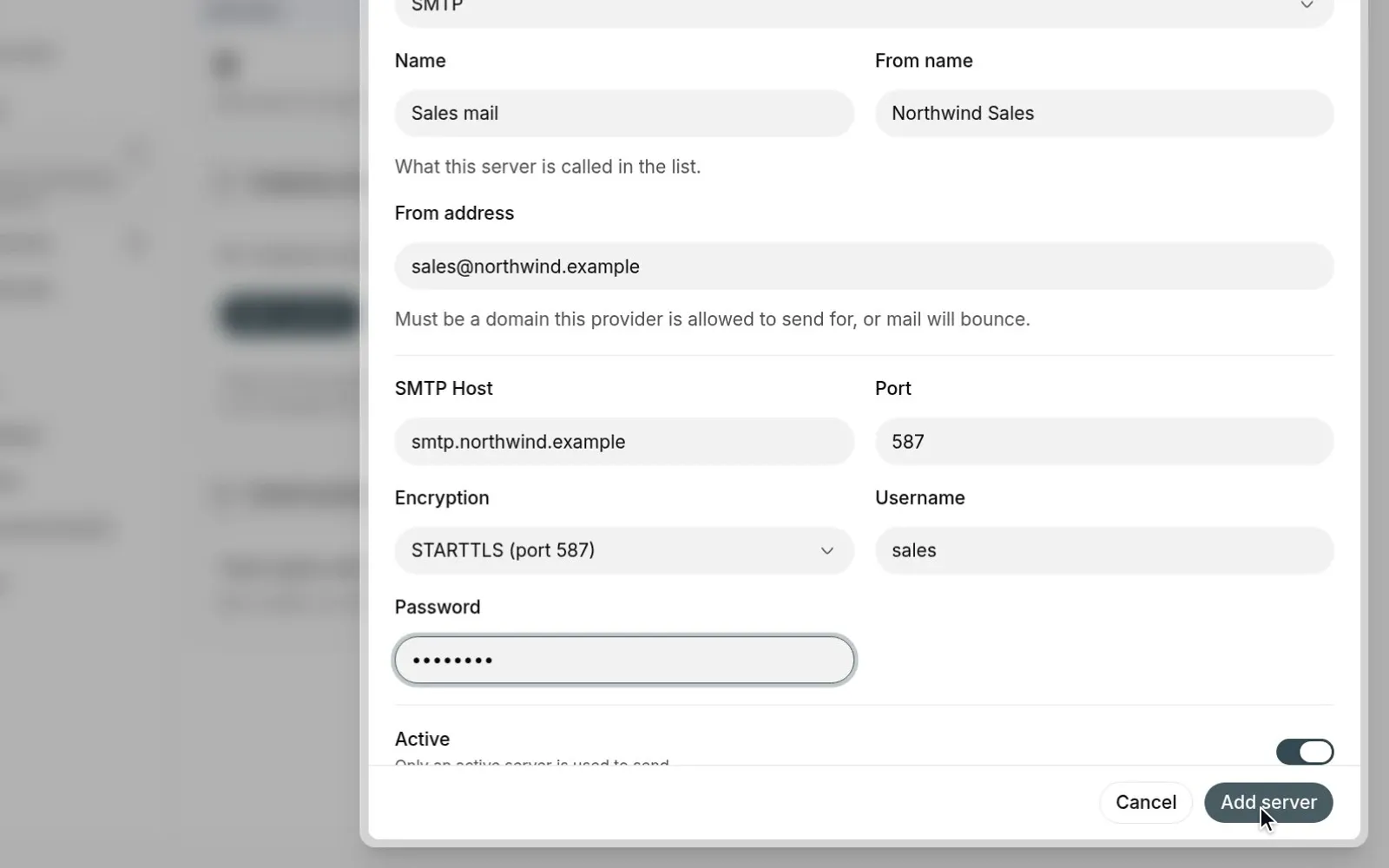
- Enter a Name for the list, the From name and the From address.
- Fill in the provider's details (see the table below).
- Leave Active on. Only an active server is used to send.
- Choose who can send from it (next section), then press Add server.
| Provider | What you enter |
|---|---|
| SMTP | SMTP Host, Port (587 unless you change it), Encryption (STARTTLS (port 587), SSL / TLS (port 465) or None (port 25)), Username and Password |
| Mailgun | Sending Domain, Region (US or EU) and Private API Key |
| SendGrid | API Key |
| Amazon SES | AWS Region, Access Key ID and Secret Access Key |
| Resend | API Key, and an optional Reply-To Email |
Passwords and keys are stored encrypted and never shown again. When you edit a server, leave a secret blank to keep the one stored.
Choose who can send from it in New email
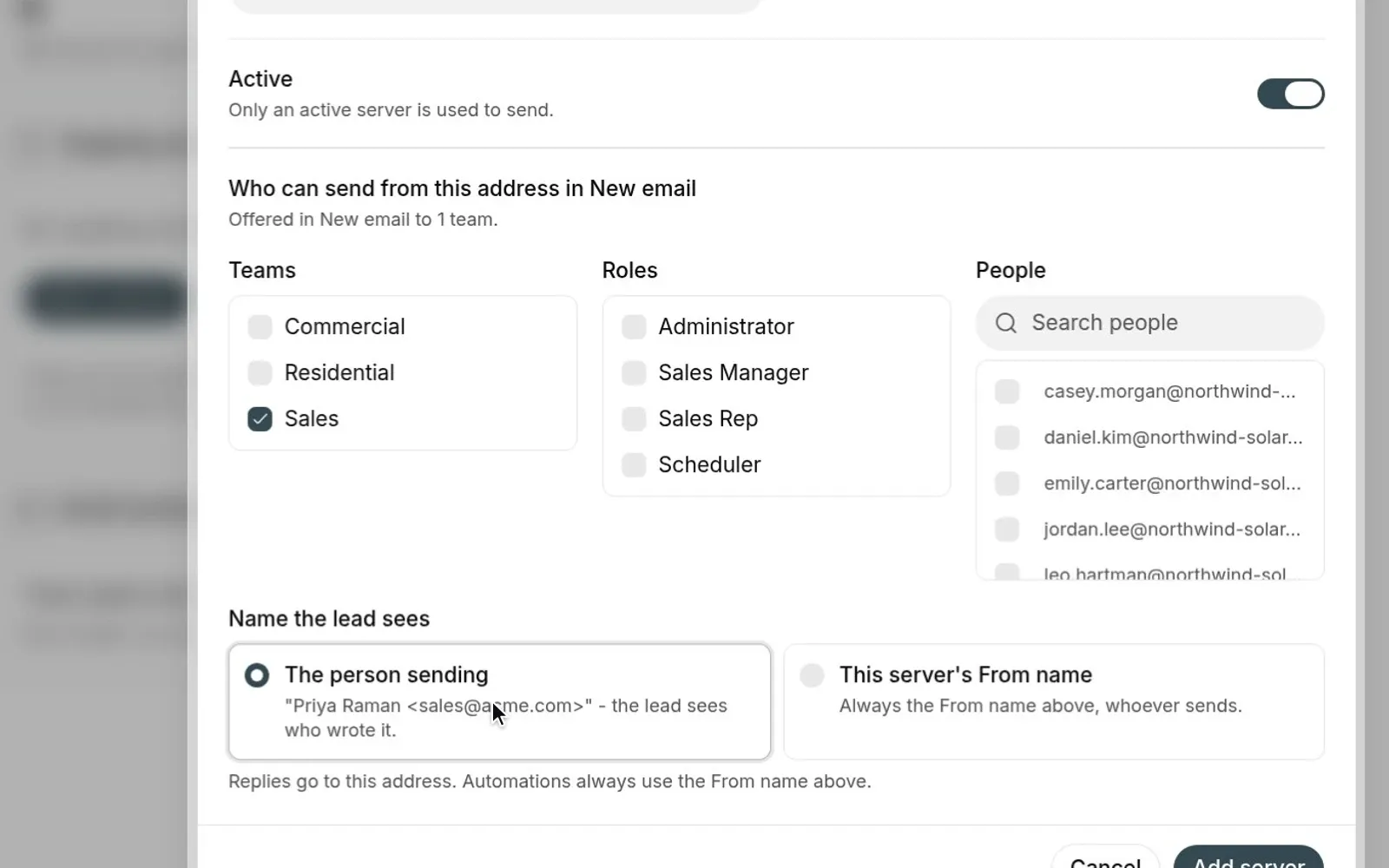
The server sends automations for everyone. Picking it as From in New email is narrower:
- Under Who can send from this address in New email, tick Teams, Roles or People.
- Under Name the lead sees, choose The person sending or This server's From name.
If nobody is ticked, nobody can pick it, admins included, so tick yourself if you need it. Replies go to the server's From address, and automations always use its From name. Only SMTP and Resend servers can send attachments. See Send an email.
Test it and choose the default
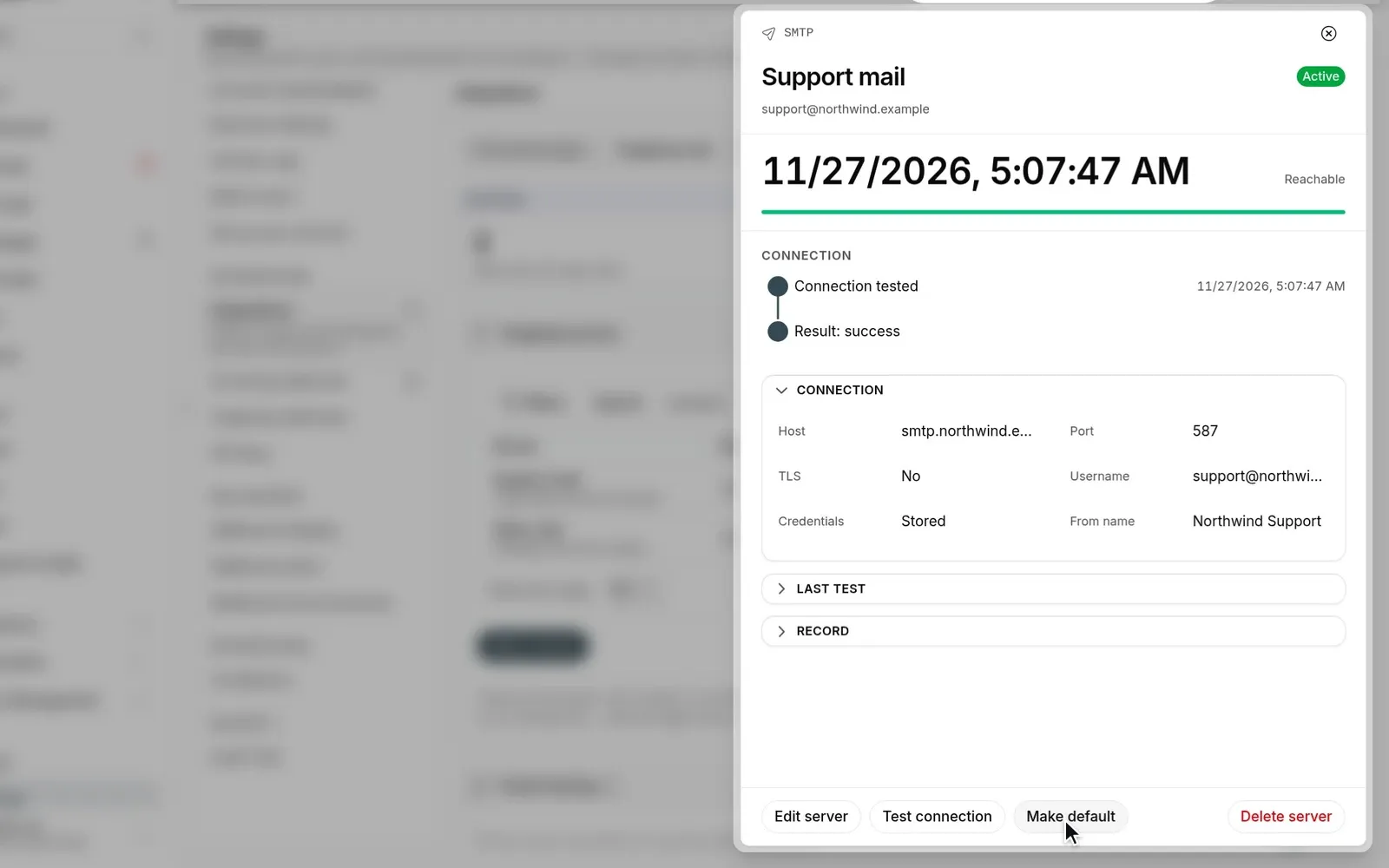
- On the Outgoing mail tab, click the server's row.
- Press Test connection. It checks that Adoptiv can connect and sign in; it doesn't send an email. The result shows as Reachable, or Test failed with the reason.
- With more than one server, press Make default on the one automations should use. It must be active.
Until you choose, Adoptiv makes a working server the default. Every active server is tested again every 12 hours, and owners and admins are told the first time one fails. If the default you chose is switched off or fails its test, automatic emails fail until you fix it or choose another. They never switch servers by themselves.
To change a server, press Edit server. Delete server stops mail going out through it and can't be undone.