
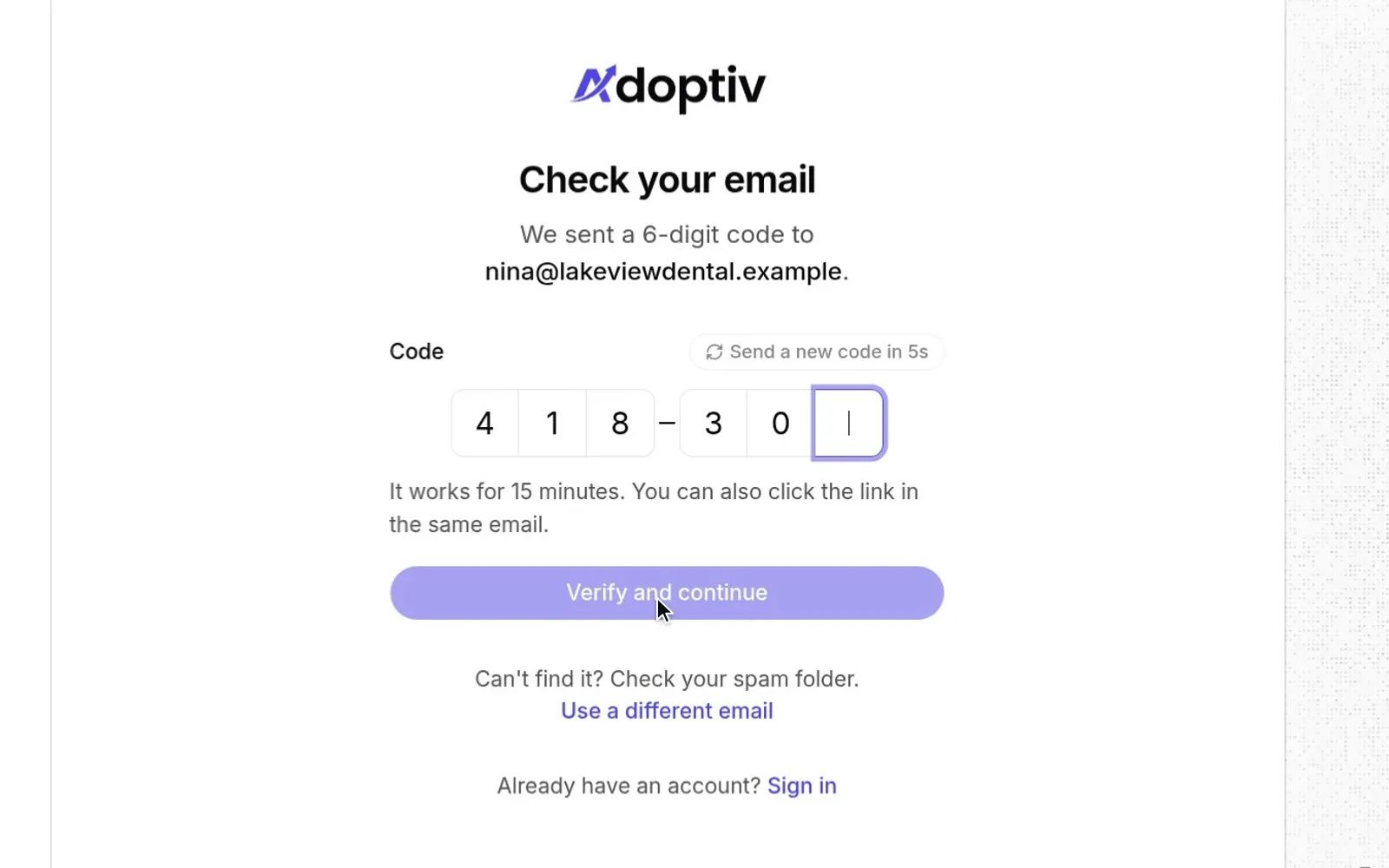
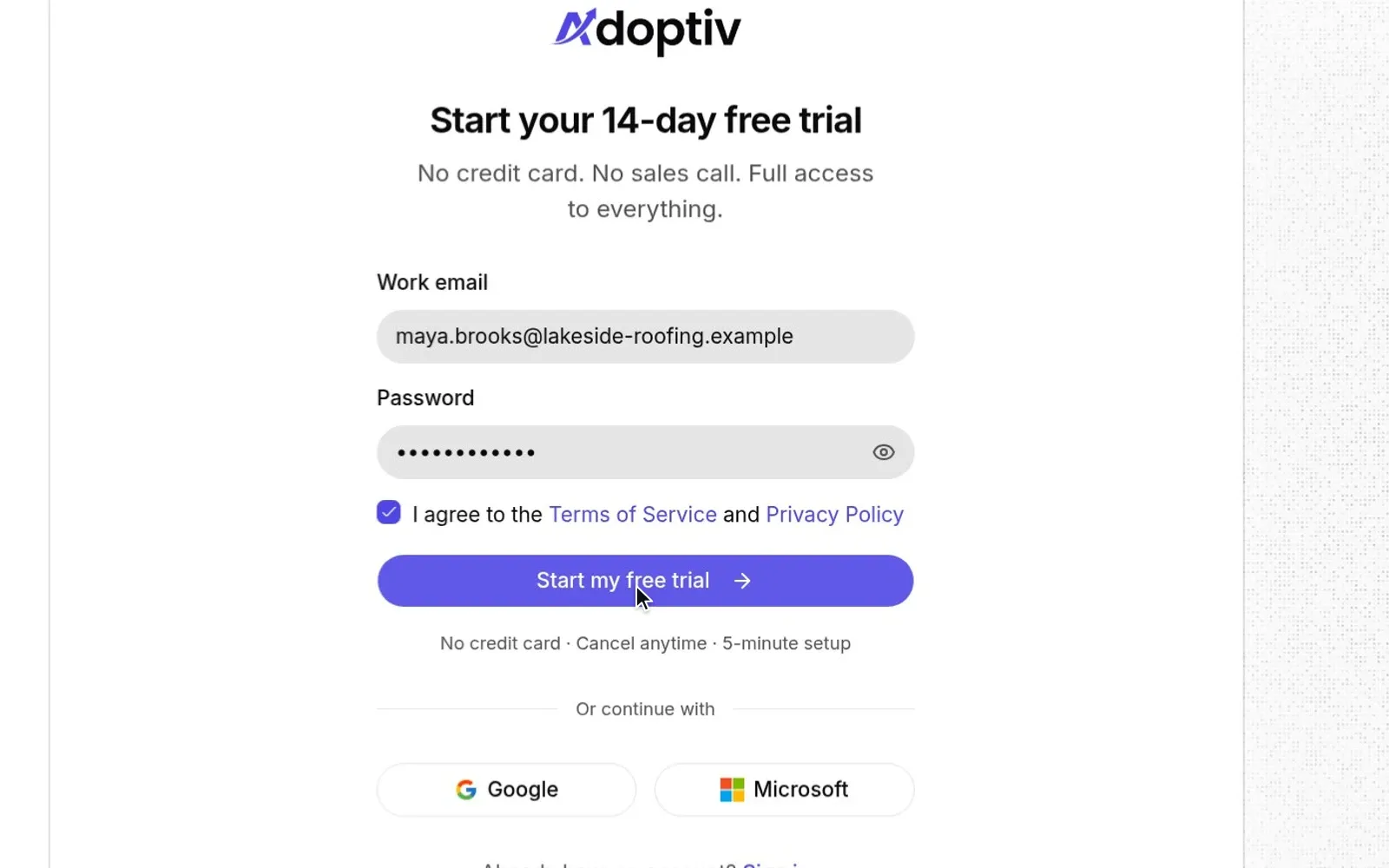
To sign up, enter your work email and a password on the sign-up page, tick the Terms box and press Start my free trial. We email you a 6-digit code. Type it in and you're signed in, ready to set up your workspace.
Before you start
- Use an email address you can open right now. Temporary inboxes can't be used to sign up.
- You don't need a credit card.
Create your account
- Enter your Work email.
- Enter a Password. It needs at least 8 characters, one uppercase letter and one number.
- Tick I agree to the Terms of Service and Privacy Policy.
- Press Start my free trial.
Enter the code
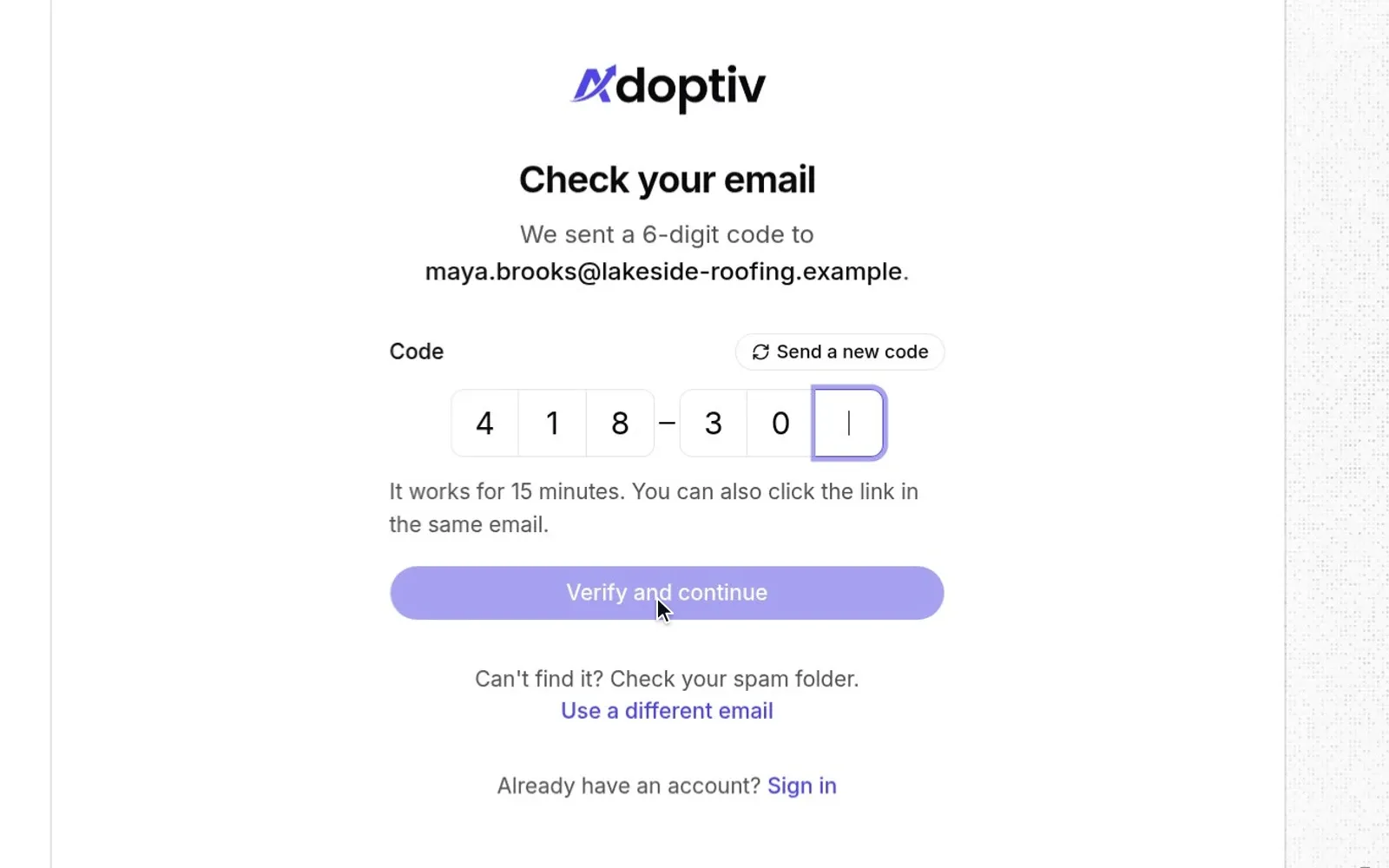
The page changes to Check your email. We send one email with a 6-digit code and a link. The code is also in the email's subject line.
- Open the email from Adoptiv.
- Type the 6 digits into the boxes, in the same browser you signed up in. The code is checked as soon as you type the last digit, or you can press Verify and continue.
- You're signed in and taken to set up your workspace.
A code works for 15 minutes and allows five tries. After that, ask for a new one.
Use the link instead
The same email has a link. Clicking it also verifies your address, works in any browser and lasts 24 hours. Use it if you're on a different device from the one you signed up on. If the link opens somewhere you didn't set a password, you're asked to Set your password first.
If the email doesn't arrive
- Check your spam folder.
- Press Send a new code. It's available 30 seconds after the last email, up to three times an hour. The new code replaces the old one, which stops working.
- Typed the wrong address? Press Use a different email and start again.
What happens next
Once your email is verified, you tell us about your business and we set up your workspace. See Set up your account.