
If your password isn't accepted, press Forgot password? on the sign-in page and we'll email you a reset link. If you've lost the phone with your authenticator app, choose Use a backup code on the One more step screen.
Your password isn't accepted
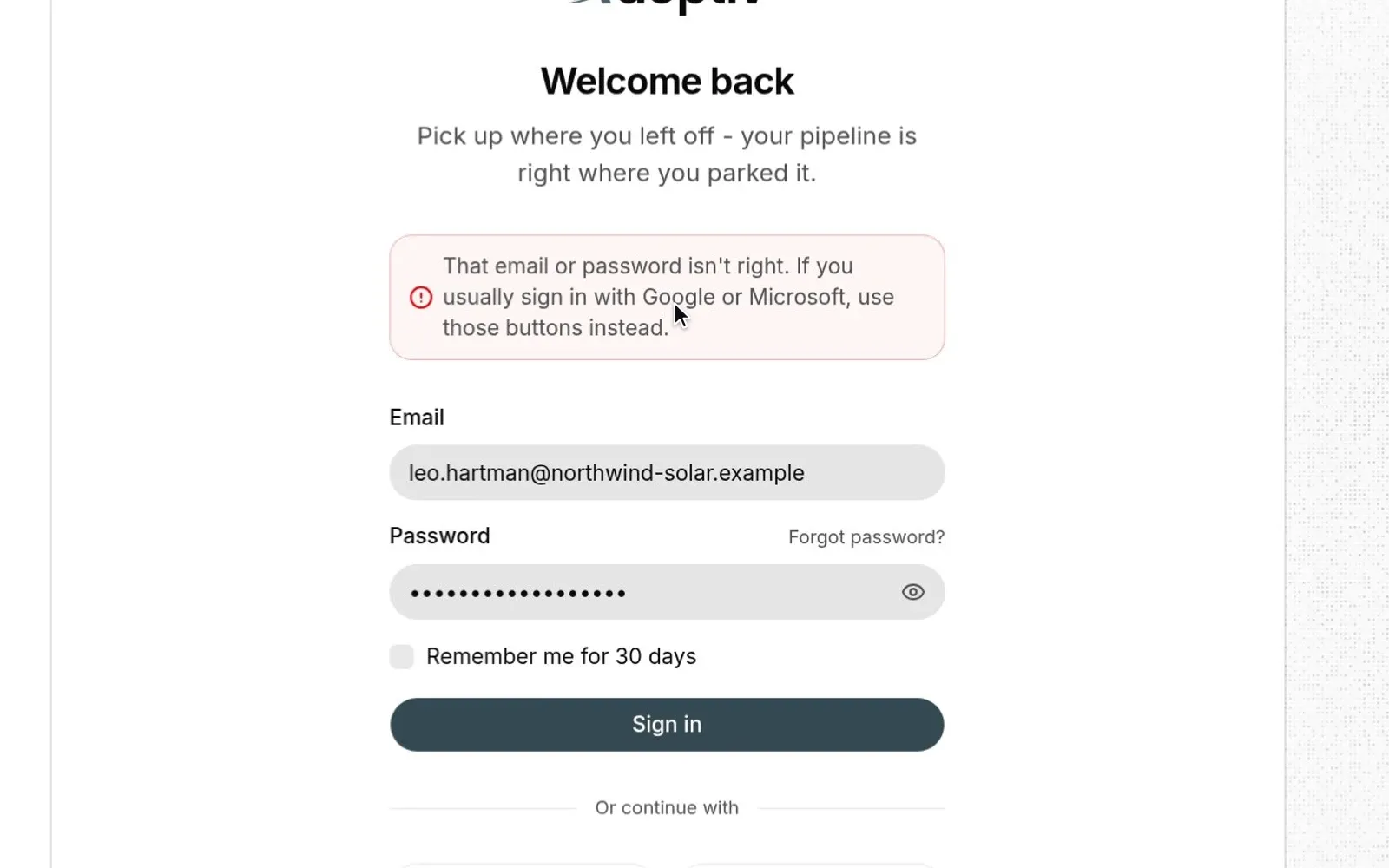
You see That email or password isn't right. If you usually sign in with Google or Microsoft, use those buttons instead. If you signed up with Google or Microsoft, use the buttons under Or continue with. Otherwise, reset your password:
- On the sign-in page, press Forgot password?
- Enter your Email and press Send reset link.
- Open the email and follow the link. It expires in 1 hour. Check spam if it doesn't arrive within a minute or two.
- Choose a new password and sign in with it.
Resetting your password signs you out on every device. If you see This reset link has expired. Please request a new one. when you save your new password, or a message that the link has already been used, request a new one.
Too many failed attempts
After 5 wrong passwords in a row, sign-in locks for 5 minutes. After that, each wrong password locks it again: for 30 minutes from the 10th, and for 24 hours from the 15th. The count starts over once you sign in, or after a day with no wrong passwords. You see, for example, Too many failed attempts. Please try again in 5 minutes.
- Wait for the time shown, then try again, or reset your password first if you're not sure of it.
- Press Request Account Unlock to let your workspace's admins know you're locked out. If there are no admins, the owner gets the email. The time shown still applies, so the quickest way back in is to wait for it and then sign in with the right password.
You lost your two-factor device
- Sign in with your email and password as usual.
- On One more step, choose Use a backup code. If you see Use passkey / biometric first, you can use a passkey on this computer, or press Use authenticator code to get to Use a backup code.
- Type one of the backup codes you saved when you set up two-factor, and press Verify backup code.
Each backup code works once. If you see That backup code isn't valid or has already been used. Please check it and try again., try another one.
Move two-factor to a new phone
Do this while you still have your old phone - turning two-factor off needs a current code from it. If you've lost it, you can still sign in with a backup code, but you can't turn two-factor off with one. Contact Adoptiv support by live chat on adoptiv.com/help, or by email at [email protected], to move it to a new phone.
- Click your name at the bottom of the sidebar, choose Profile, then Sign-in & security.
- Under Two-factor, next to Authenticator app, press Turn off. Under Code from your authenticator, type the current code from the authenticator app on your old phone, then press Turn it off.
- Press Set up, scan the code with the authenticator app on your new phone, type the six digits it shows under Code from the app, and press Turn it on.
- Save the new backup codes somewhere safe.
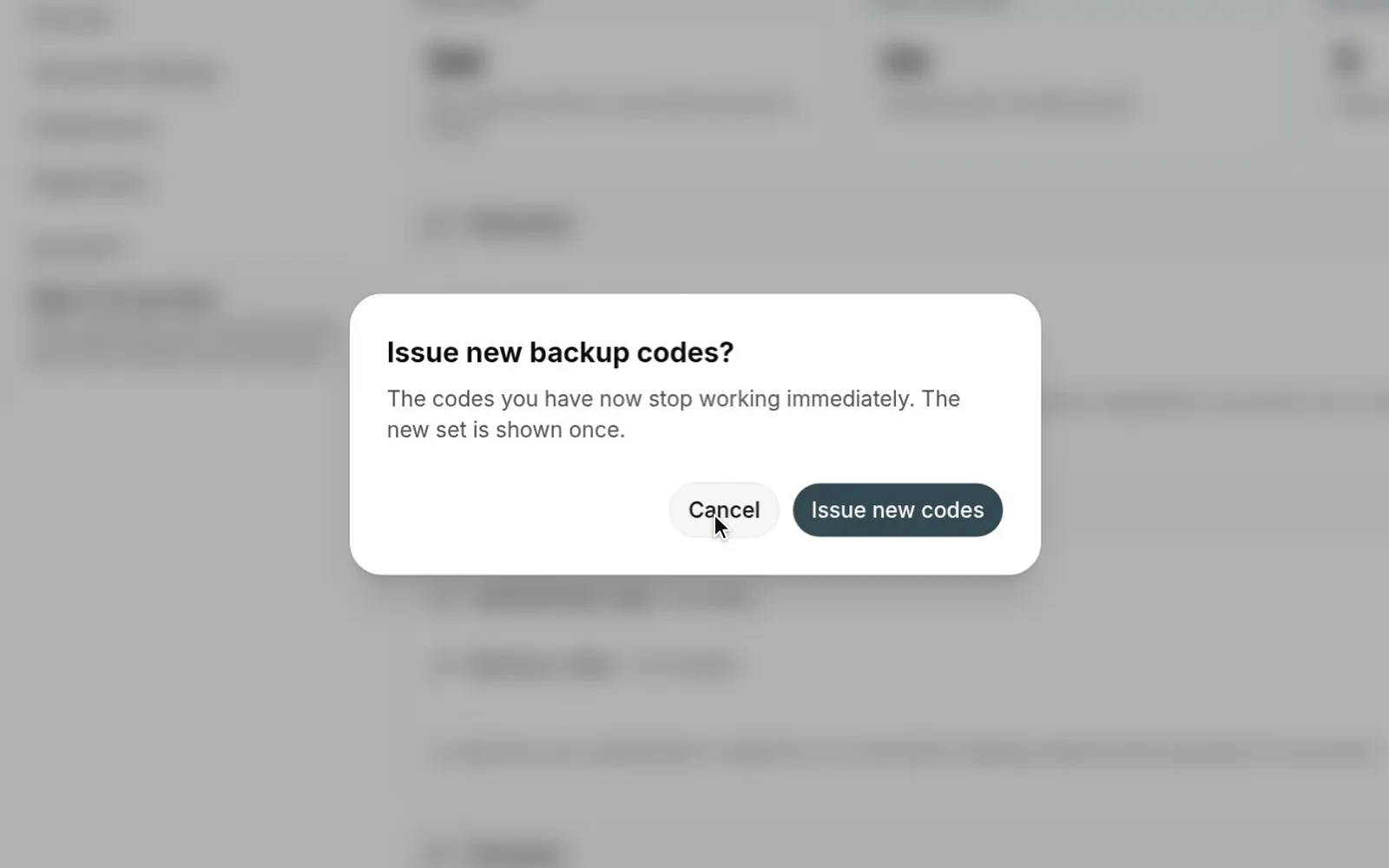
Turning two-factor off also removes your passkeys, so add them again afterwards. If your workspace requires two-factor, you're asked to set it up again straight away. To check how many backup codes you have left, look at Backup codes on the same card. Setting up the authenticator app again gives you a new set. See Secure your sign-in.
Your authenticator code isn't accepted
- That code isn't right. Please enter the current code from your authenticator app. Codes change every 30 seconds. Enter the newest one, and make sure your phone's clock is set automatically.
- Your sign-in has timed out. Please sign in again. or Session expired: go back to the sign-in page and start again.
- Too many attempts. Please wait a moment and try again. Wait, then try again.
No phone and no backup codes
Your workspace's admins can't reset your two-factor. Contact Adoptiv support by live chat on adoptiv.com/help, or by email at [email protected]. Tell them the email address you sign in with and your workspace's name.