
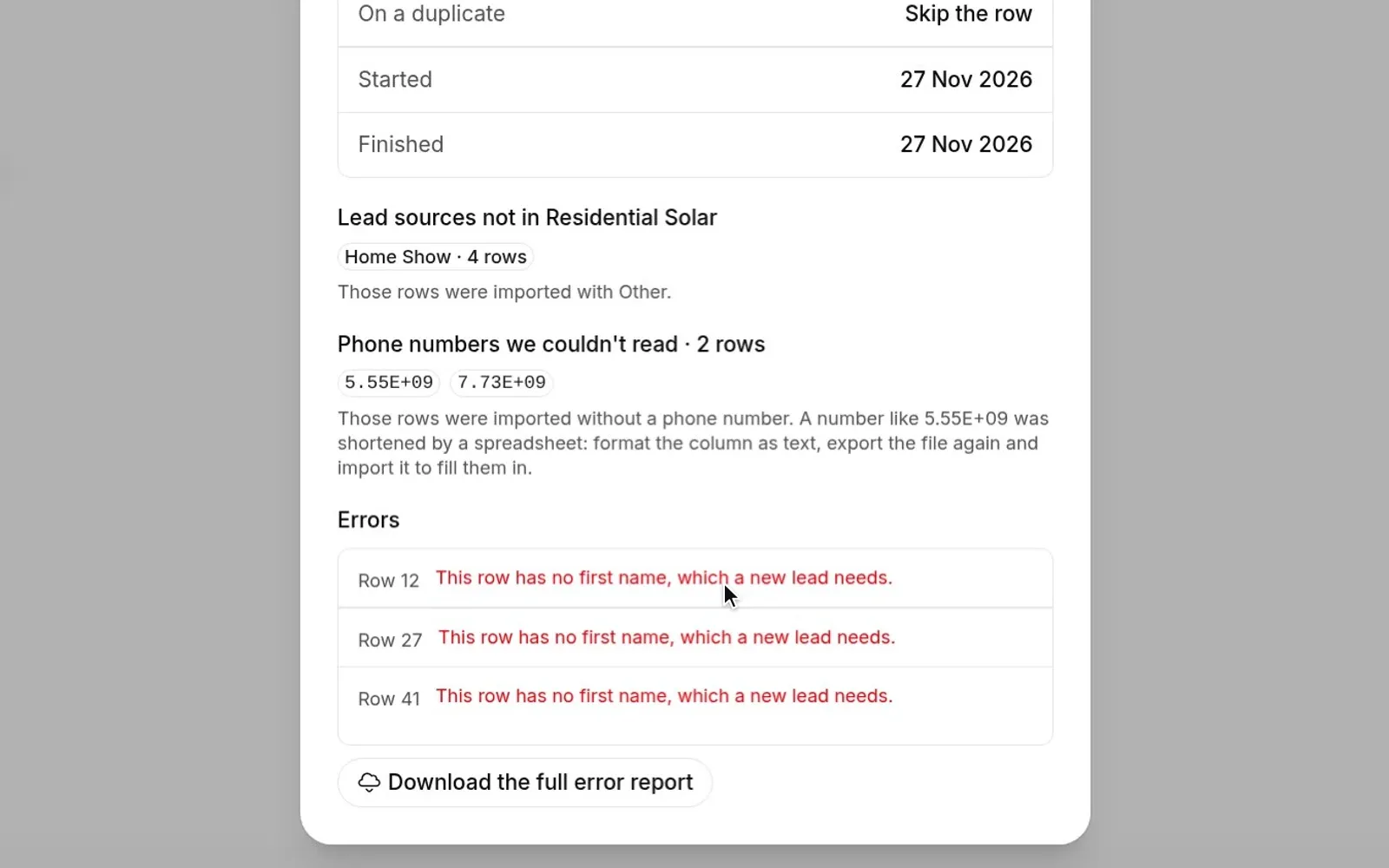
To see why rows didn't import, open Lists, go to the Imports tab and press the eye button on the import's row. Its Import summary says how many rows were skipped or failed and why. Download the full error report, fix those rows, and import the fixed file into the same program.
You see your own imports here. Admins see everyone's, but only the person who ran an import can download its error report or run it again.
Read the summary
Import history shows, for each file, how many rows were Created, Updated, Skipped and Failed. Press Refresh to update a running import.
- Skipped rows matched a lead already in the program, by email or phone, and the import was set to Skip the row. If the same person is in the file twice, the second row counts as a match too. Nothing is wrong with these rows.
- +N someone else's under Skipped means rows matched leads you can't see (or, when updating, can't edit). They were left as they were.
- Failed rows weren't imported. The summary lists the first ones under Errors, each with its row number in the file and the reason.
Why rows fail
- This row has no first name, which a new lead needs. Add a first name. The last name may be empty.
- This row has more values than the file has columns, so its values may be in the wrong columns. A value contains the separator, such as a comma, without quotes around it.
- A quote mark in this row is never closed, so the lines after it were read as part of this row. Fix the quote, then import those lines again.
- A value in this row is longer than the field allows. or A value in this row isn't in a format the field accepts. Shorten or correct the value.
- The existing lead couldn't be updated from this row. Check the row's values and import it again. If it keeps failing, contact support with the row number.
Rows that imported with something missing
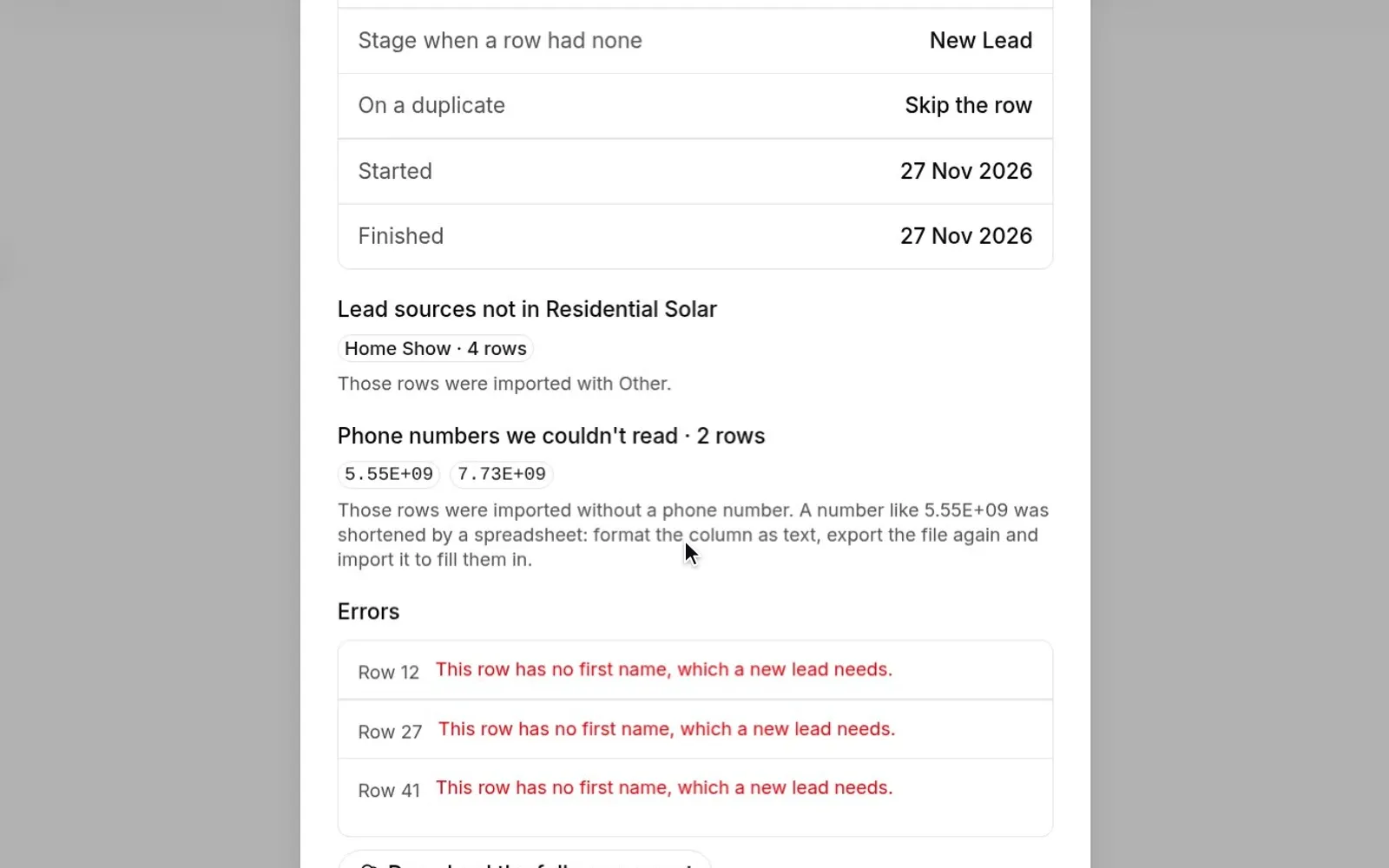
These rows were imported, so they aren't counted as failed, but part of them was left out. The summary lists them:
- Lead sources not in or Stages not in the program: the rows got the source or stage you chose for rows with none. Add the missing names to the program. See Set up lead stages and sources.
- Not a choice of a field: the value isn't one of the field's choices, so it was left empty. Fix the value, or add it as a choice. See Add custom fields.
- numbers we couldn't read: a number like 5.55E+09 was shortened by a spreadsheet. Format the column as text, export the file again and import it.
To fill these in, import the corrected file again with Update the existing lead. It writes what the file has onto the existing leads, but an empty cell never blanks out a value that's already there, and it never switches off a Do Not Call.
Fix the rows and import them again
- In the Import summary, press Download the full error report, or the download button on the import's row. The file has a Row column, an Error column, then your file's own columns.
- Fix each row as its error says.
- Delete the Row and Error columns, or choose Do not import for them when you map columns.
- Press Import leads and import the fixed file into the same program, with duplicates set to Update the existing lead. Rows that already made it in are matched by email or phone, so they aren't created twice.
To run the whole file again with a different mapping or duplicate rule, press the import-again button on its row. The wizard opens on the mapping step with the mapping the import used. See Import leads from a CSV file.
An import that stopped
If an import's Status is Failed, its summary says why. When it says The import stopped before it finished. The leads it brought in are kept - continue it to import the rest., press Continue this import, or Continue on its row, to carry on from where it stopped. If it says The uploaded file is no longer available. Upload it again to import it., start a new import with the file.
If nothing here helps
Contact Adoptiv support by live chat on adoptiv.com/help, or by email at [email protected]. It helps to send the file name, the program, when you ran it, the counts shown in Import history, and one row number with the error it shows.