A deal tracks one sale for one lead as it moves through a pipeline's stages. To create one, open Deals in the sidebar and press New deal, or open a lead and choose New deal from its ⋯ menu.
Before you start
- To create deals, your role needs Create on the Deal row in Team Management → Roles & Permissions. Changing deals takes Edit or Full access, and deleting them takes Full. Workspace admins can do all of this. See Roles and permissions.
- A deal is always for a lead, so add the lead first.
- Every workspace starts with one pipeline, Sales Pipeline. To add your own, see Set up pipelines and stages.
Create a deal
- In the sidebar, open Deals.
- Press New deal.
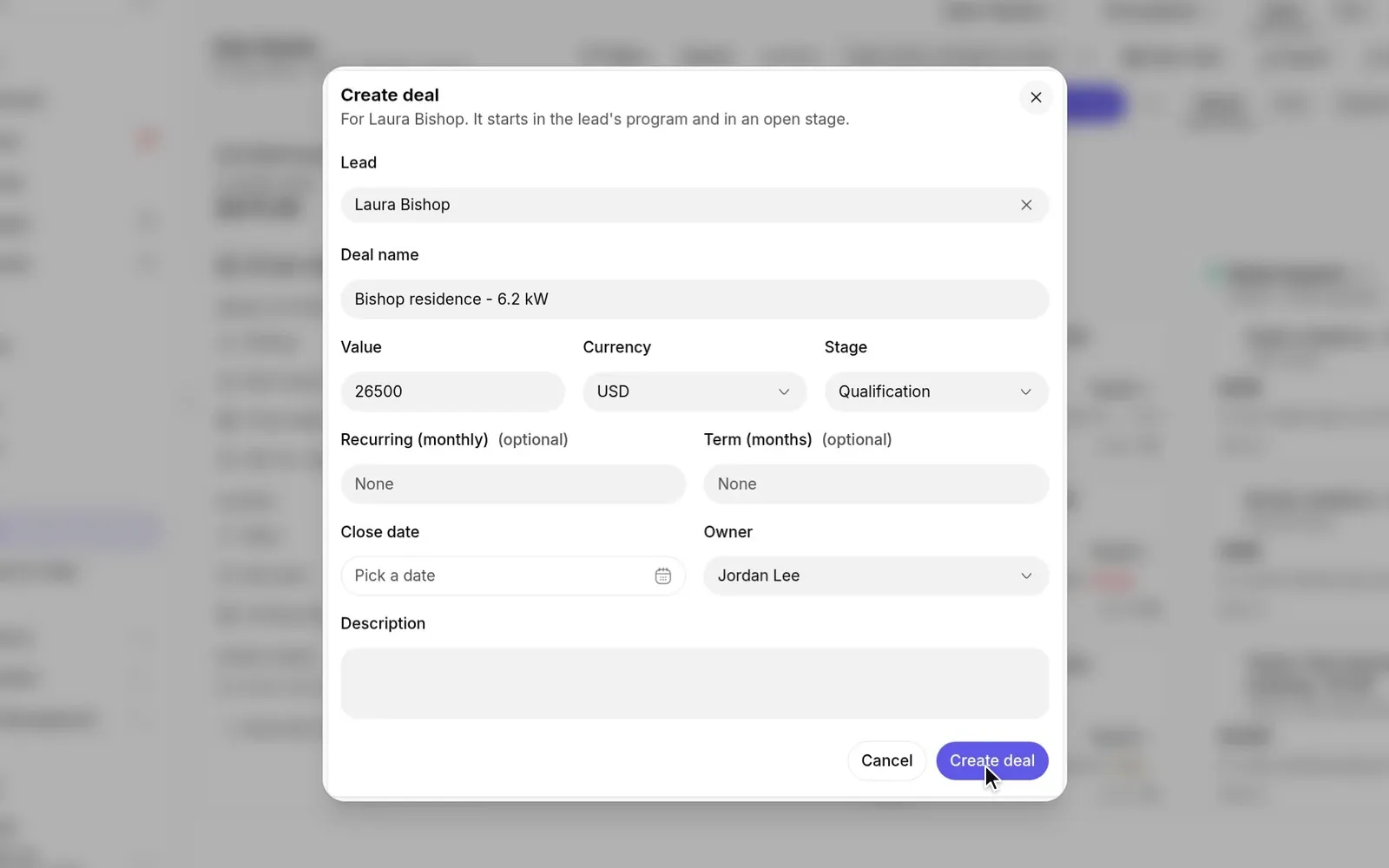
- Under Lead, find and pick the lead the deal is for. The deal goes in that lead's program.
- Enter a Deal name.
- Enter a Value. It is required, so enter 0 if you don't know it yet.
- Check the Currency and the Stage. A new deal always starts in an open stage. If the lead's program can use more than one pipeline, choose one under Pipeline.
- Fill in anything else you know: Recurring (monthly), Term (months), Close date, Owner and Description. The owner is you unless you pick someone else.
- Fill in any custom fields marked (required).
- Press Create deal. The new deal opens.
To start from a lead instead, open the lead, press ⋯ and choose New deal. The lead is filled in for you.
Work the board
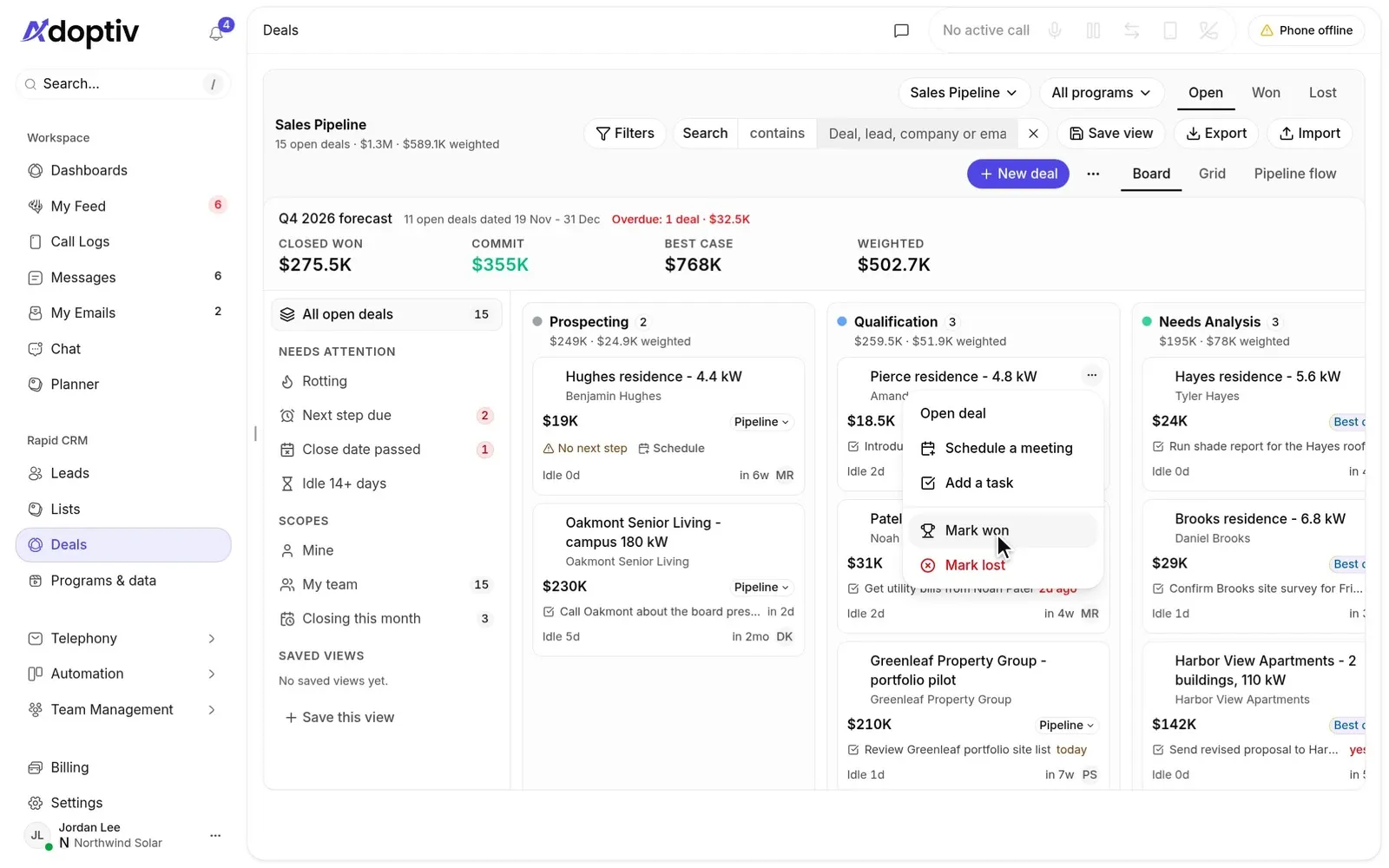
The Board has a column for each stage. The top of each column shows how many deals are in it, what they are worth and their weighted value. A column shows 50 deals at a time; press Load more for the rest.
- Move a deal: drag its card to another column. Dropping it on a won or lost column asks for a reason first - see Win or lose a deal.
- Read a card: it shows the value, any monthly amount, the forecast, the next step, the close date and the owner. No next step means nothing is booked; press Schedule to book a meeting. A card turns red and reads Rotting · N days when the deal has gone too long without a stage move or activity.
- Use the card menu: hover a card and press ⋯ for Open deal, Schedule a meeting, Add a task, Mark won and Mark lost.
The list on the left narrows the board to what needs you, such as Rotting, Close date passed or Mine. Use Filters for more, and Save view to keep a setup. Switch to Grid for a table, and use the Won and Lost tabs to see closed deals.
Open and update a deal
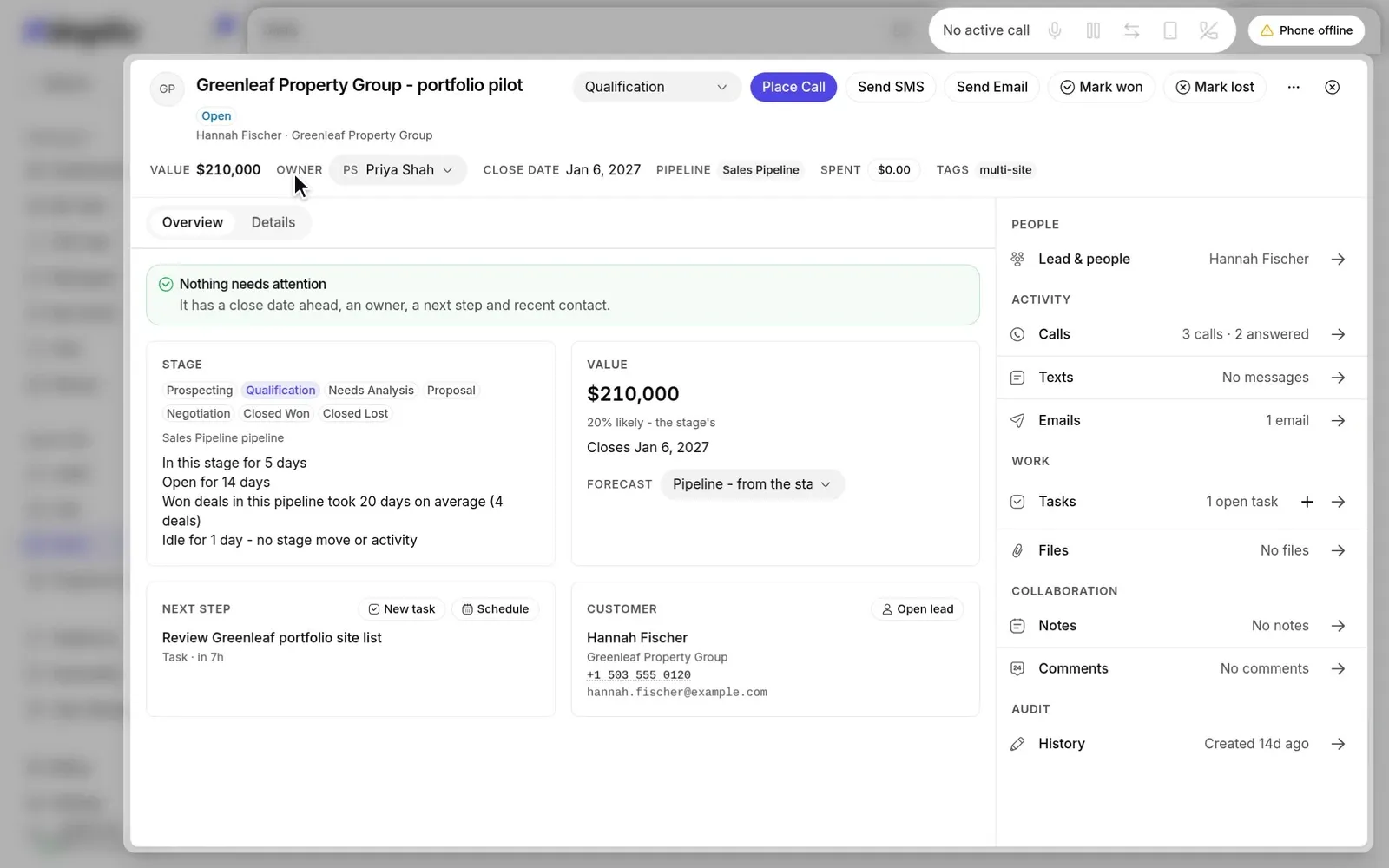
Click a card or a grid row to open the deal. Across the top you'll find:
- The stage menu, to move the deal to another stage.
- Place Call, Send SMS and Send Email, to reach the customer.
- Mark won and Mark lost.
- ⋯, with New task, Schedule meeting, Move to another lead and Delete deal.
- Value, Owner, Close date and Pipeline. You can change the owner right there.
The Overview tab says what needs attention, such as a passed close date or no next step. To change other fields, open Details, press Edit on a section, make your changes and press Save. The right side holds the deal's people, calls, texts, emails, tasks, files, notes, comments and history. A deal marked View only is one your role can read but not change.
Reassign deals
- On the board, hover a card and tick its box. In Grid, tick the rows.
- Press Reassign.
- Search for the person and pick them.
Deals that aren't yours to reassign, or that the new owner can't see, are left as they were. Adoptiv tells you how many.
Delete and restore a deal
- Open the deal and press ⋯ → Delete deal.
- Press Delete to confirm.
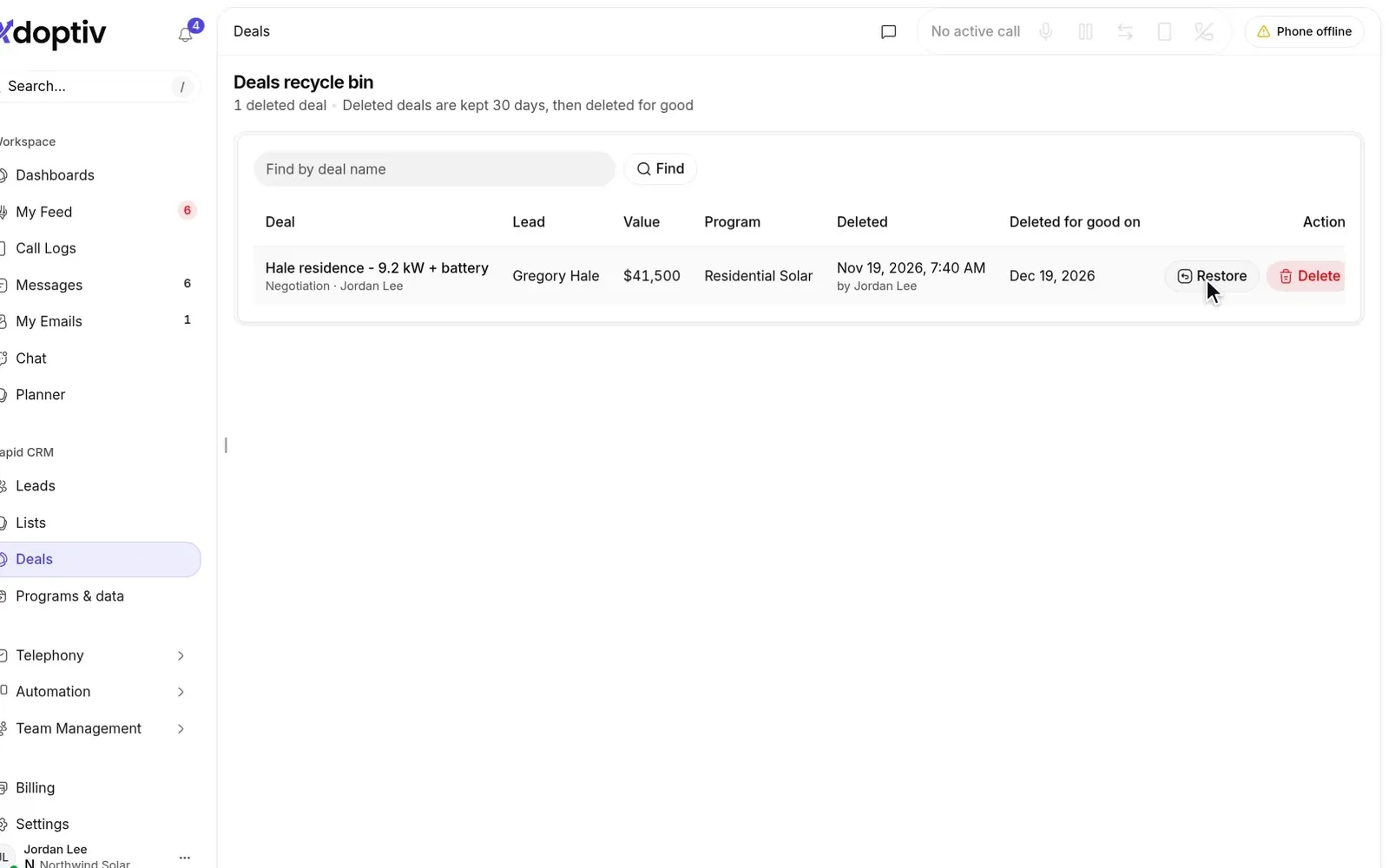
The deal goes to the recycle bin and leaves the board, the forecast and every figure. For 30 days a workspace admin can bring it back: on Deals, press ⋯ → Recycle bin, find the deal and press Restore. After 30 days it is deleted for good.