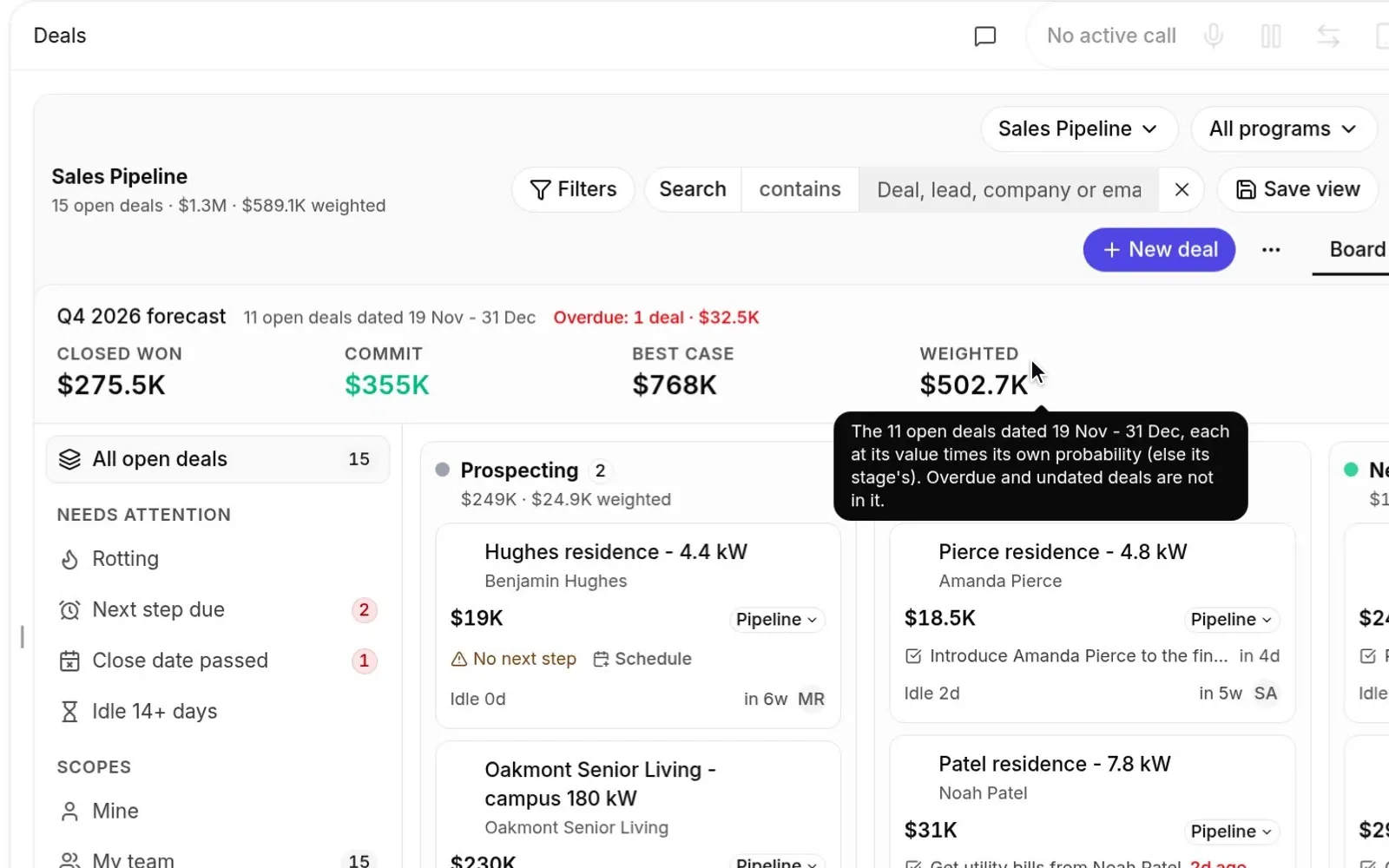
The forecast strip at the top of Deals shows this quarter's forecast for the pipeline on screen: Closed won, Commit, Best case and Weighted. Each open deal counts by its forecast category, which comes from its chance of winning until the deal's owner makes a call.
Before you start
- The forecast counts open deals with a close date in the current quarter, so give your deals close dates.
- Anyone who can see the deals sees the forecast. Setting a deal's forecast category is for the deal's owner, their manager (a role whose Visibility on the Deal row is Subordinate or All), or a workspace admin.
Read the forecast strip
The strip covers the calendar quarter, for example "Q4 2026 forecast", and counts open deals with a close date from today to the end of the quarter. Hover any figure to see how it was worked out.
| Figure | What it counts |
|---|---|
| Closed won | Deals won this quarter, by the day each was won. |
| Commit | Open deals in the quarter whose category is Commit. |
| Best case | Commit plus open deals in the quarter whose category is Best case. |
| Weighted | Each open deal in the quarter at its value times its chance of winning. |
Two more notes appear when they apply. Overdue counts open deals whose close date has passed; they stay out of Commit, Best case and Weighted until you move the date. A second line counts open deals with no close date, which are in no quarter.
The figures follow what is on screen: the pipeline, the program, the scope you picked on the left (such as Mine) and your filters. Monthly recurring amounts show as MRR beside the figures and are never added to a deal's value.
How a deal's category is chosen
Until someone makes a call, a deal's category comes from its chance of winning - the deal's own probability if it has one, otherwise its stage's:
- 75% or more: Commit
- At least 40% but under 75%: Best case
- Under 40%: Pipeline
The owner can replace this with their own call. Omit takes the deal out of the quarter's figures entirely, Weighted included.
Set a deal's forecast category
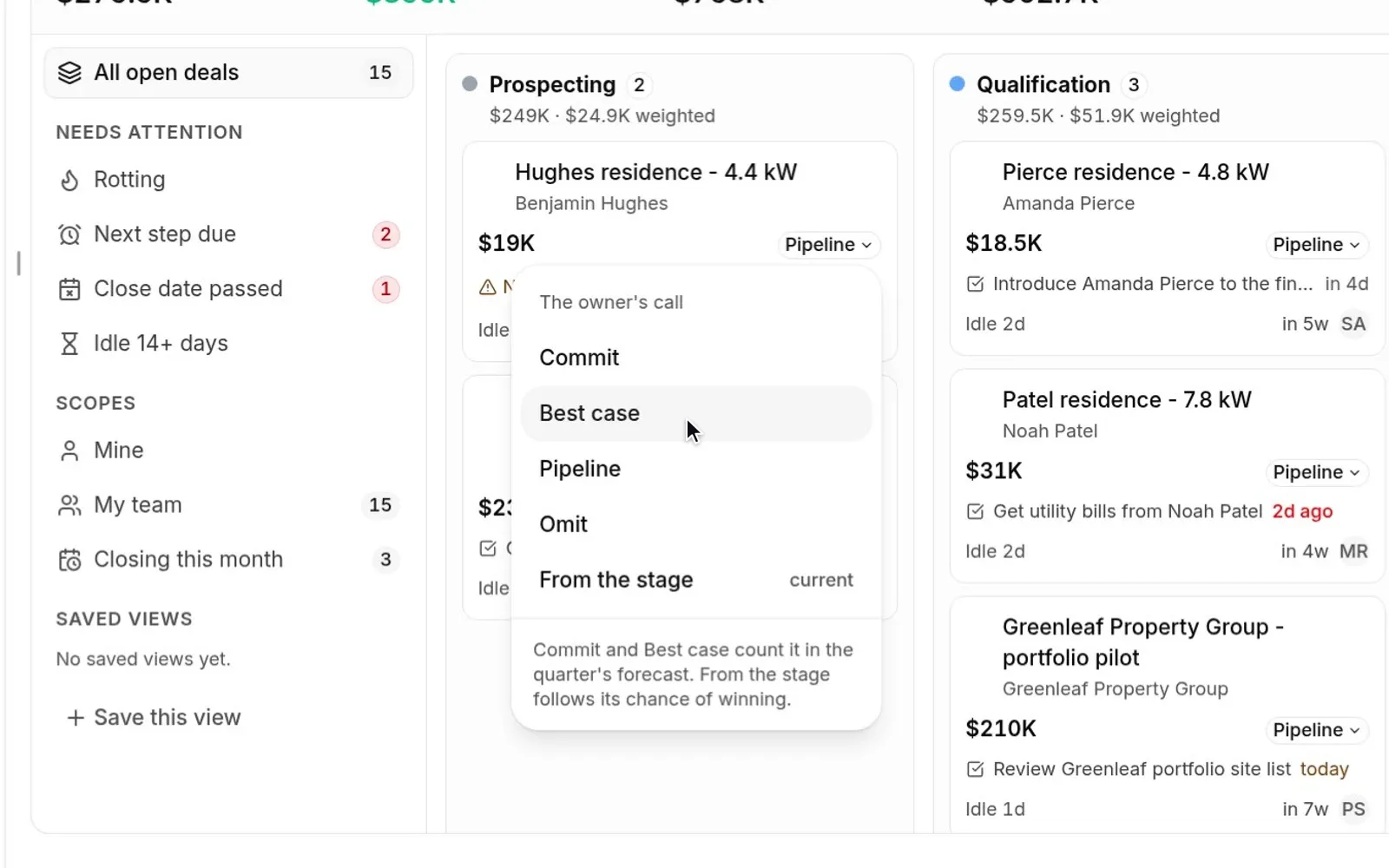
- On the board, press the forecast badge on the deal's card. It reads Commit, Best case, Pipeline or Omit.
- Under The owner's call, choose Commit, Best case, Pipeline or Omit.
To go back to the automatic category, choose From the stage. You can also set it inside the deal: open it and use Forecast on the Overview tab.
Change a deal's chance of winning
Weighted uses each deal's own Probability (%) when it has one, otherwise its stage's Chance of winning (%).
- Open the deal and go to Details.
- Press Edit on the Deal section.
- Enter Probability (%), or leave it empty to use the stage's.
- Press Save.
Find deals that need fixing
- Close date passed, on the left, lists open deals with a close date before today.
- Closing this month lists open deals dated from today to the end of the month.
- Filters → Forecast shows the deals in one category.
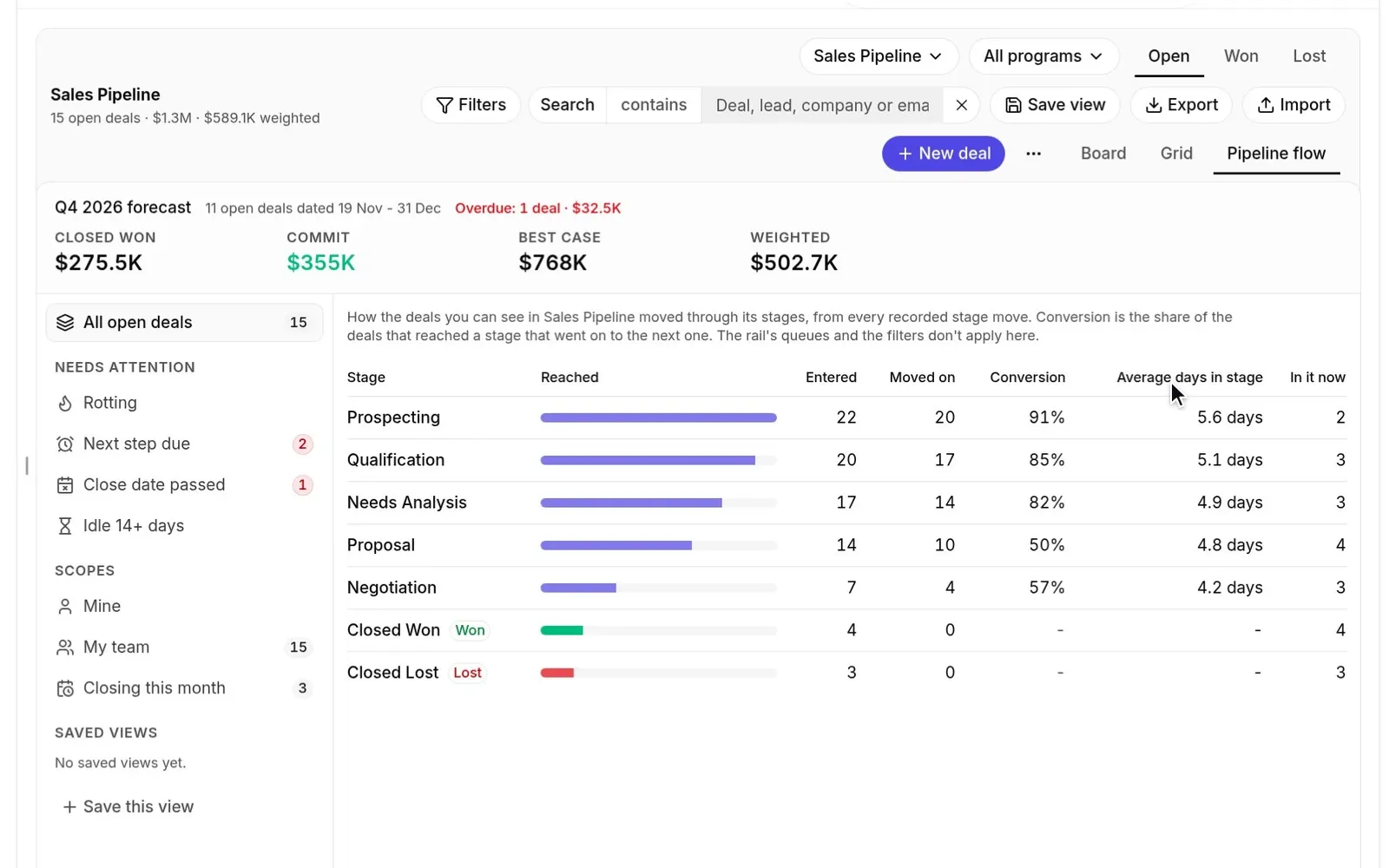
- Pipeline flow, beside Board and Grid, shows for each stage how many deals entered it, how many moved on, the conversion and how long deals spend there.