
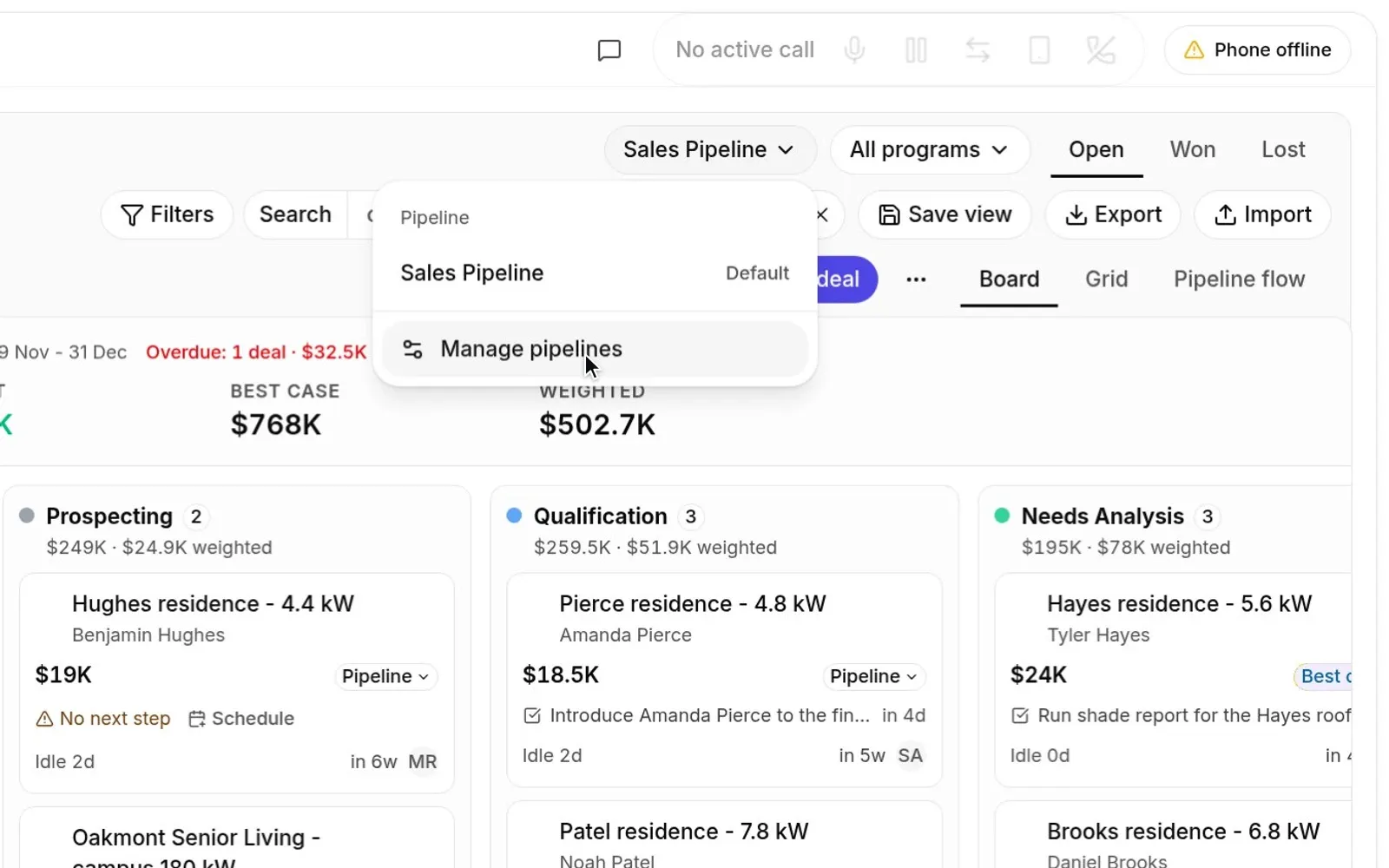
A pipeline is the set of stages a deal moves through. To change pipelines and stages, open Deals, press the pipeline menu at the top of the board (it shows the pipeline's name) and choose Manage pipelines.
Before you start
- You need the Manage Settings permission, or to be a workspace admin. Without it, Manage pipelines isn't in the menu.
- Every workspace starts with a built-in pipeline, Sales Pipeline. Its stages are Prospecting (10%), Qualification (20%), Needs Analysis (40%), Proposal (60%), Negotiation (80%), Closed Won and Closed Lost.
Change the built-in pipeline
You can rename, reorder and re-weight the built-in pipeline's stages and say when its deals rot. You can't rename or delete the pipeline itself, add or remove its stages, or change which stages mark a deal won or lost. If you need a different set of stages, create your own pipeline.
Create a pipeline
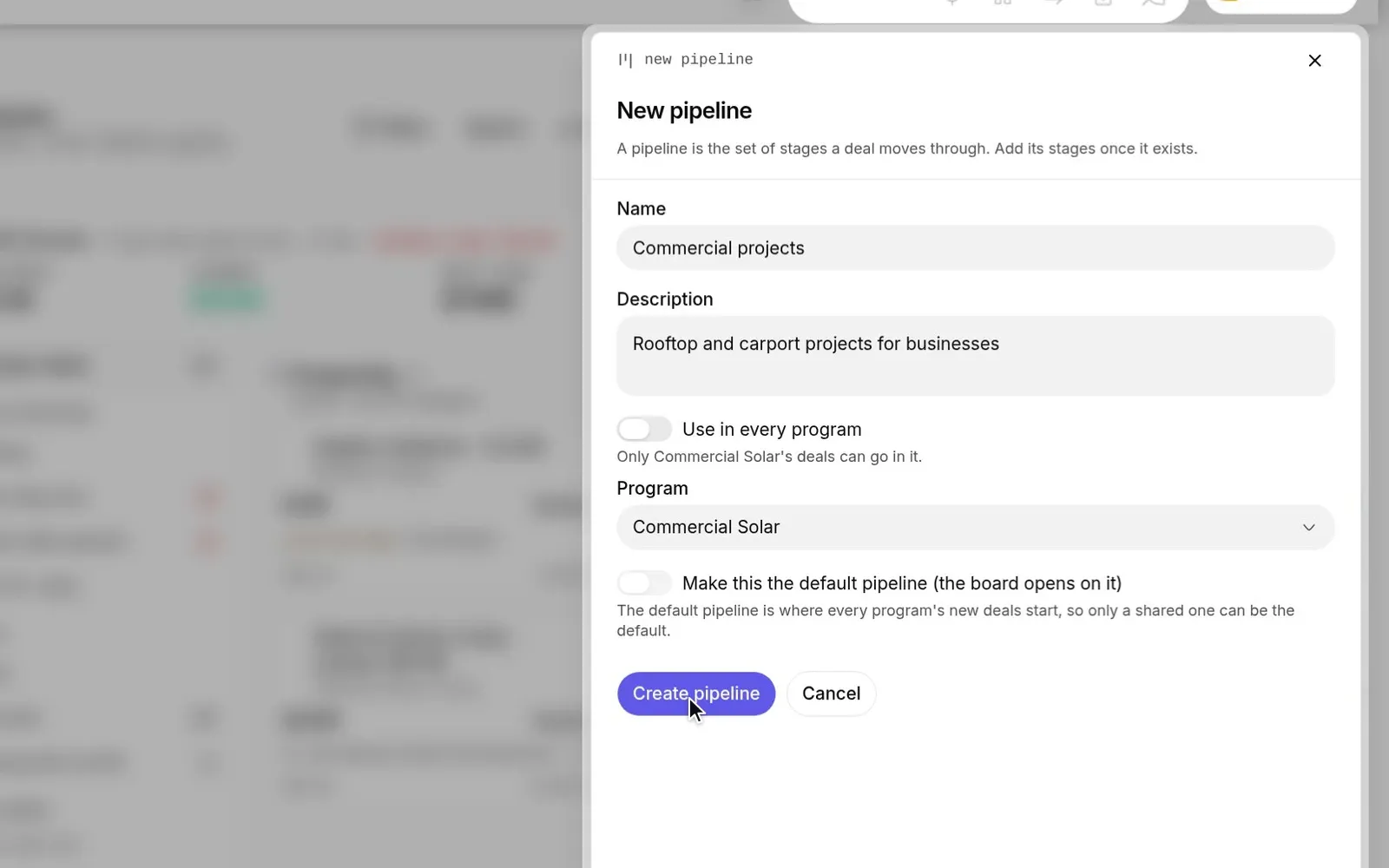
- In Manage pipelines, press New pipeline.
- Enter a Name and, if you like, a Description.
- If your workspace has more than one program, decide whether to Use in every program. Turn it off to pick the one Program whose deals can use this pipeline.
- To have the board open on this pipeline, turn on Make this the default pipeline (the board opens on it). Only a pipeline used in every program can be the default.
- Press Create pipeline.
- Add its stages, as below. Include one stage that marks deals won and one that marks them lost, or deals in this pipeline can't be closed.
Add or edit a stage
- In Manage pipelines, open the pipeline's section.
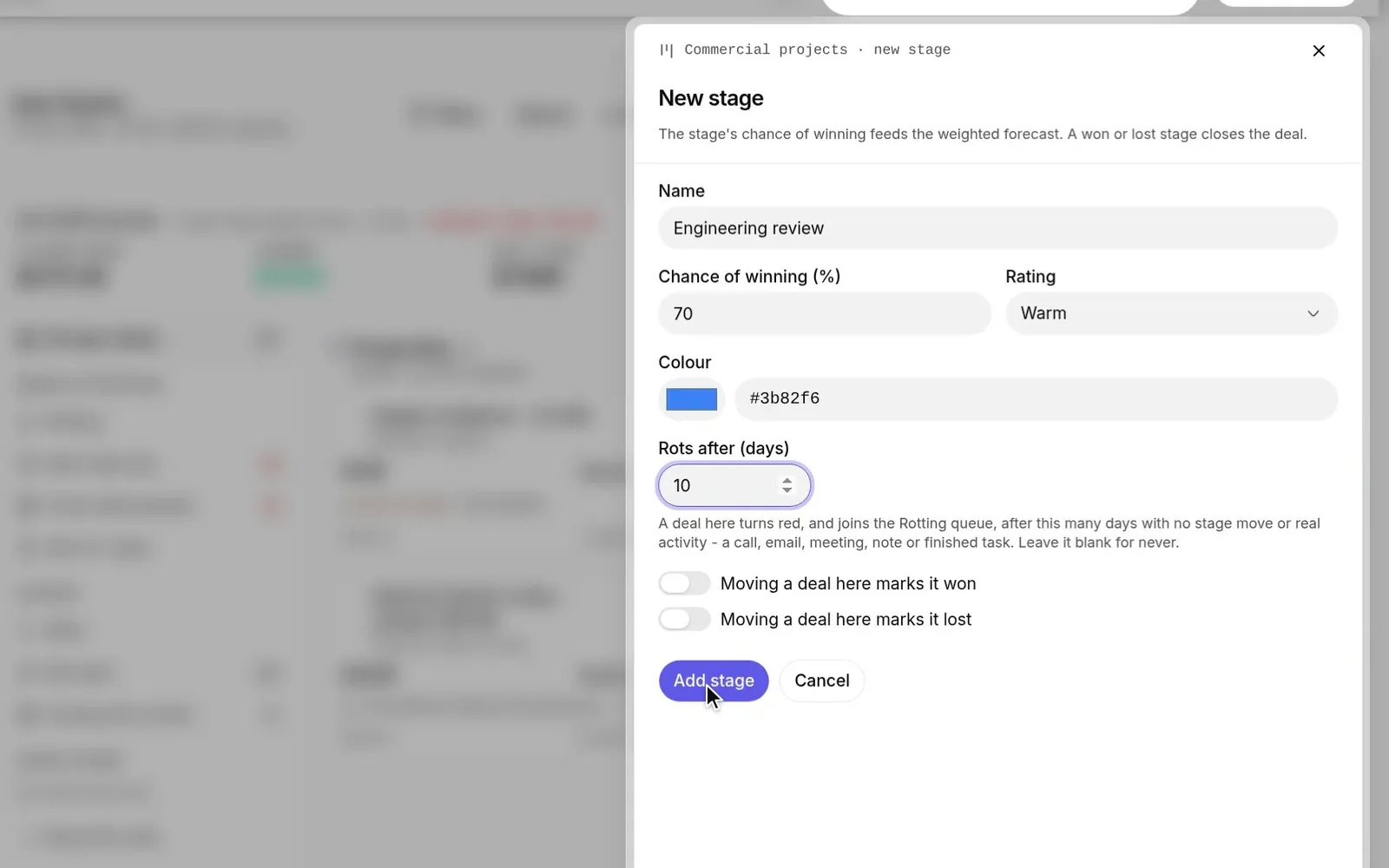
- Press Add stage, or the pencil (Edit stage) next to a stage.
- Enter the stage's Name.
- Set the Chance of winning (%). It feeds each deal's weighted value and the forecast.
- If you like, pick a Rating and a Colour.
- In Rots after (days), enter how many days a deal can sit in this stage with no stage move or activity before it turns red and joins the Rotting list. Activity means a call, email, meeting, note or finished task. Leave it blank for never.
- For a closing stage, turn on Moving a deal here marks it won or Moving a deal here marks it lost.
- Press Add stage or Save stage.
Reorder, turn off or delete
- Reorder stages: drag a stage by its handle. The board's columns follow the new order.
- Turn a pipeline off: use the switch on its row. Its deals can still be read, but not moved. The default pipeline can't be turned off.
- Delete: use the bin icon. A stage that still holds deals can't be deleted until they move. A pipeline that holds deals, the default pipeline and the built-in pipeline can't be deleted.