
To delete a lead, open it, choose Delete lead from the ⋯ menu and confirm. Deleted leads wait in the recycle bin for 30 days. A workspace admin can restore them from the Leads page's ⋯ menu, under Recycle bin.
Before you start
- To delete leads, your role needs Full access on the Leads row of its permission set.
- Only workspace owners and admins can open the recycle bin, restore leads or delete them permanently.
- A lead that is on a deal can't be deleted. Move the deal to another lead, or delete the deal, first.
Delete one lead
- Open the lead.
- Open the ⋯ menu in the header and choose Delete lead.
- Press Delete.
If the lead is on a deal, it isn't deleted. The message offers Show the deals so you can deal with them.
Delete many leads
- Tick the leads in the grid, or tick the box in the header and press Select all [number] matching.
- In the bar above the grid, open the ⋯ menu and choose Delete….
- Confirm with Delete [number] leads.
Leads that are on a deal, or that you aren't allowed to delete, are kept, and the message says how many. More than 5,000 leads are deleted in the background.
What deleting does
- The lead disappears for everyone: from the grid, lists, reports and duplicate checks.
- Any sequences it was in stop.
- If it was marked Do Not Call, its numbers stay on your workspace's do-not-call list.
Restore a lead
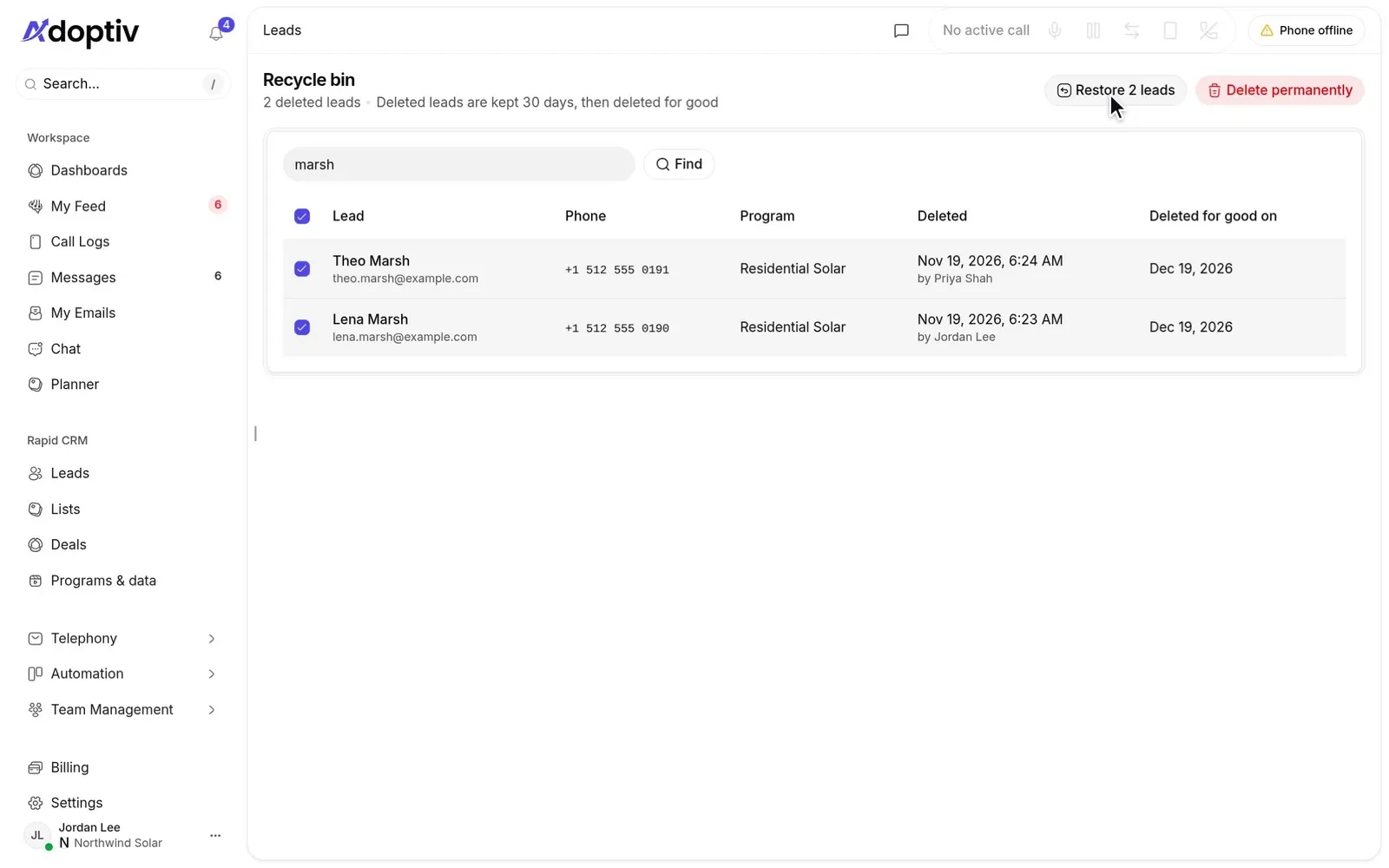
- On the Leads page, open the ⋯ menu at the top right and choose Recycle bin.
- To find a lead, type in Find by name, email or number and press Find.
- Tick the leads you want back. You can restore up to 1,000 at a time.
- Press Restore.
A restored lead comes back as it was: in its program, on its lists and with its history. Sequences it was in don't restart. If its program has been archived, the bin says Archived - restore the program first. If another lead now has the same email or number, the lead is restored anyway and you're told, so you can compare and merge.
Delete permanently
A lead is deleted for good 30 days after it went to the bin; the Deleted for good on column shows the date. To do it sooner, tick the leads, press Delete permanently and confirm.