
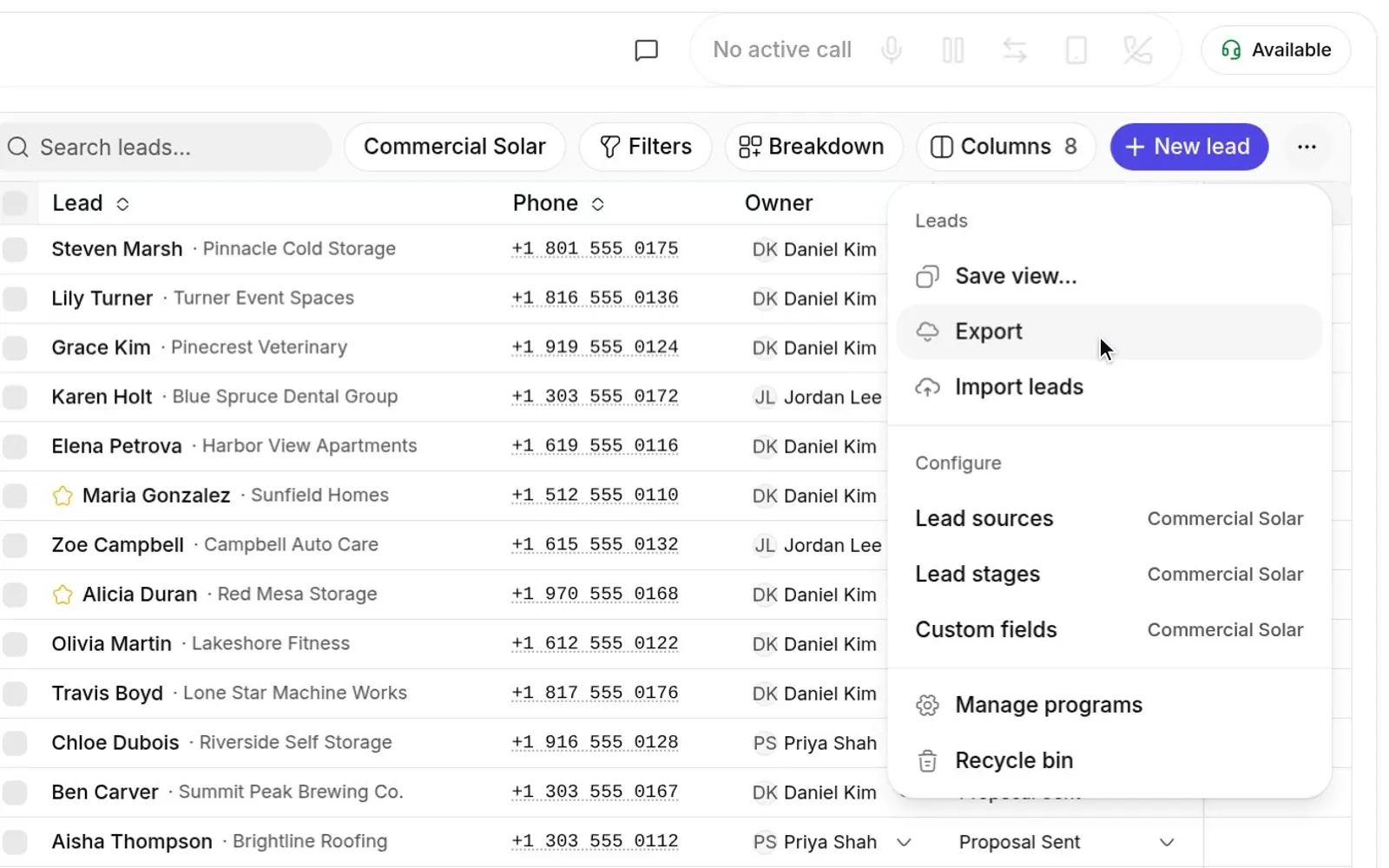
To export leads, set up the Leads grid to show the leads you want, open the ⋯ menu at the top right and choose Export. You get a CSV file of every lead that matches.
Before you start
Your role needs Export ticked on the Leads row of its permission set. Owners and admins can always export. If you don't see Export, ask an admin.
Export what the grid shows
- Open Leads and pick the scope, view or list, search and filters you want.
- To export one program's leads, pick that program in the toolbar.
- Open the ⋯ menu and choose Export.
Export only some leads
- Tick the leads in the grid.
- In the bar above the grid, open the ⋯ menu and choose Export selection.
Export a list
- In the sidebar, open Lists and click the list.
- Press Export CSV. The file holds every member of the list you can see.
Large exports
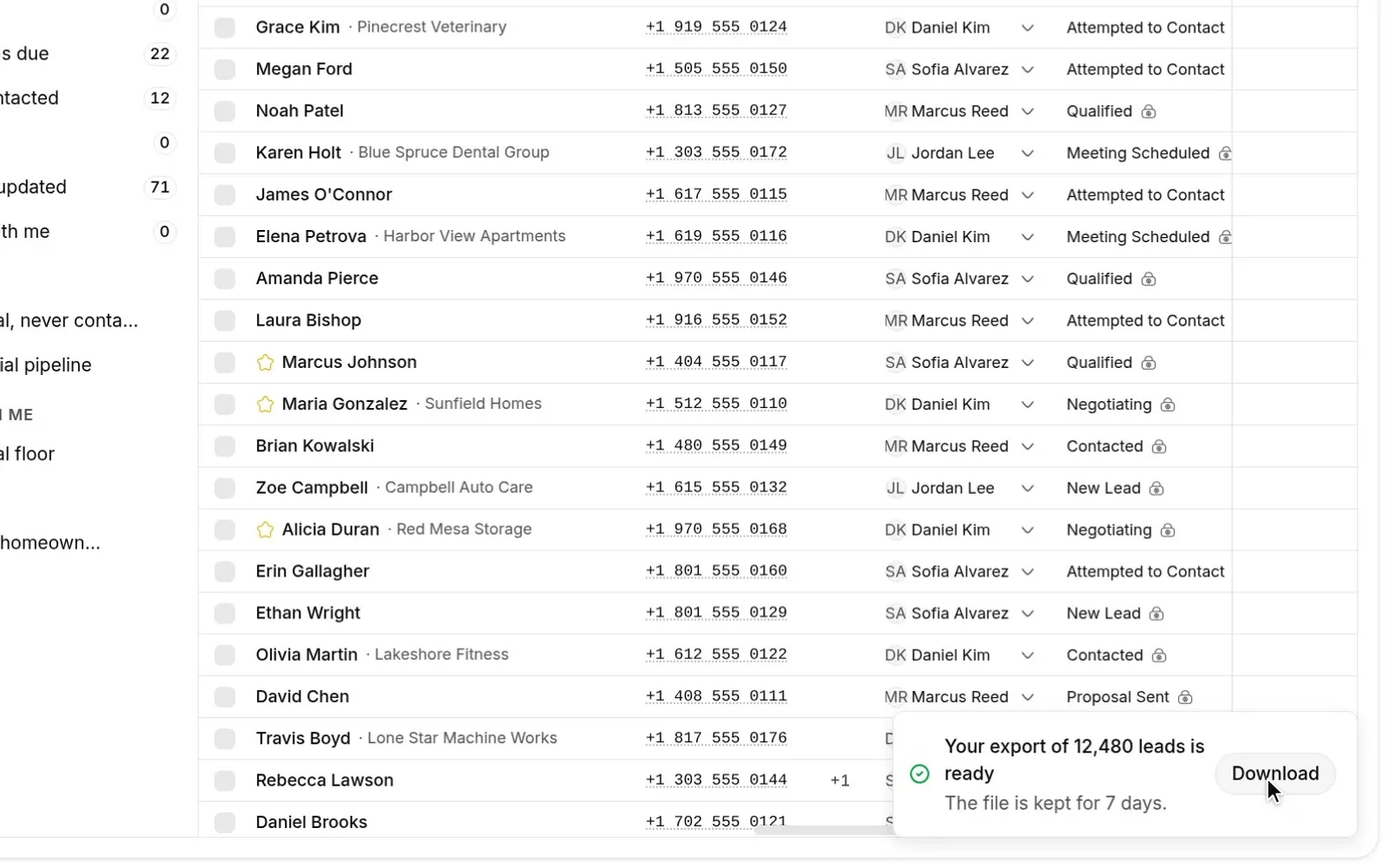
Up to 10,000 leads download straight away. For more, Adoptiv builds one file in the background. A message shows its progress, and the bell tells you when it's ready. Press Download to get it. The file is kept for 7 days.
What's in the file
- Name, email, every phone number, company and job title.
- Program, stage, lead score, engagement level and lead source.
- The full address.
- The Do Not Call, internal DNC, do-not-text and do-not-email flags. The federal registry and known litigator columns read Yes or No, or are blank when the lead hasn't been screened.
- Tags, the owner's email, the next follow-up, the last activity and the date created.
- The custom fields your role can view. If you picked one program, only that program's fields and the shared ones are included.
Every export is recorded in your workspace's audit trail: who exported and how many rows.