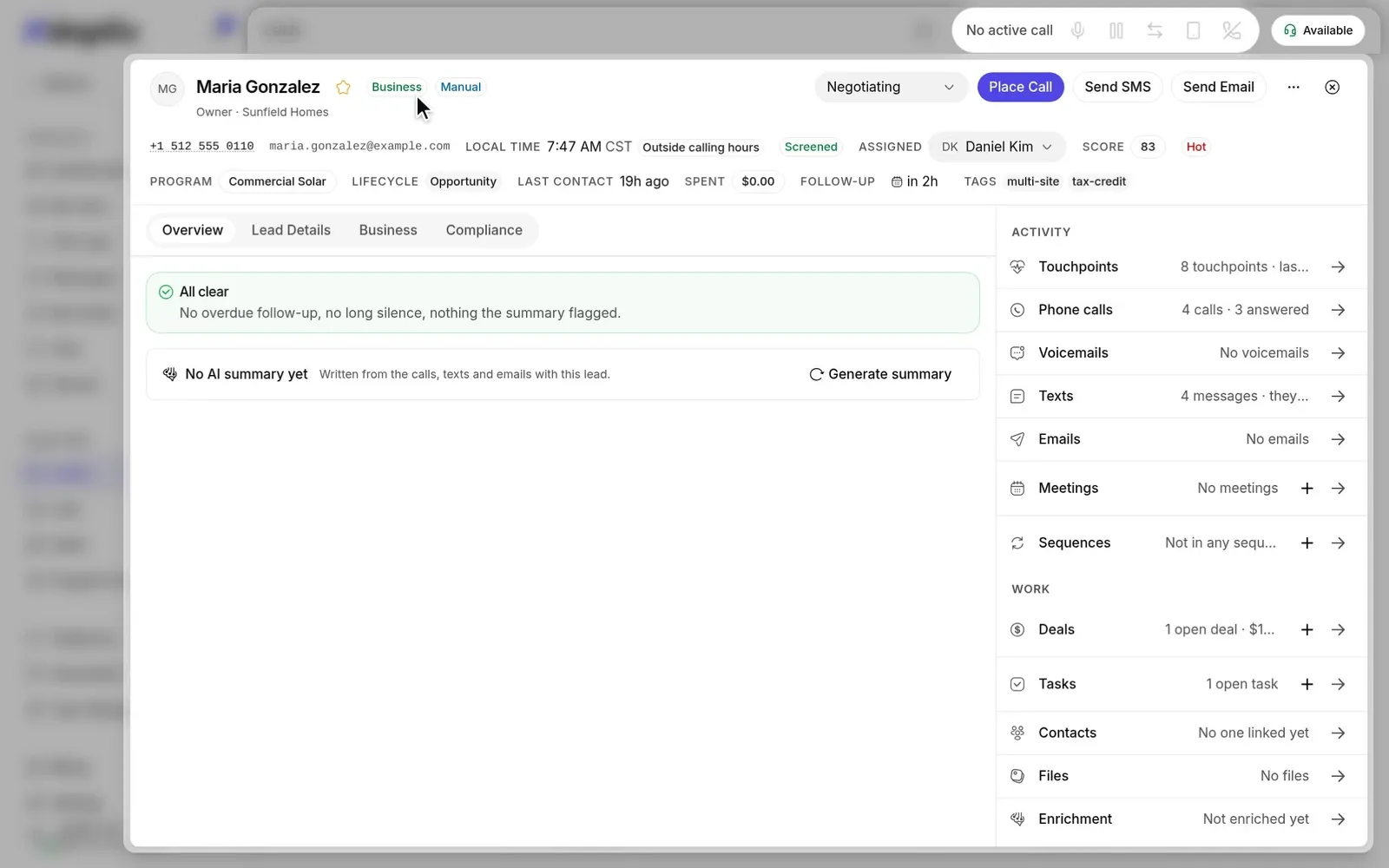
Click any lead in the grid to open its record. The record side holds the lead's details in four tabs: Overview, Lead Details, Business and Compliance. The activity side holds its calls, texts, emails, deals, tasks, notes and more.
The header
The top row shows the lead's name, a star to mark them as VIP, the lead type and a badge for how the lead was created. Beside them are the Stage picker and the Place Call, Send SMS and Send Email buttons. The ⋯ menu holds New task, Schedule meeting, New deal, Add to sequence, Enrich from the web and Delete lead, as your role allows.
Below that is a strip of facts:
- The phone number (click it to call) and the email.
- Local time: the lead's own clock. It reads Outside calling hours before 8 am or from 9 pm where the lead is.
- A compliance chip, such as Screened, Not screened or Do not call. Hover over it to see why.
- Assigned: who owns the lead. A Claim button appears when the lead is waiting in your queue.
- Score and the Hot, Warm or Cold engagement badge.
- Program, Lifecycle, Last contact, Follow-up and up to three Tags.
Click Follow-up to set a date and time, such as Tomorrow 9 am or Next week.
The record tabs
- Overview: what needs doing next (or All clear), the program's Key fields, the AI summary, and a warning if the lead may be a duplicate.
- Lead Details: Lead identity (names, emails, every phone number, lifecycle, stage, owner and lead source), Address, Social profiles, Source & automation, and a section for each group of the program's custom fields.
- Business: Company, Size & financials, Registration, Company contact, Commercial and Engagement & tags.
- Compliance: Contact preferences, DNC & risk, Consent & privacy and Consent evidence. See Keep consent evidence.
Edit the details
- Open the tab and find the section.
- Press Edit on that section.
- Make your changes, then press Save. Cancel throws them away.
Fields your role can't change stay read-only. If you try to close the record, or open another one, with unsaved changes, Adoptiv asks before discarding them.
The activity side
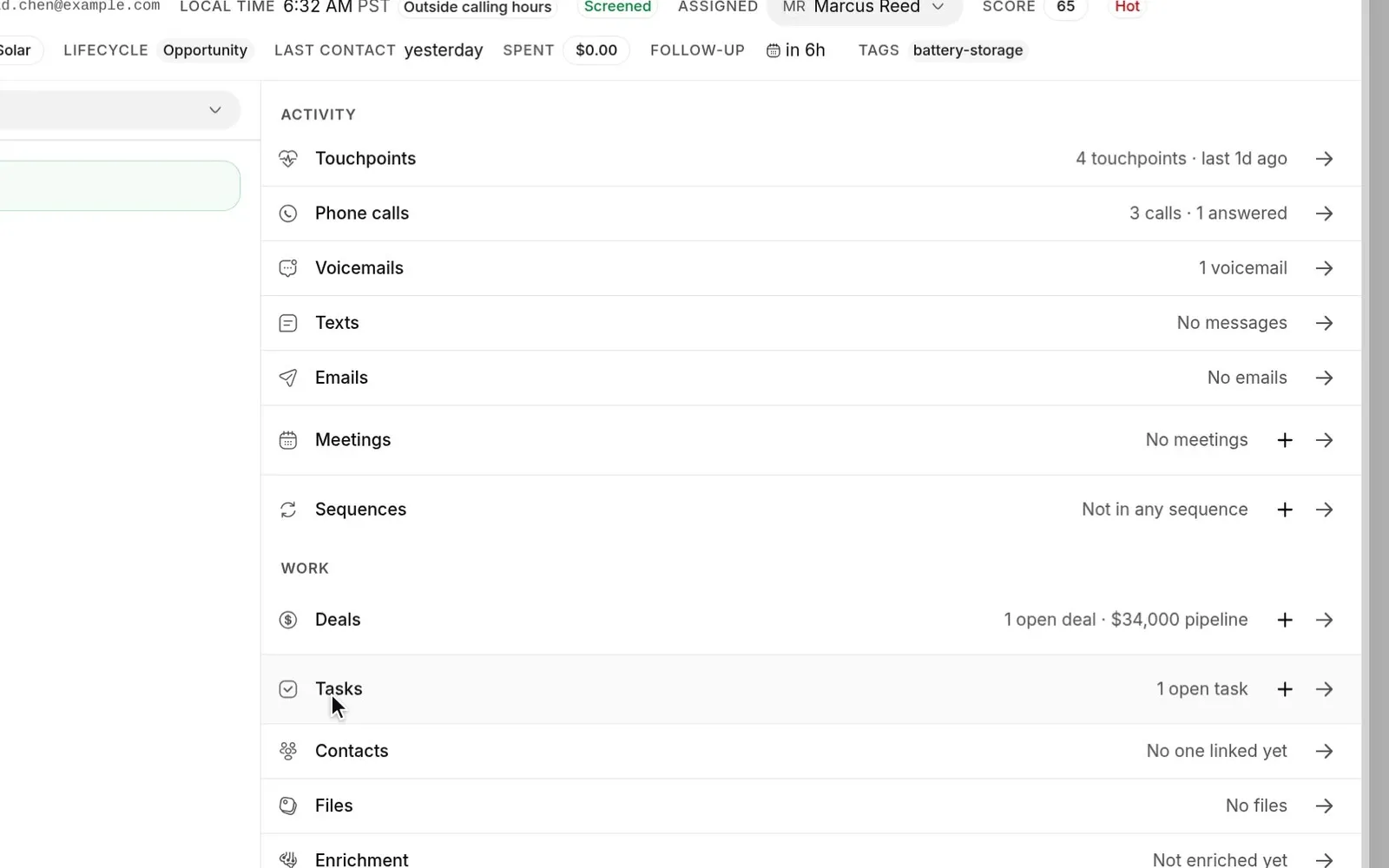
The activity side opens on a list of modules, each with a one-line summary. Click one to open it:
- Activity: Touchpoints, Phone calls, Voicemails, Texts, Emails, Meetings and Sequences.
- Work: Deals, Tasks, Contacts, Files and Enrichment.
- Collaboration: Notes, Comments and Lists.
- Audit: History, a log of what changed on the lead.
The side you last clicked gets more of the width. On a narrow screen, switch between them with Record and Activity.