How to import leads into a CRM: a 10-step pre-import checklist
Adoptiv Team··3 min read
Short answer
To import leads into a CRM, clean the spreadsheet first: one row per person, one column per field, phone numbers and dates in a single format, and every required field filled. Create any custom fields before you upload. Then map each column to a field, choose what happens to leads you already have, and test with a small file before the full list.
A bad import is one of the most expensive mistakes a sales team can make in an afternoon. Phone numbers land in the wrong field, half the list arrives as duplicates, a vendor file overwrites good data, and reps spend the next week dialing the same people twice. Nearly every one of those problems can be fixed in the spreadsheet before you upload it.
The 10-step pre-import checklist
Keep a copy of the original file. Clean a copy, never the source.
One row per person. Split households and "John and Mary Smith" rows into two.
Split names. Most CRMs want first and last name in separate columns, and many reject a row without them.
One format for phone numbers. Strip extensions, notes and "cell:" labels. A consistent 10-digit US format matches duplicates best.
One format for dates. Pick one and stick to it across the file.
Trim the junk. Remove blank rows, test entries, "DO NOT USE" rows and totals at the bottom.
Remove duplicates inside the file before the CRM checks them against what you already have.
Create custom fields first. A column with nowhere to go is either dropped or crammed into notes.
Add a source column, such as "Vendor A, Nov list", so you can report on the list later.
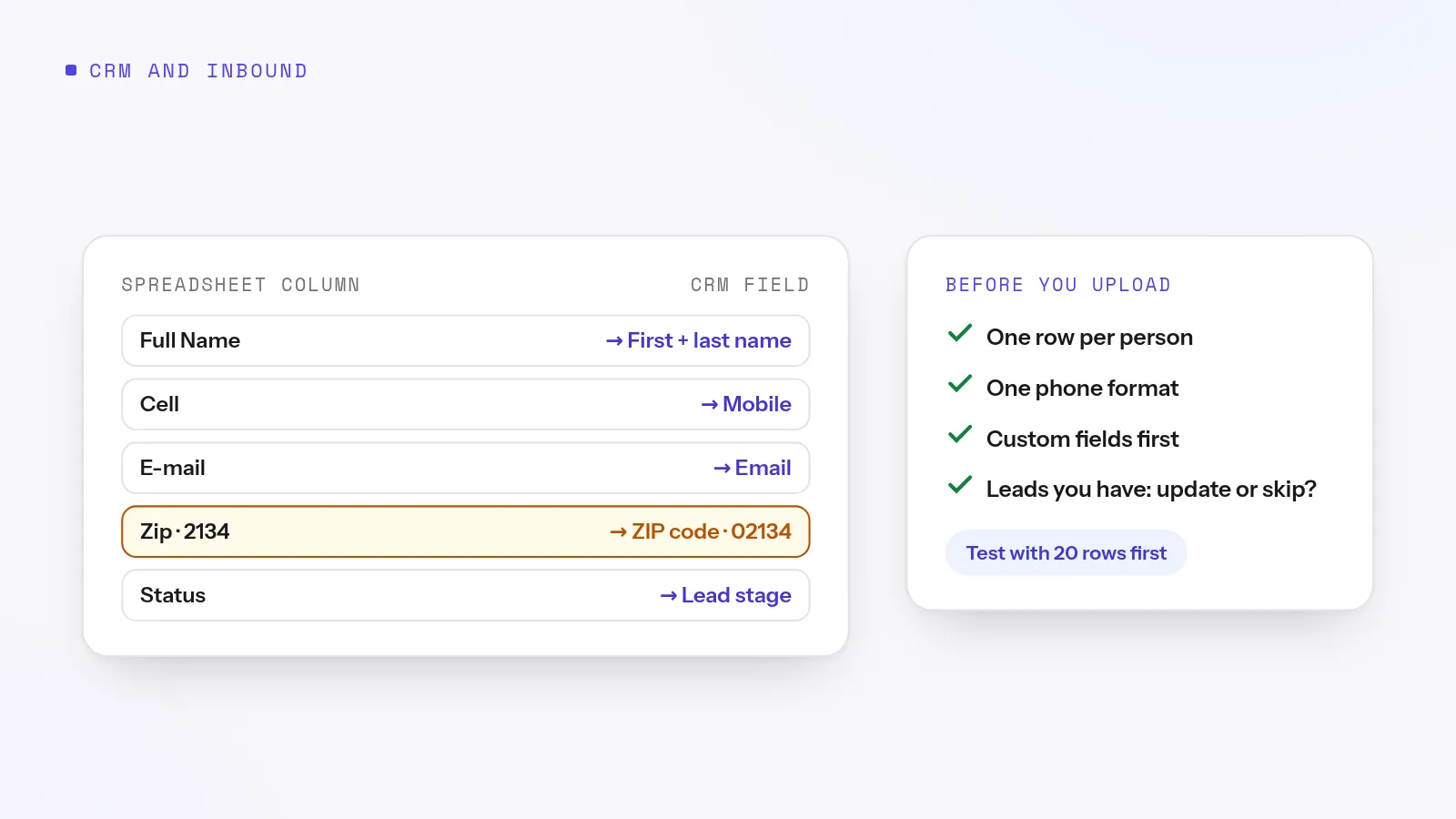
Test with 20 rows. Check every field on a few records before importing the rest.
Map columns to fields
Common spreadsheet header
CRM field
Watch out for
Name, Full Name
First name + last name
Split it before you upload
Phone, Cell, Mobile
Primary phone or mobile
Two number columns? Map both, to different fields
E-mail, Email Address
Email
Several addresses in one cell
Zip, Postal
ZIP code
Spreadsheets drop leading zeros, so 02134 becomes 2134
Status, Stage
Lead stage
Values must match your stage names
Roof type, Policy type
A custom field
Create it with the right type first
Try it on your own numbers. Adoptiv puts the dialer, the phone system and the CRM in one tool. Fourteen days free, with the AI switched on.
Read the error report and fix the rejected rows; don't just delete them.
Spot-check ten records against the spreadsheet.
Screen numbers before anyone dials a purchased or aged list.
Assign the leads and tell reps where to find them, for example with a saved view.
How Adoptiv does it
Adoptiv's bulk import takes CSV files and Excel workbooks with no row limit, only a cap on file size. Headers are matched to 68 standard fields and your own custom fields by name, label or alias, and you set any column left over before a row is written. The import runs in the background, 500 rows at a time. A stopped CSV run picks up where it was, while an Excel workbook starts again from row one.
Each row needs a first and a last name. Rows without them are set aside, and the first 2,000 are listed with the reason in a file that keeps your original columns. Every batch is checked for duplicates by email, then phone. You choose Skip (the default), Update or Add anyway. Update writes every filled cell, never blanks a value because a cell is empty, and leaves tags and owner alone. You pick the owner and tags for the whole run. When an import finishes, its numbers are queued for screening against the federal Do Not Call registry and the known-litigator list, billed per lookup, and the answer is saved on each lead.
Common questions
What file format should I use to import leads?+
CSV is the safest. Excel works in most CRMs too, including Adoptiv. Save one sheet per import.
How do I avoid duplicates when importing leads?+
Remove duplicates inside the file first, then let the CRM match against existing leads by email and phone, and choose to skip matches.
Will importing overwrite my existing data?+
Only if you choose to update matches. In Adoptiv, an update writes filled cells but never blanks a value, and never changes tags or owner.
Why were some rows rejected?+
Usually a missing required field, such as a first or last name. Check the error report, fix the rows and import them again.
Adoptiv is the dialer, the CRM and the AI on one platform, where the busywork logs itself and your reps just talk. Try it free for 14 days, with no credit card.
Questions? Call +1 (844) 955-7733. SIYA answers and puts you through to a person.